Skip to content

Admin tour

Inside the admin: every screen, as it really runs

Each clip is a short recording of the real WordPress admin on a demo for a fictional client, Harborline Systems. They are in the order of the sidebar, then what the plugins add to the page editor and to your site. No mockups, and the texts are in Test mode, so nothing was sent.

Work

Overview

The first screen. Pick a date range and see conversations, leads, bookings and cost per lead, the funnel, the latest leads, and anyone waiting for a person.
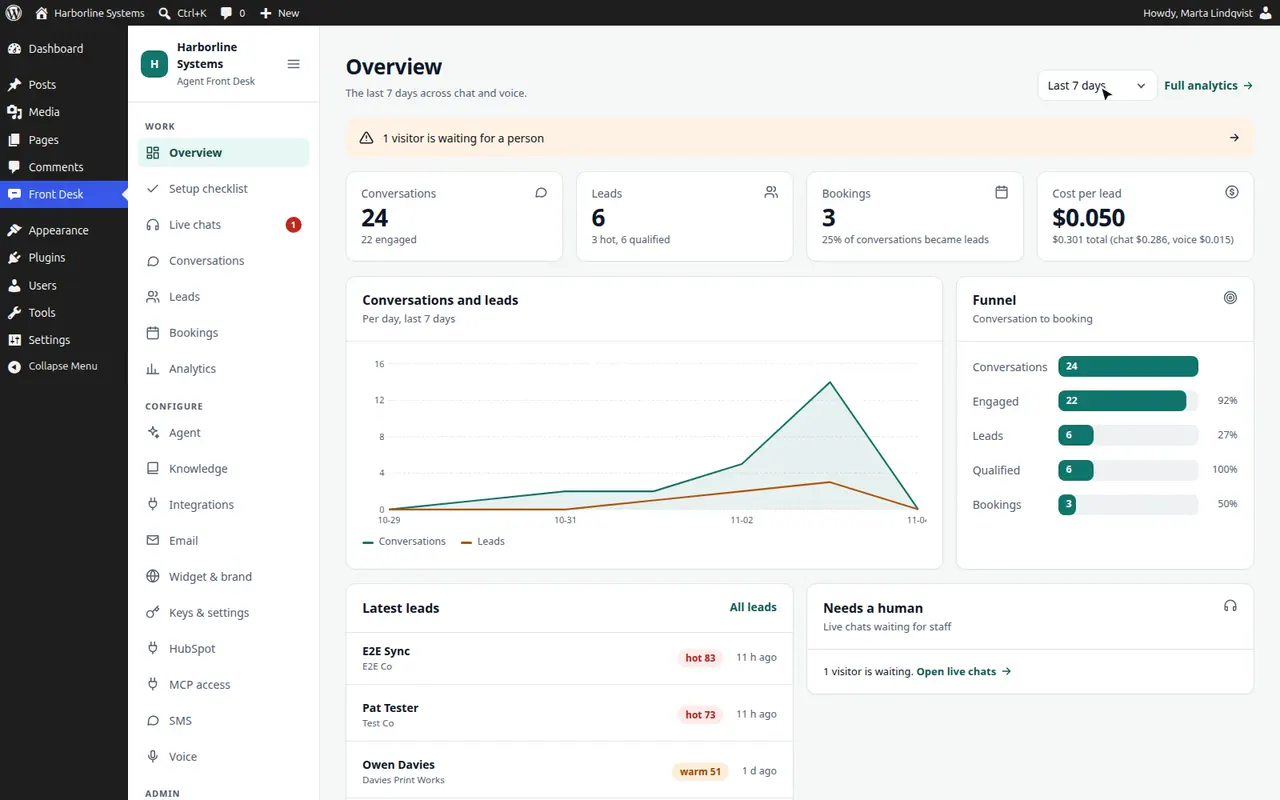
Overview shows the period you choose: conversations, leads, bookings, cost per lead, a funnel, the latest leads and who needs a person.

Setup checklist

Every piece of configuration in one place, from the Plugins screen: what is done, what is missing and what is optional, each with a link.
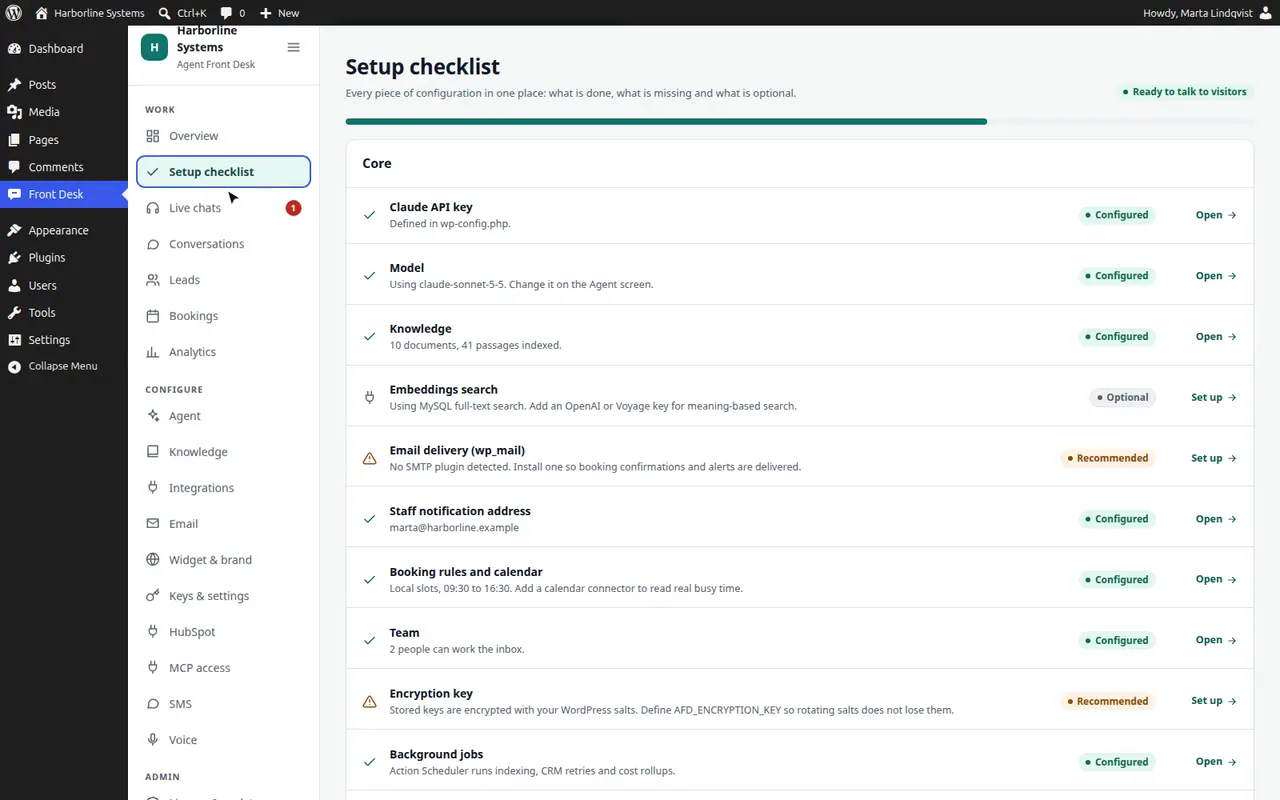
From the Plugins screen to the Setup checklist: what is configured, what is missing and what is optional, each with a link to fix it.

Live chats

Chats and texts where a person was asked for. Take over, reply, hand back to the assistant, or close the conversation. The sidebar badge counts who is waiting.
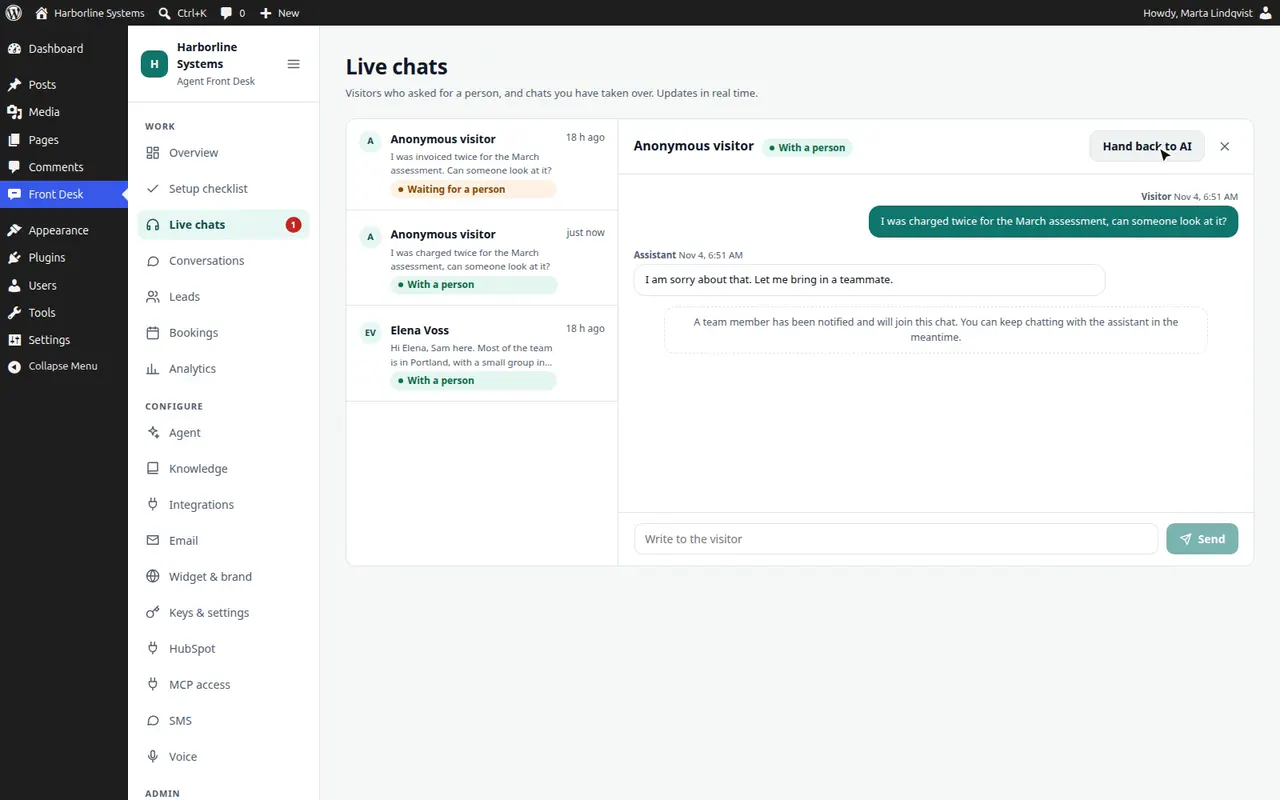
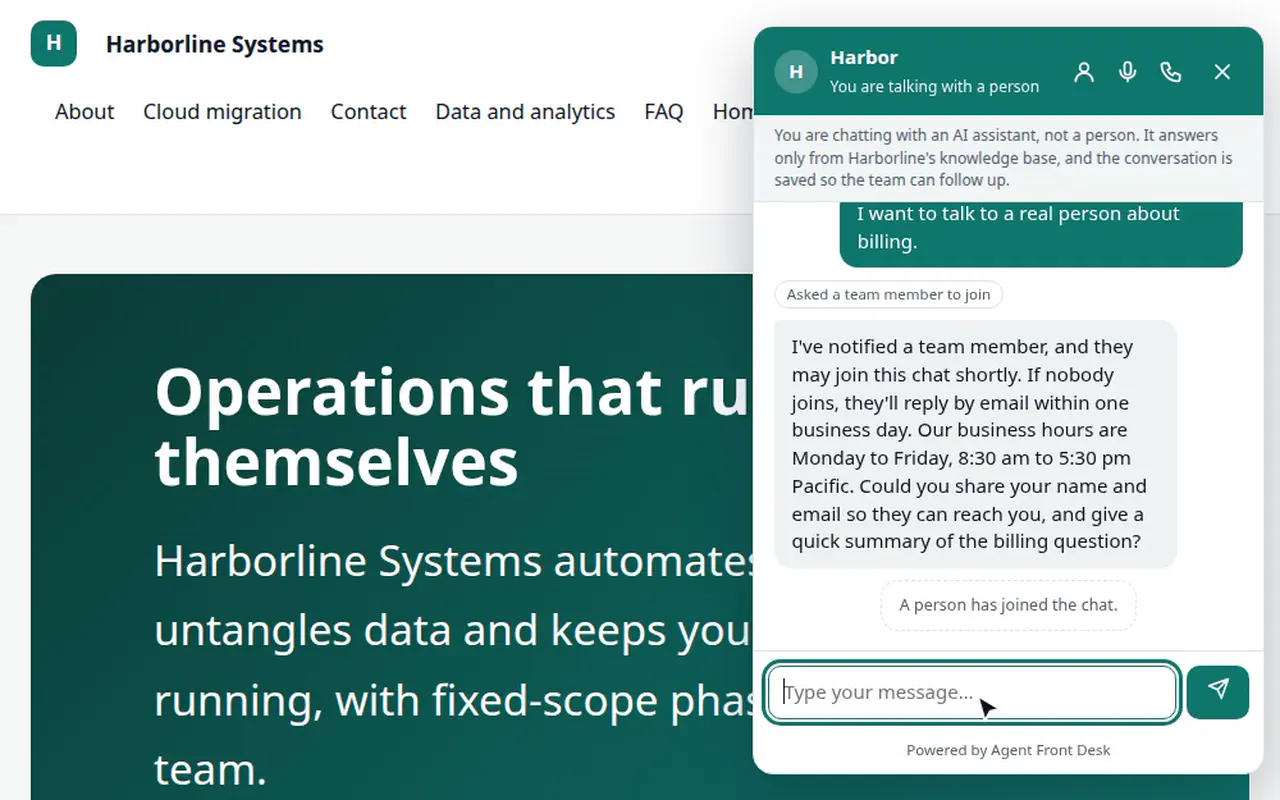
Take over a waiting chat, reply, hand back to the assistant, or close the conversation.
A visitor asks for a person, staff take over in Live chats, and the visitor sees the reply.

Conversations

Every chat, voice call, phone call, callback request and text thread, with its cost. Search, filter by channel, and open the transcript. A phone call opens with its call replay.
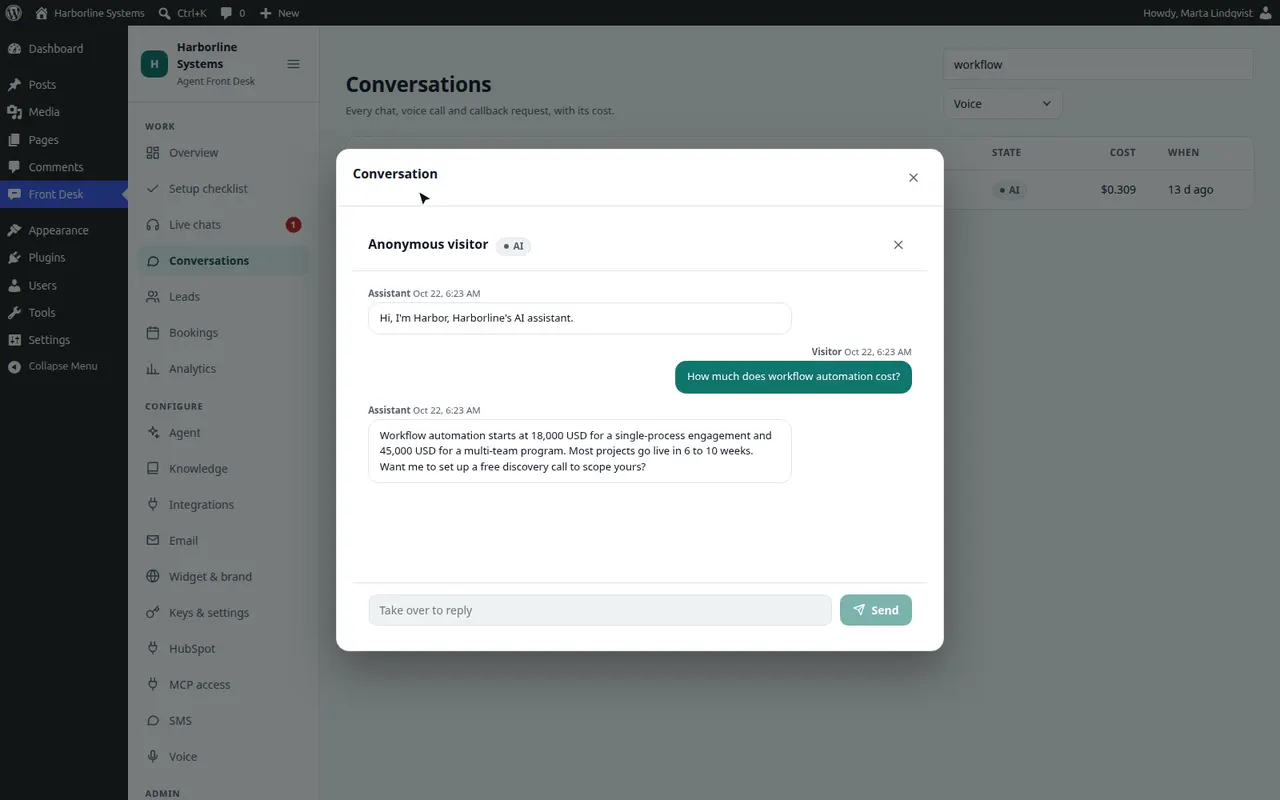
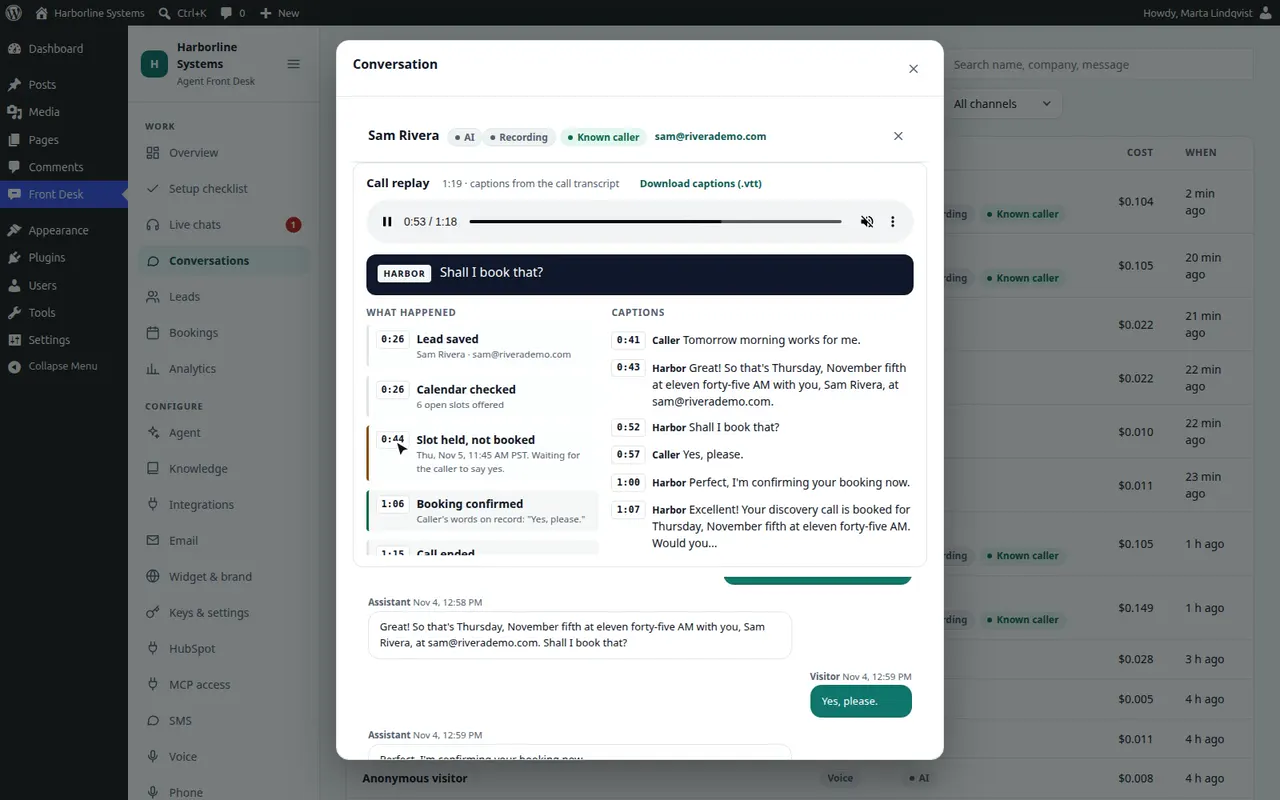
Search every conversation, filter by channel, and open the full transcript with its cost.
Every phone call opens with a replay: the recording, captions labeled Caller and Harbor, and a timeline of what the assistant did.

Leads

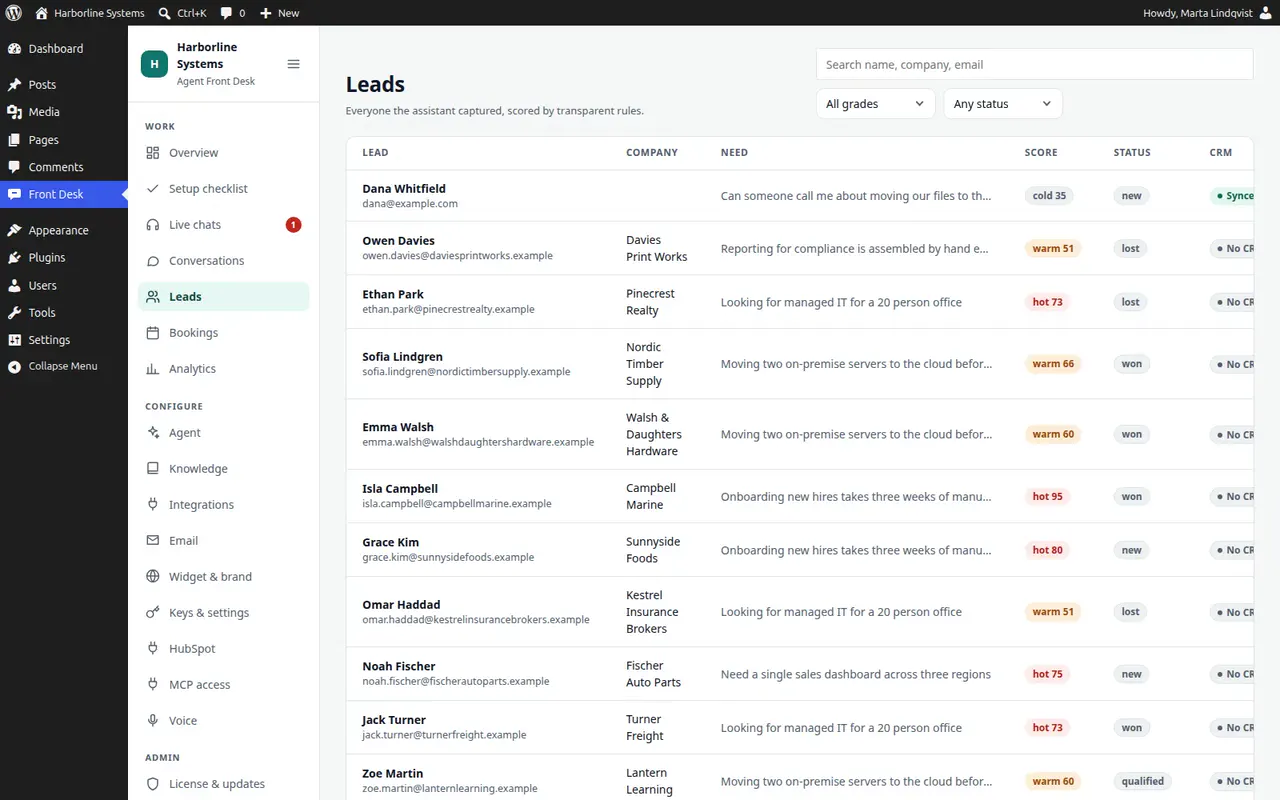
Everyone the assistant captured, scored by transparent rules. Filter, search, open a lead for the score breakdown, set a status, add notes, and sync it to your CRM.
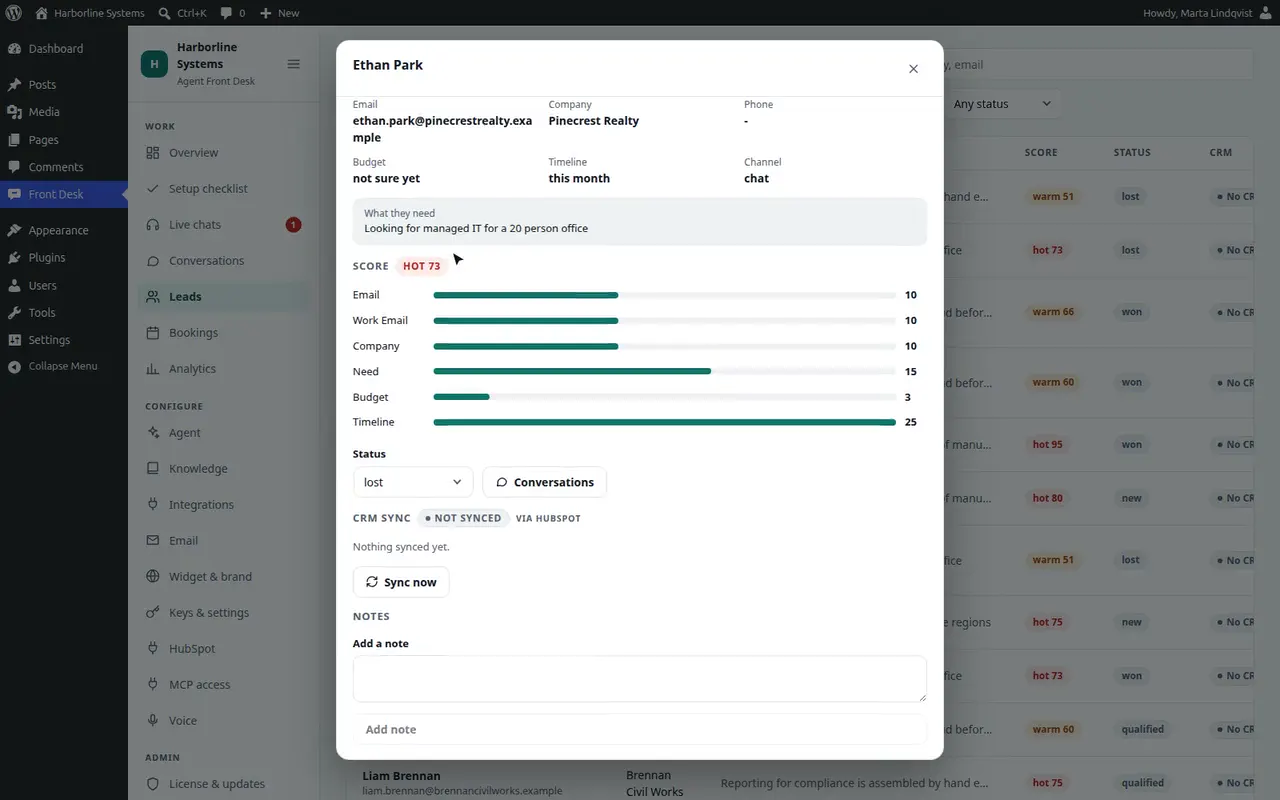
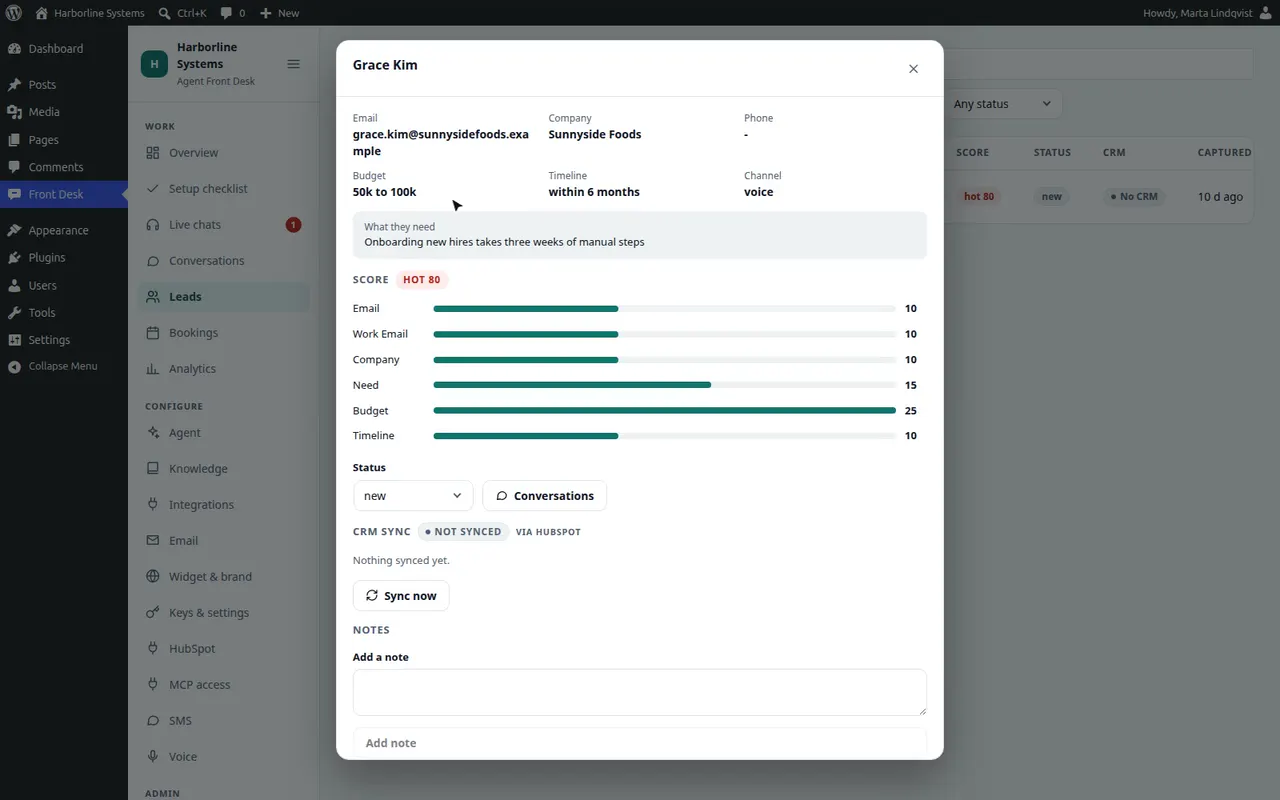
Every lead carries a score, and opening it shows the points behind the grade.
Filter and search leads, set a status, add a note, jump to the conversation, and sync a lead to HubSpot.

Bookings

Calls the assistant booked, each confirmed by the visitor first. See upcoming or all bookings, and cancel one.
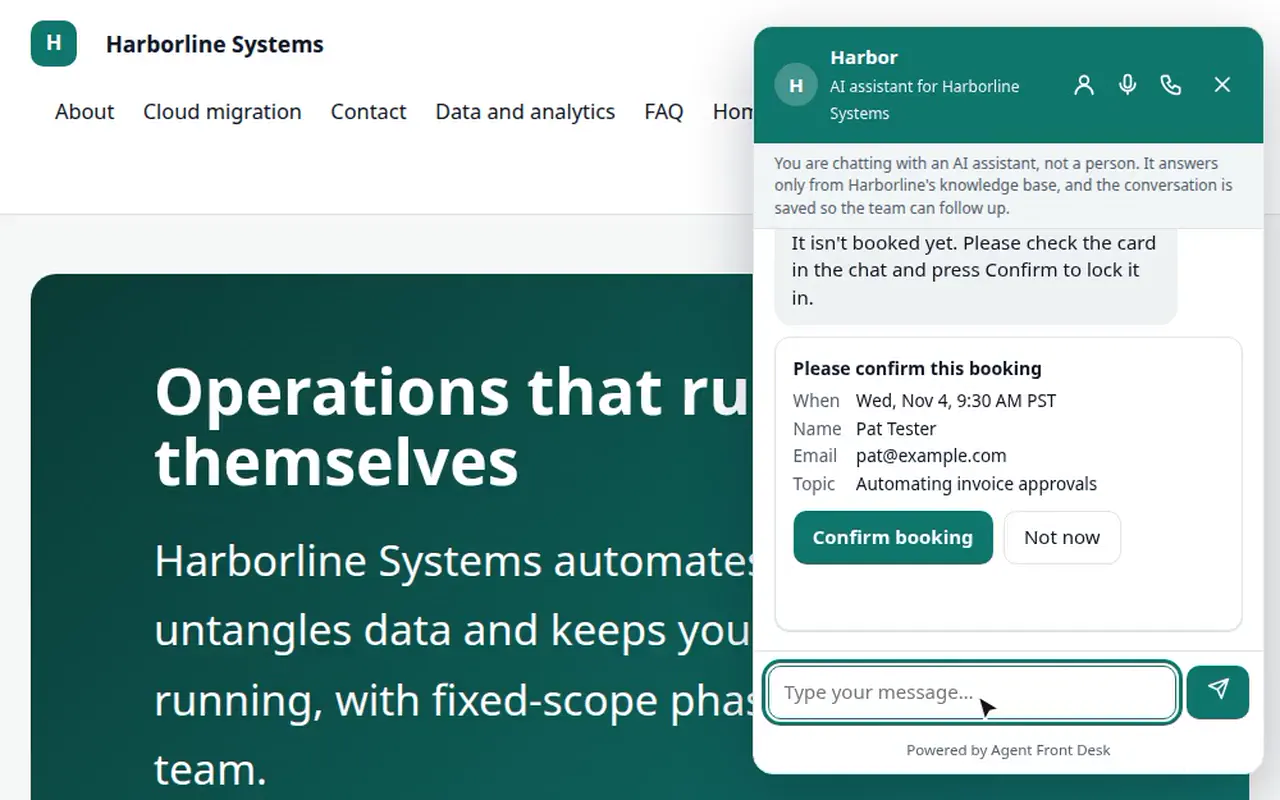
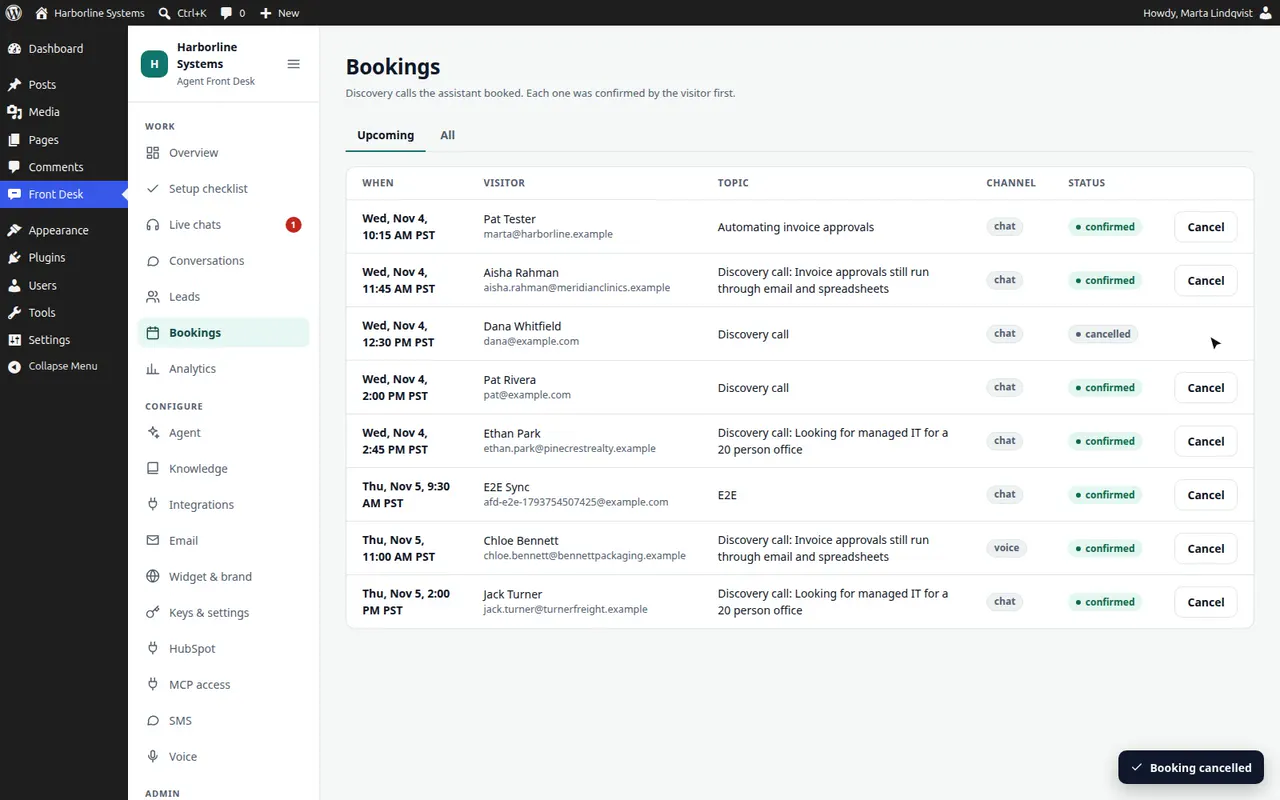
The assistant proposes a time, nothing is booked until the visitor presses Confirm, then it appears under Bookings.
Bookings lists upcoming and past calls, and any booking can be cancelled.

Analytics

The funnel, volume, channels, what visitors ask, knowledge gaps, and what each lead and booking cost. Switch between 7, 28 and 90 days.
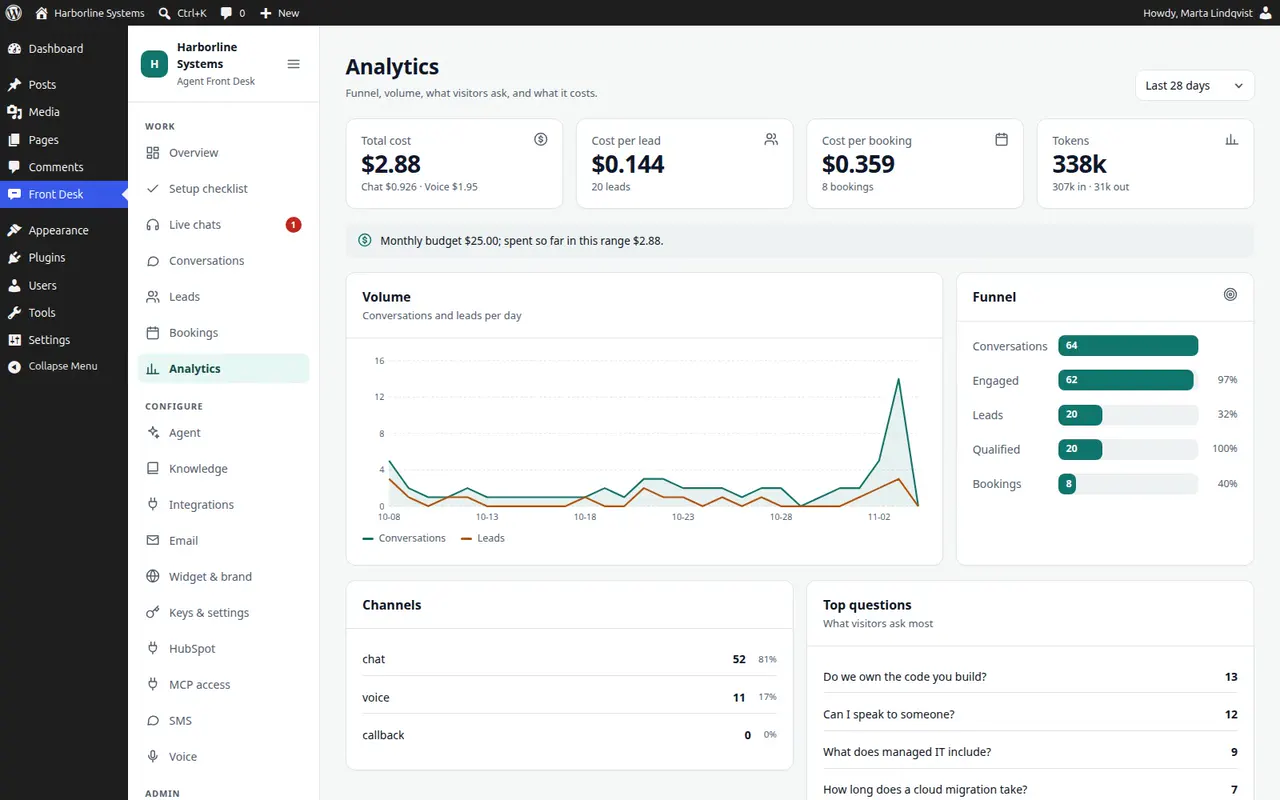
Cost per lead and per booking, the funnel, the channels and the questions visitors ask most.

Configure

Agent

Who the assistant is, what it may talk about, and when it can book calls: persona, guardrails, hours, model and booking rules.
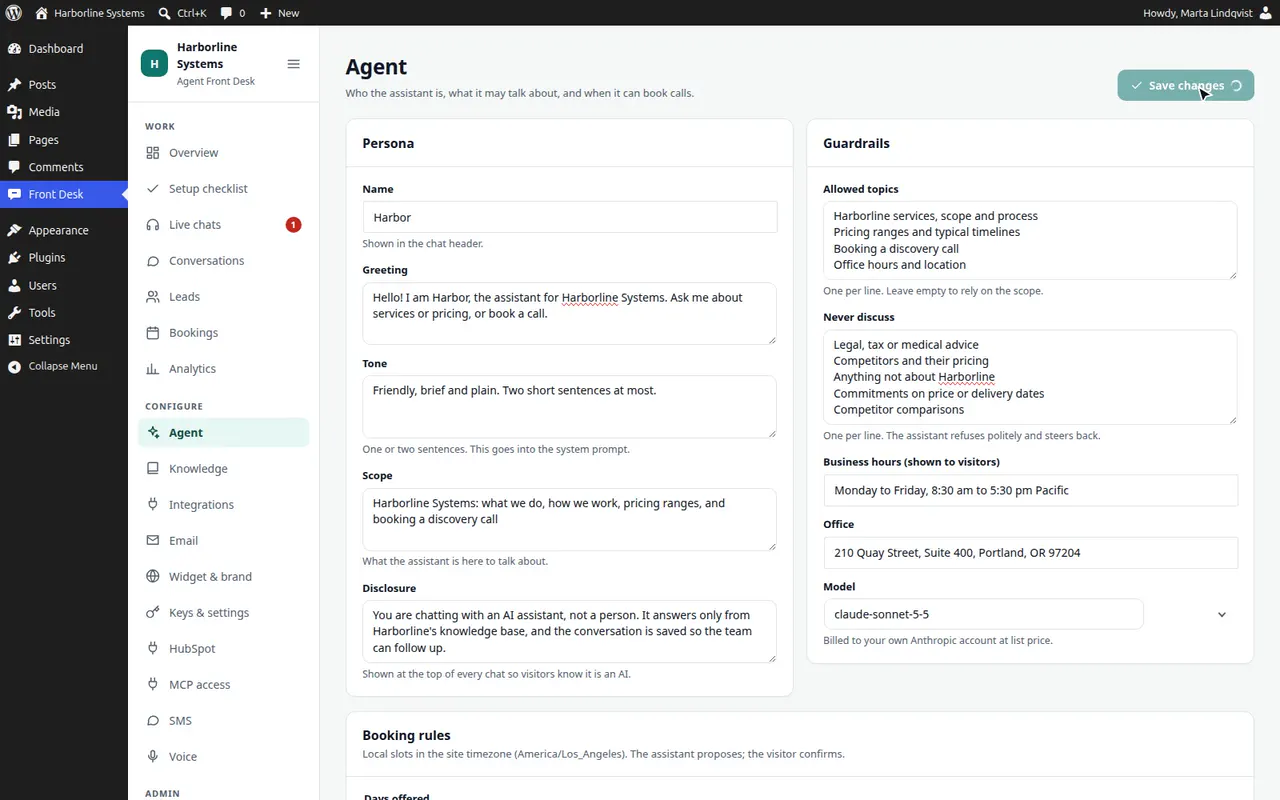
Set the persona, the guardrails and the booking rules, save, and the widget on the site uses them.

Knowledge

What the assistant knows: your own pages first, plus files, web pages and written answers. Switch pages off, see what it could not answer, test it, and choose how search works.
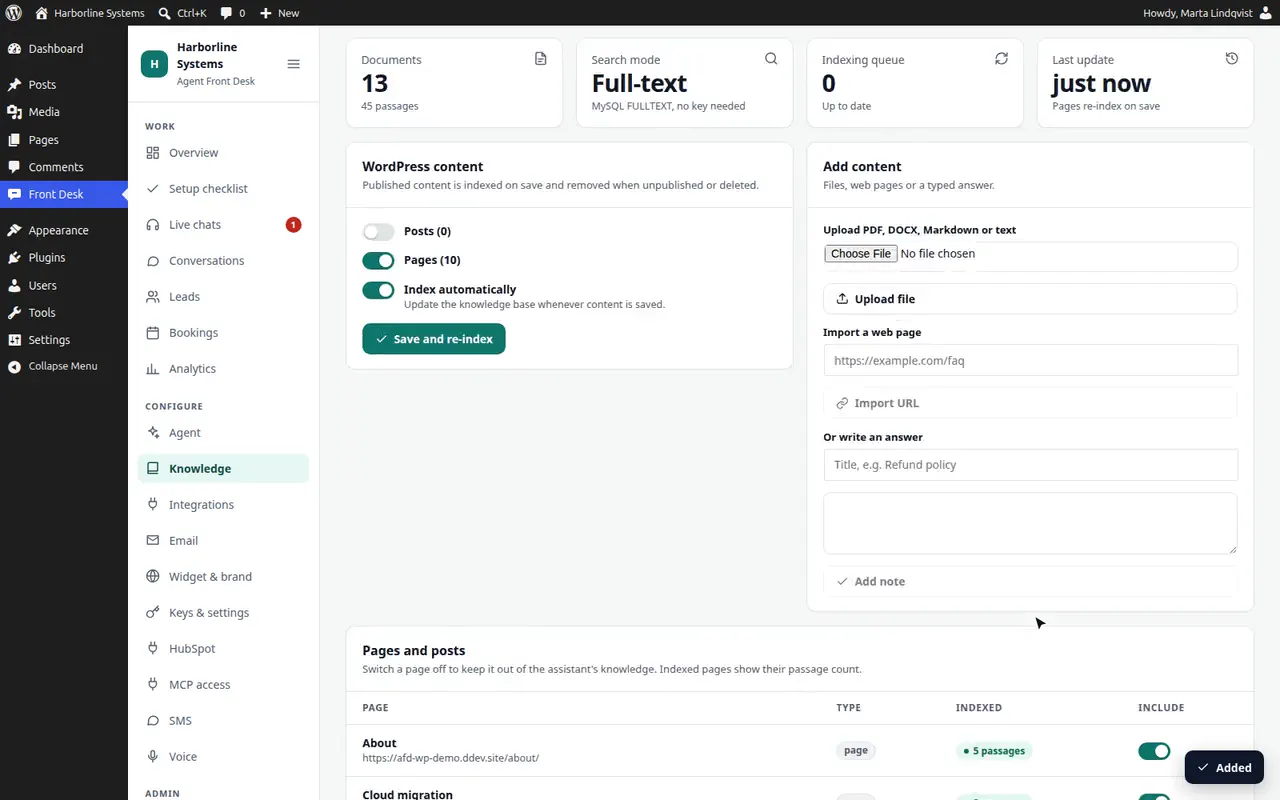
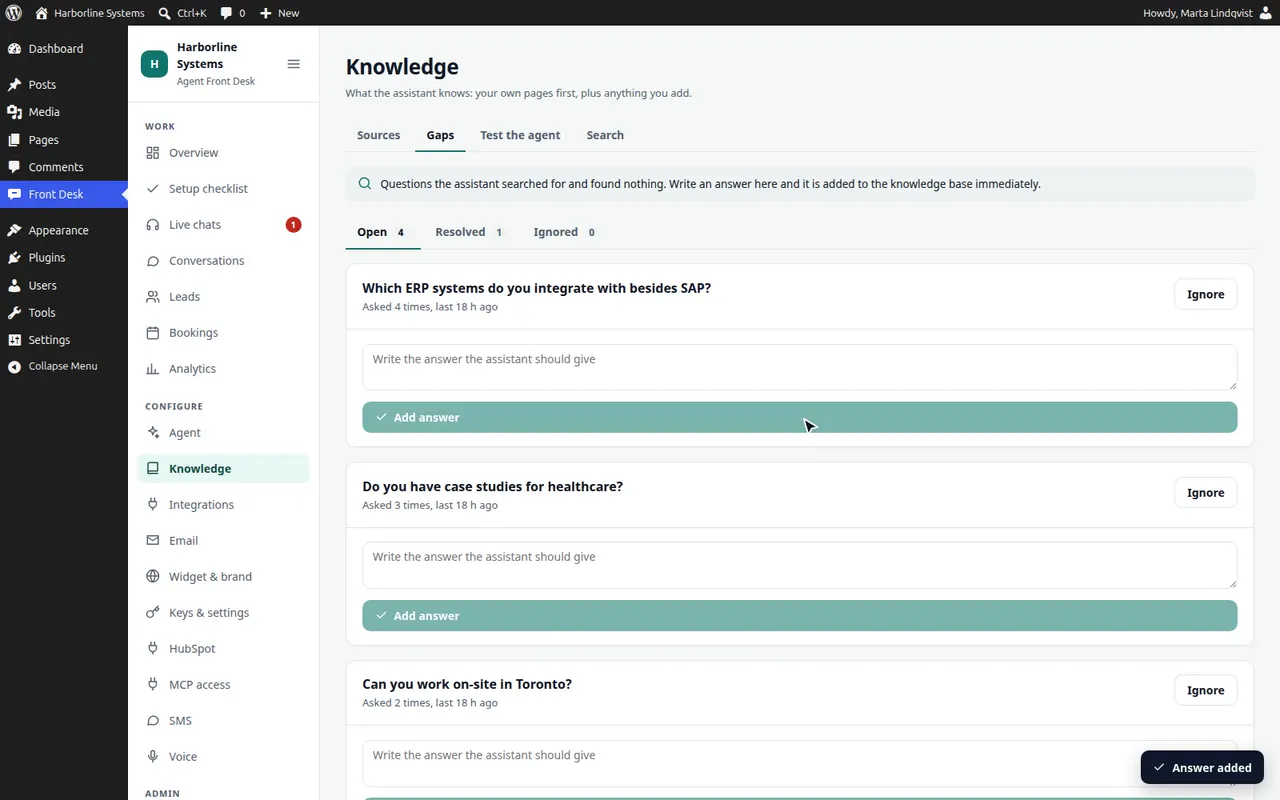
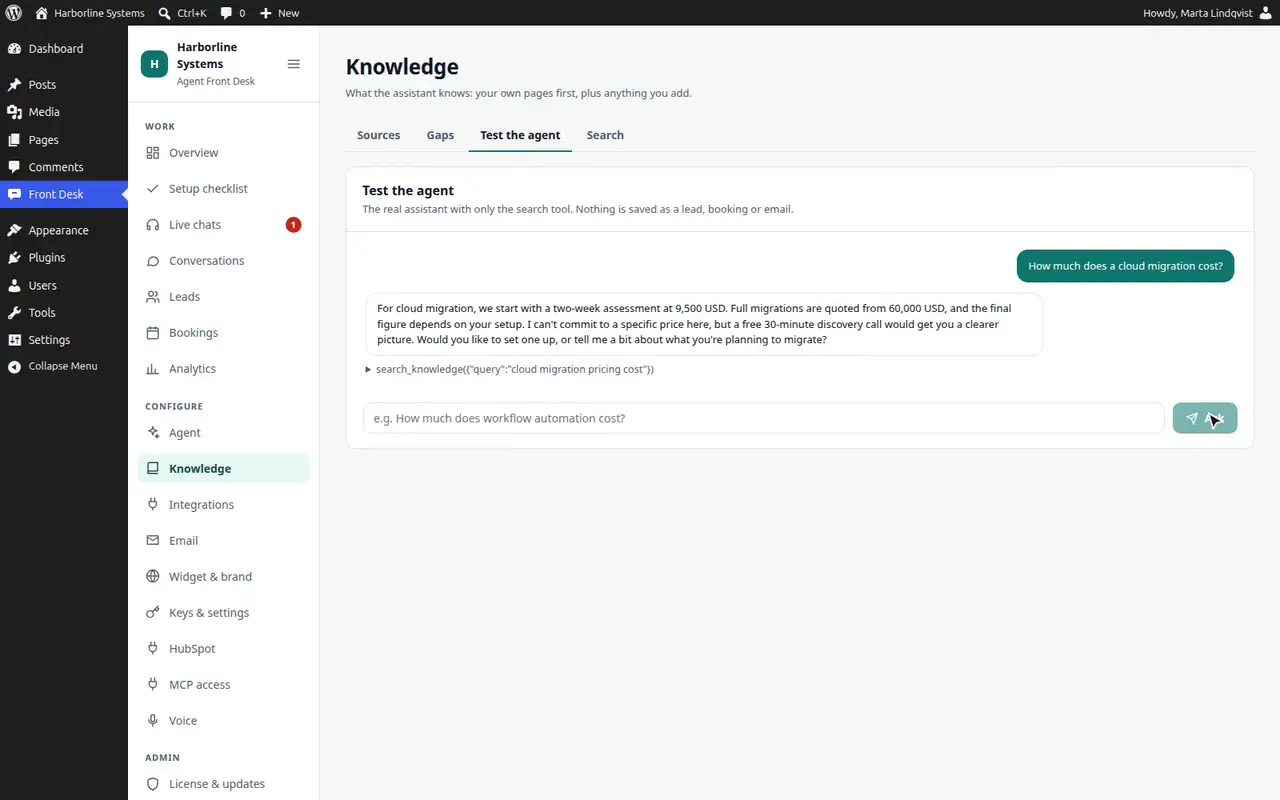
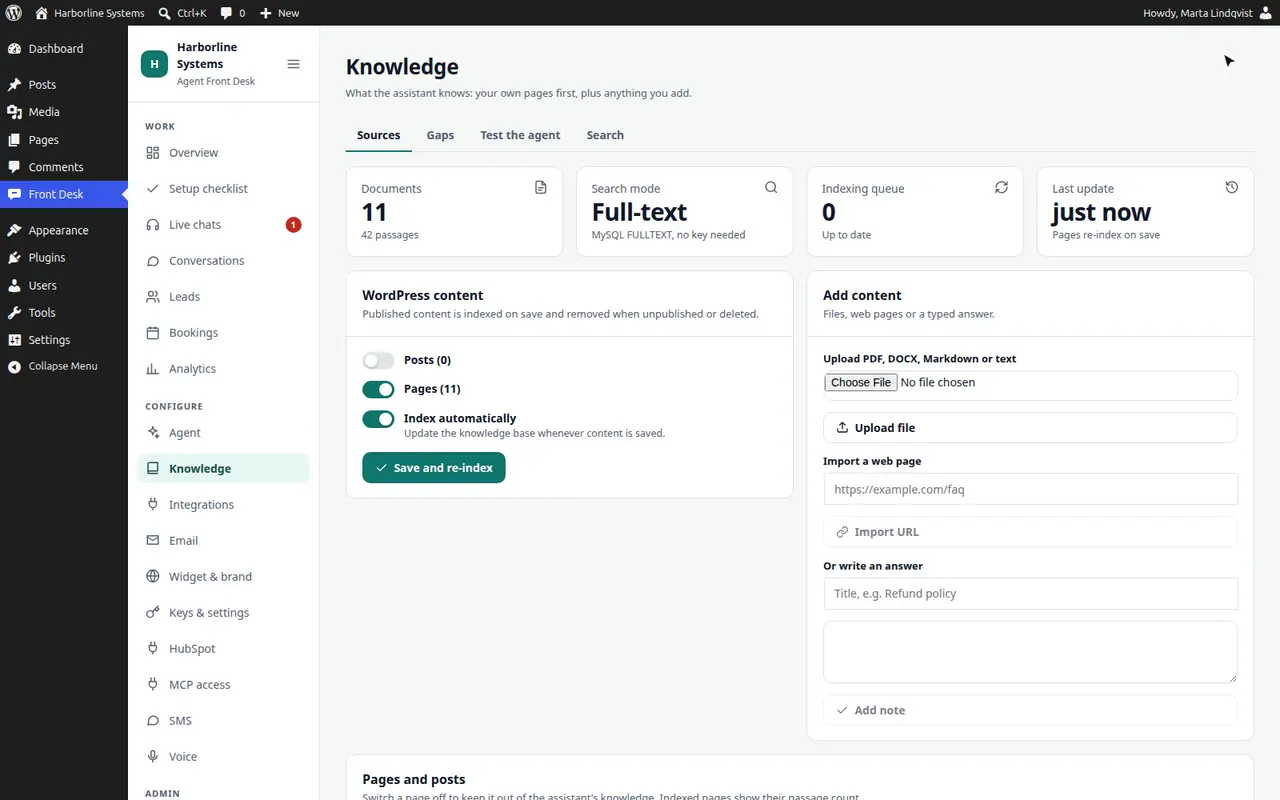
Re-index your pages, switch a page off, upload a file, import a web page or write an answer, then test the assistant on it.
Questions the assistant could not answer are listed. Write the answer, or ignore the question, and test the result.
The test playground answers a question from the knowledge base without creating a lead or sending an email.
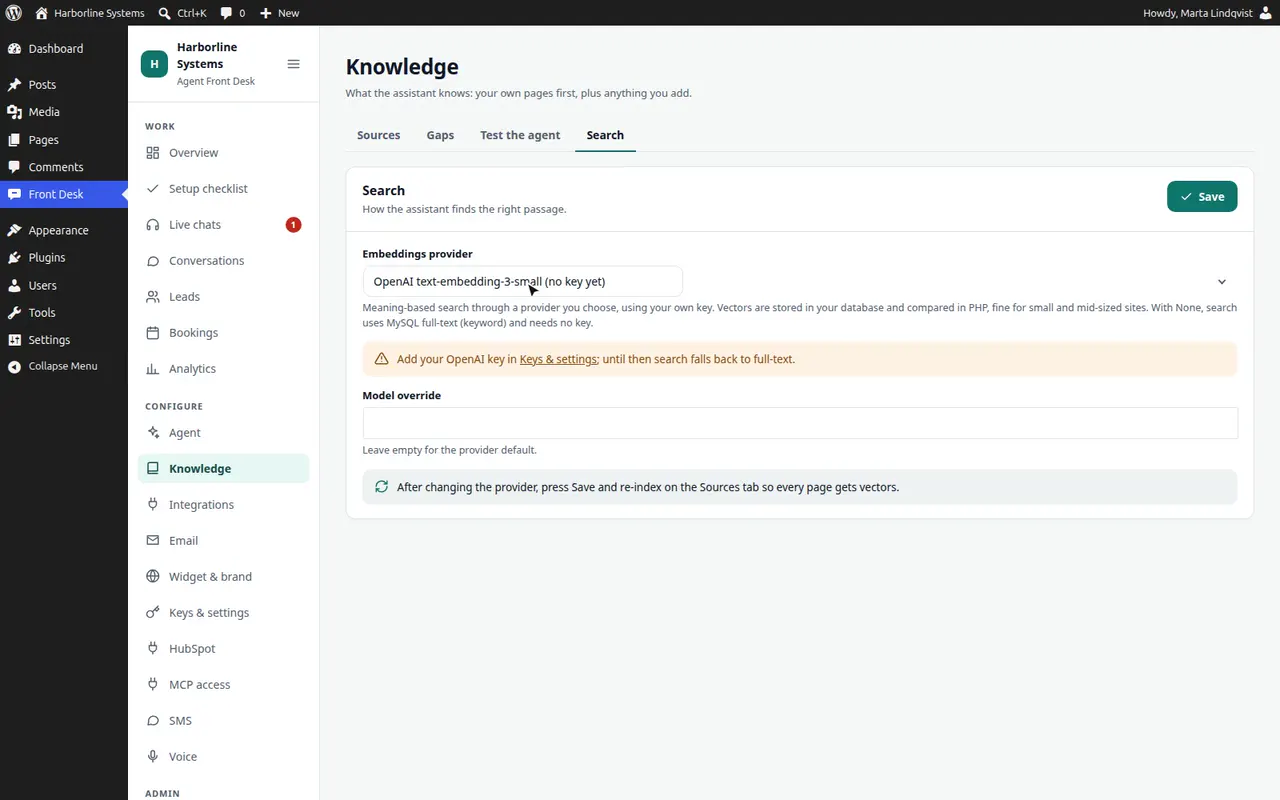
Search uses MySQL full-text by default. Pick OpenAI or Voyage for meaning-based search, with your own key.
Publish a page and it is indexed within seconds, so the chat can answer from it right away.

Integrations

The CRM connector and each add-on in one place, with a link into each add-on’s own settings.
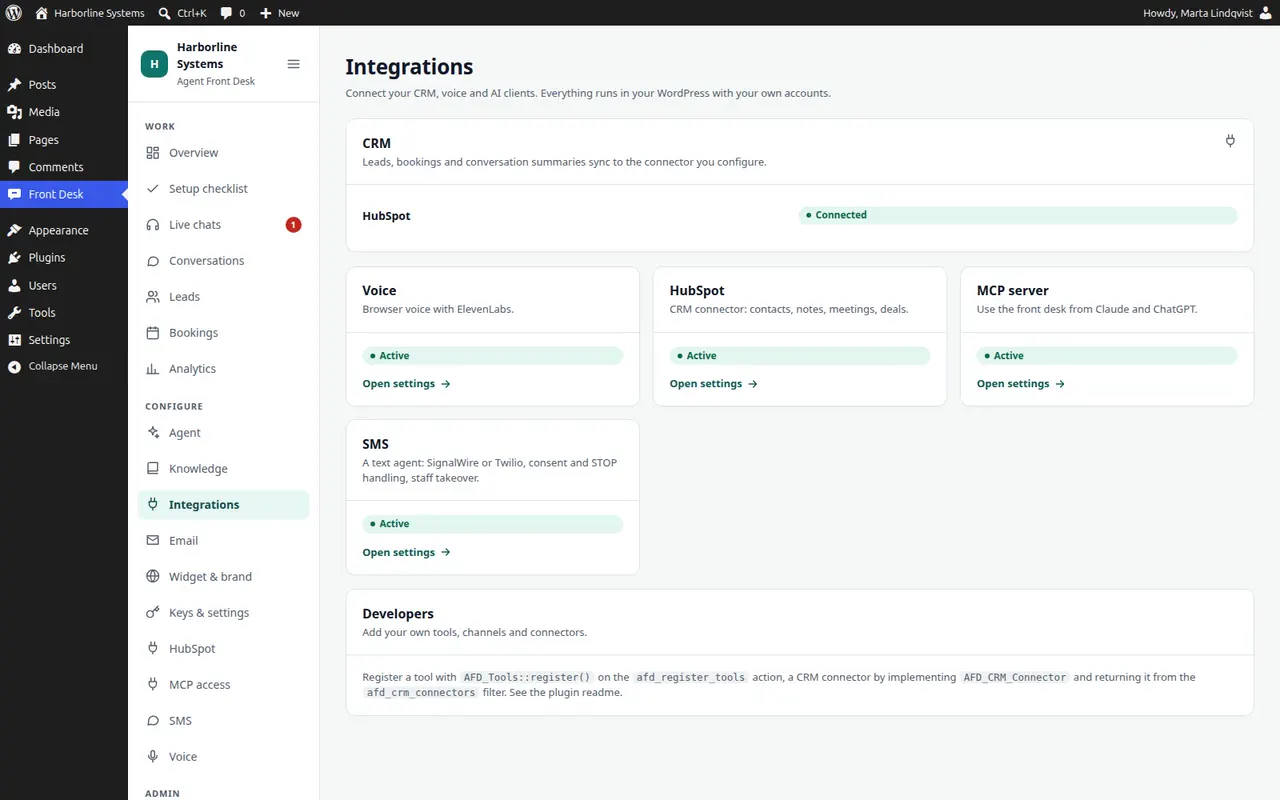
Integrations shows the CRM connector and each add-on, and opens the add-on's own settings.

Email

Who is told about handovers and hot leads, the email templates, the sandbox allowlist for testing, and a log of every email sent or blocked.
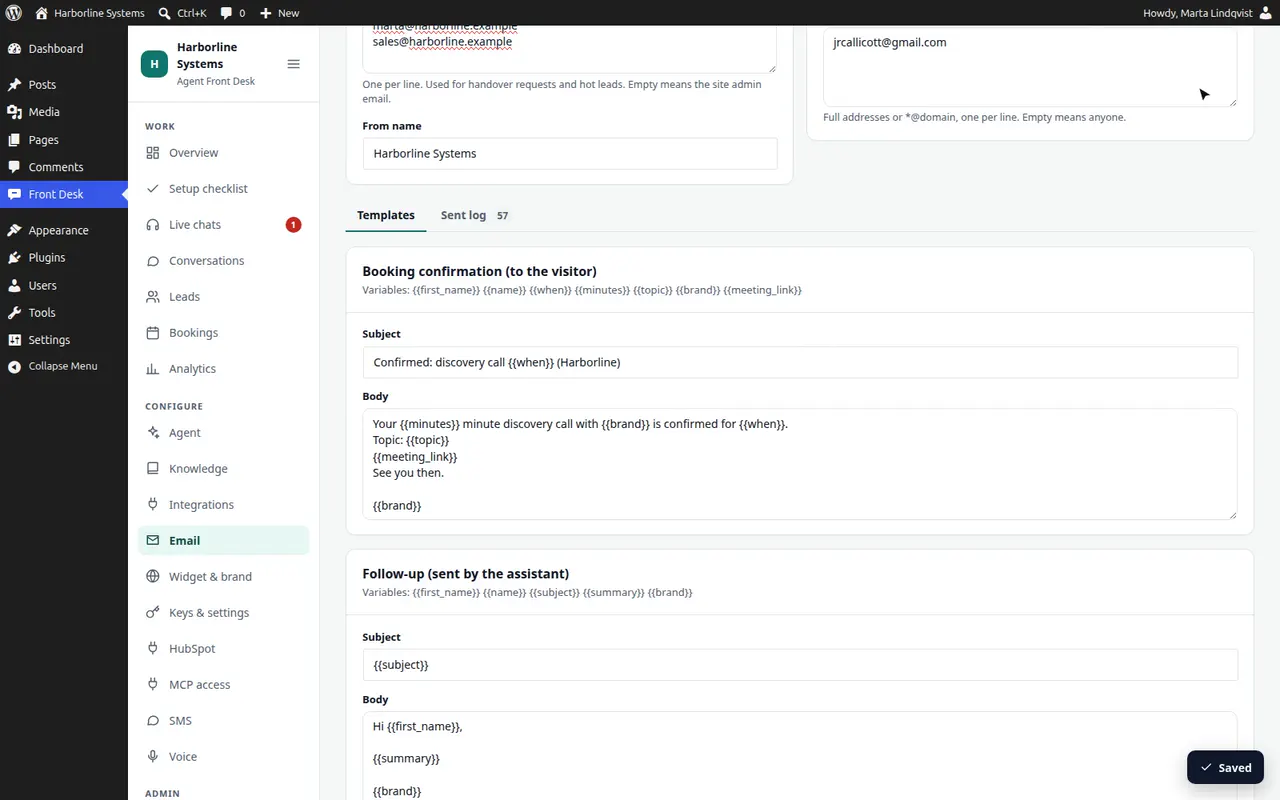
Choose who is notified, edit the email templates, and check the Sent log, where blocked and sent emails are listed.

Widget & brand

How the assistant appears on your site: launcher label, position, brand color, and the callback, voice and streaming options.
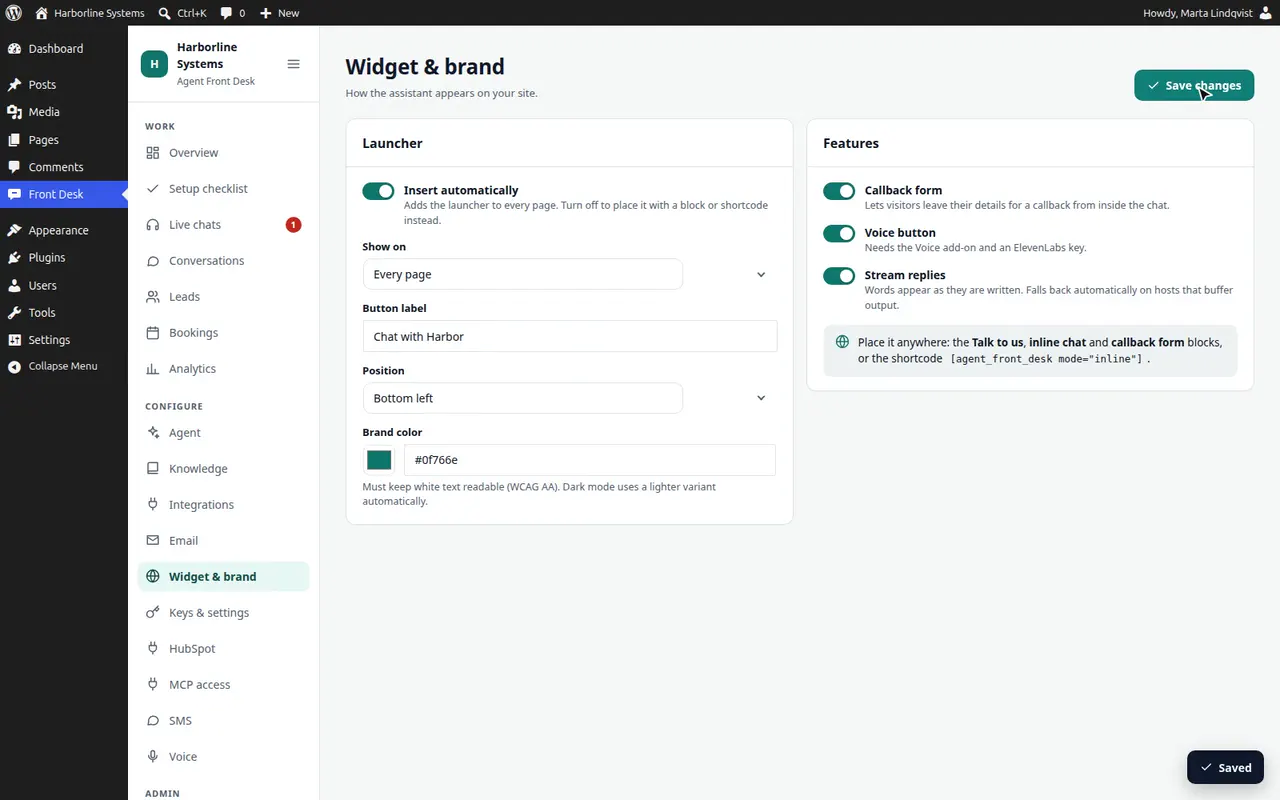
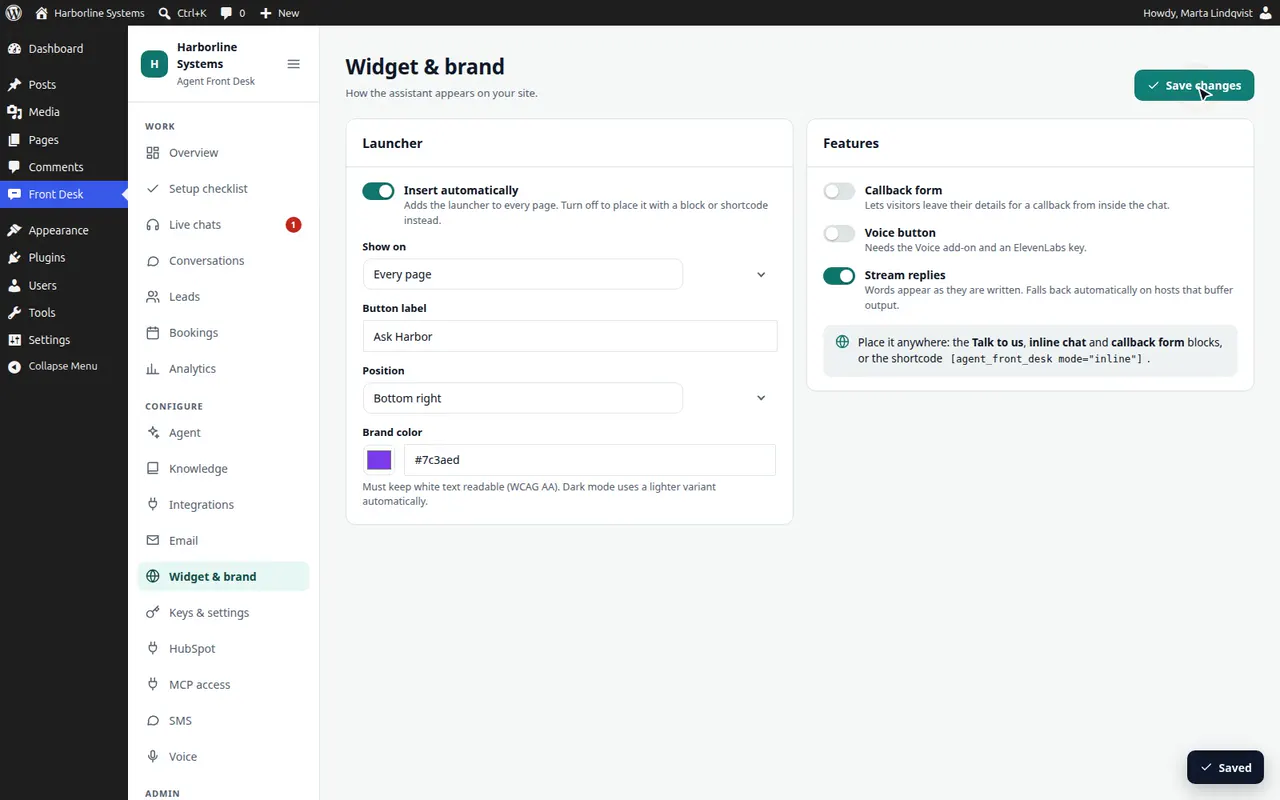
Change the launcher label and position, save, and the widget on the site follows.
Change the brand color and the callback, voice and streaming options, and the widget on the site follows.

Keys & settings

Your keys and your accounts. Keys are stored encrypted or read from wp-config.php, and there is a monthly budget and a keep-data choice.
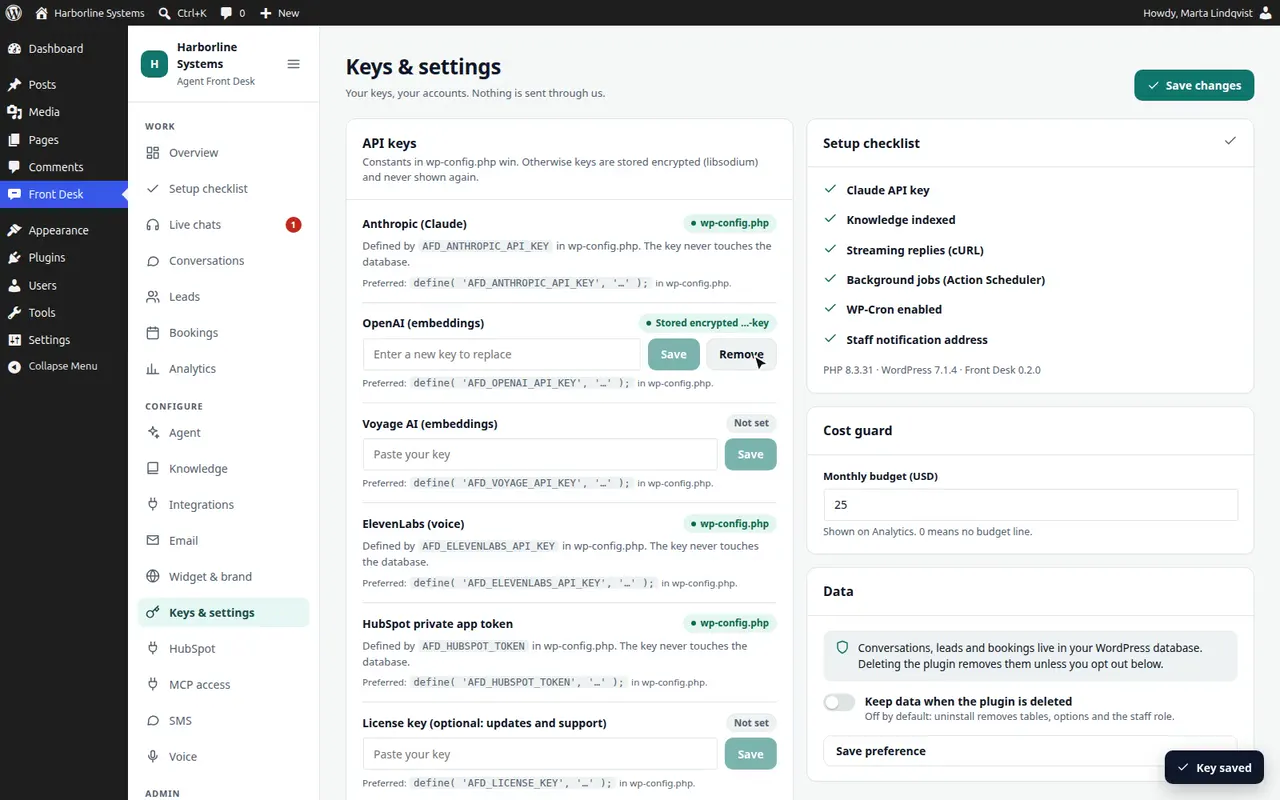
Keys are stored encrypted, or read from wp-config.php. Set a monthly budget and decide whether data stays when the plugin is deleted.

HubSpot

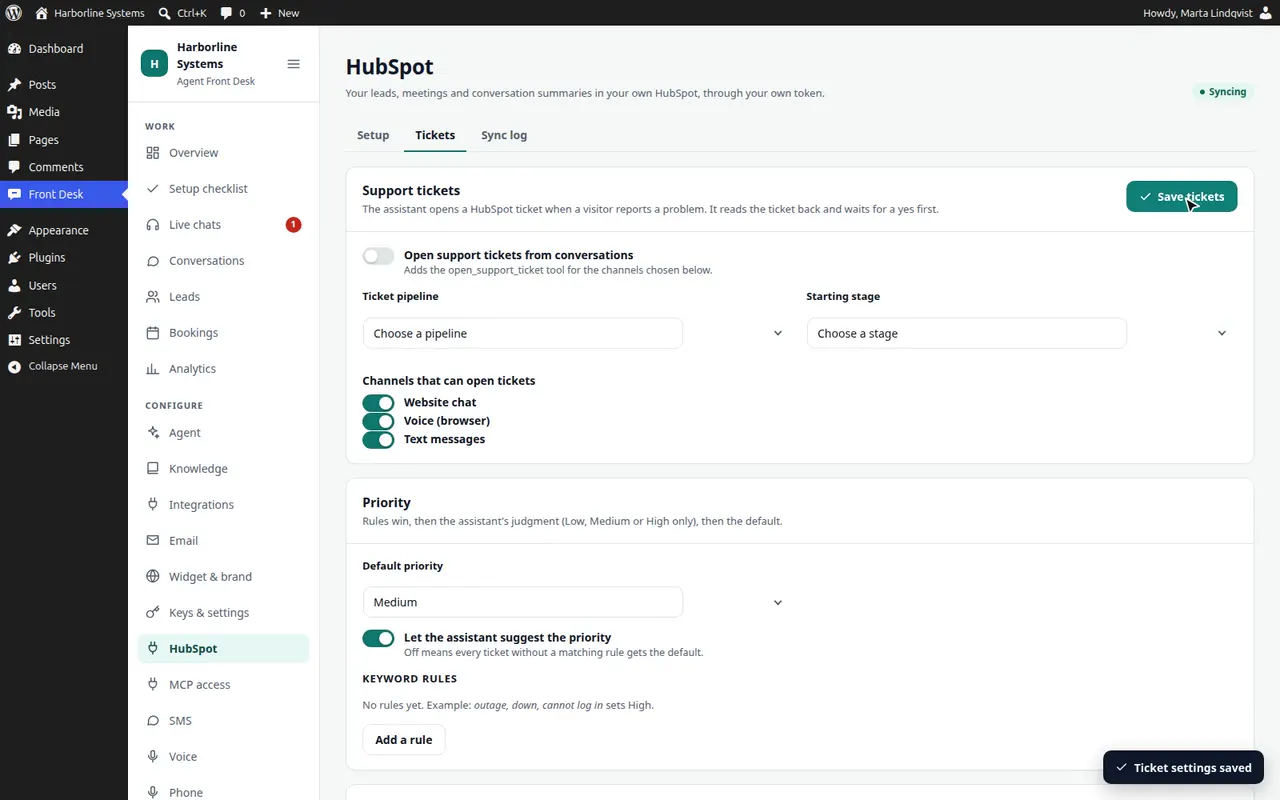
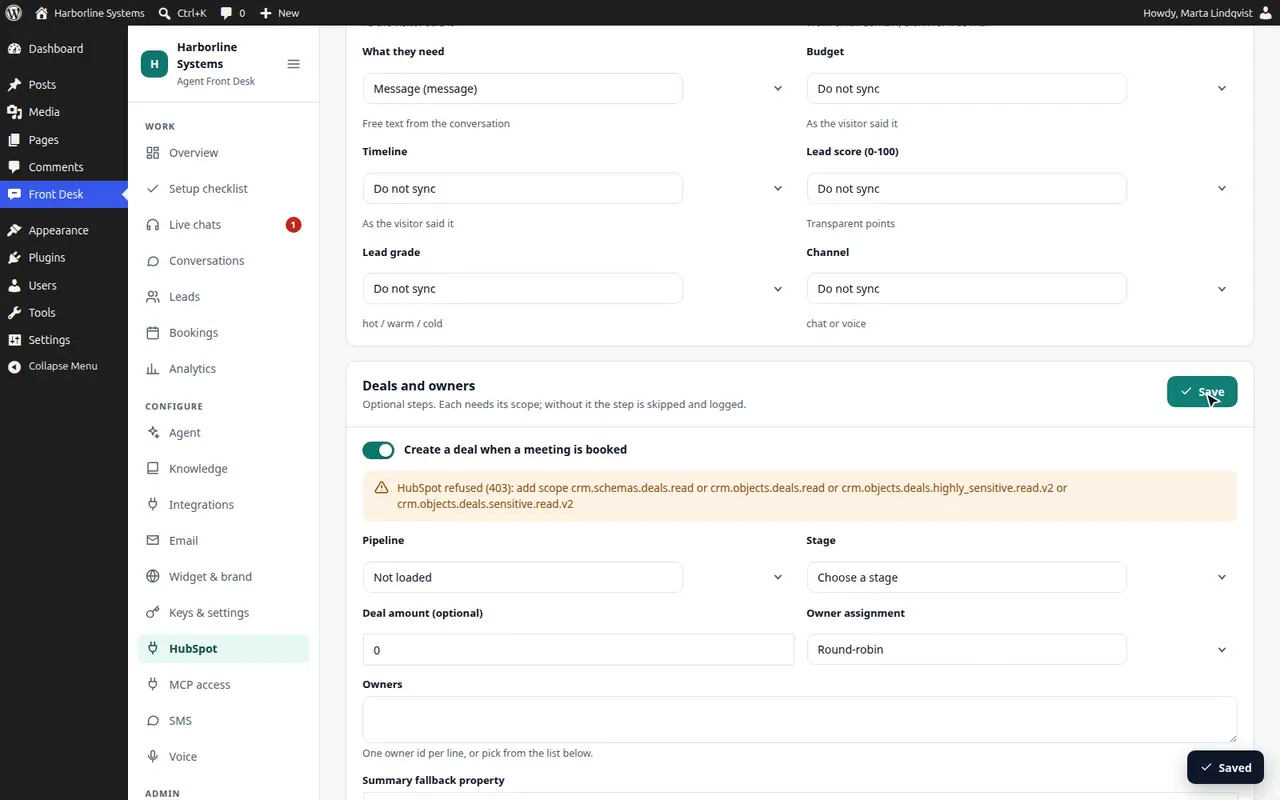
Connect with a private app token, test the connection, map fields, set deals and owners, and read the sync log. The Tickets tab turns on support tickets: pipeline and stage from your HubSpot, priority rules, channels, the handover fallback and the status lookup.
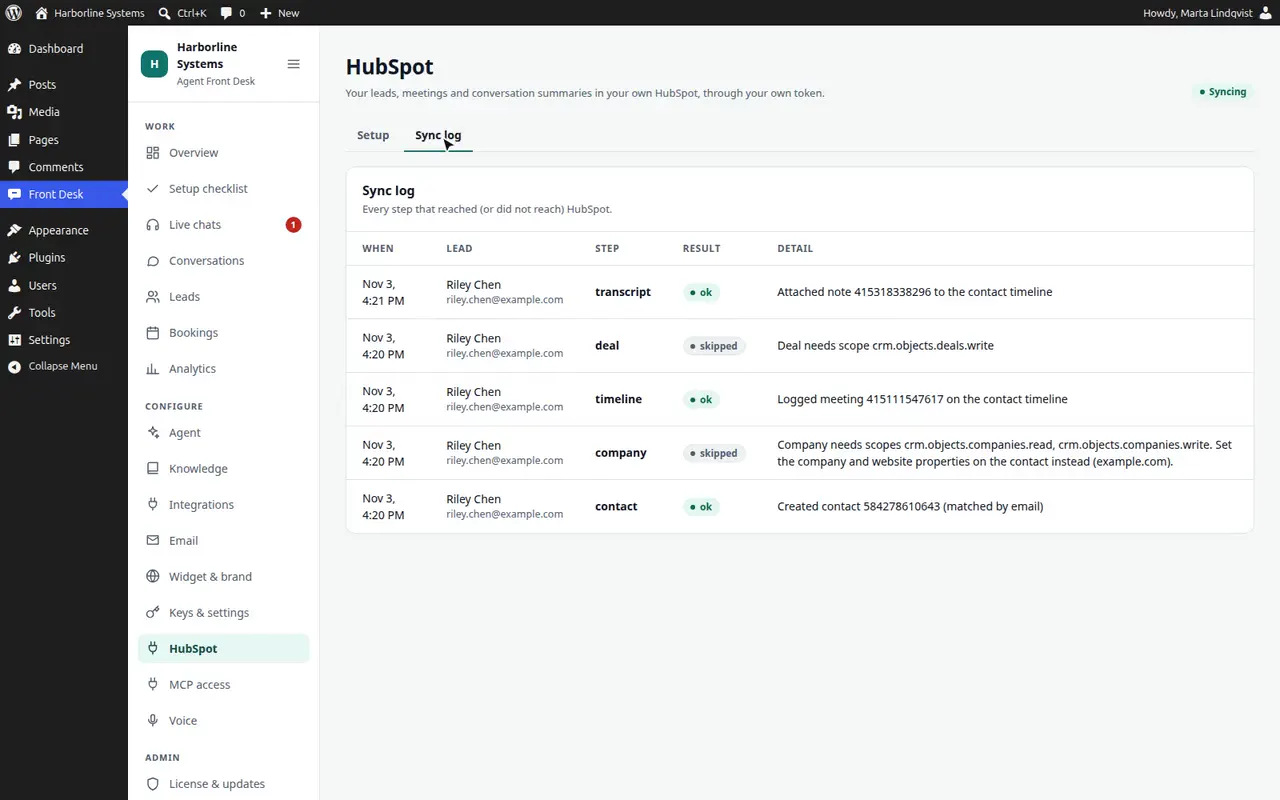
Test the HubSpot connection, then see every sync step for a lead in the log.
Map lead fields to your HubSpot properties, choose deals, pipeline and owners, and save.
Pick the ticket pipeline and stage from your own HubSpot, set priority rules and channels, and turn on the handover fallback and status lookup.
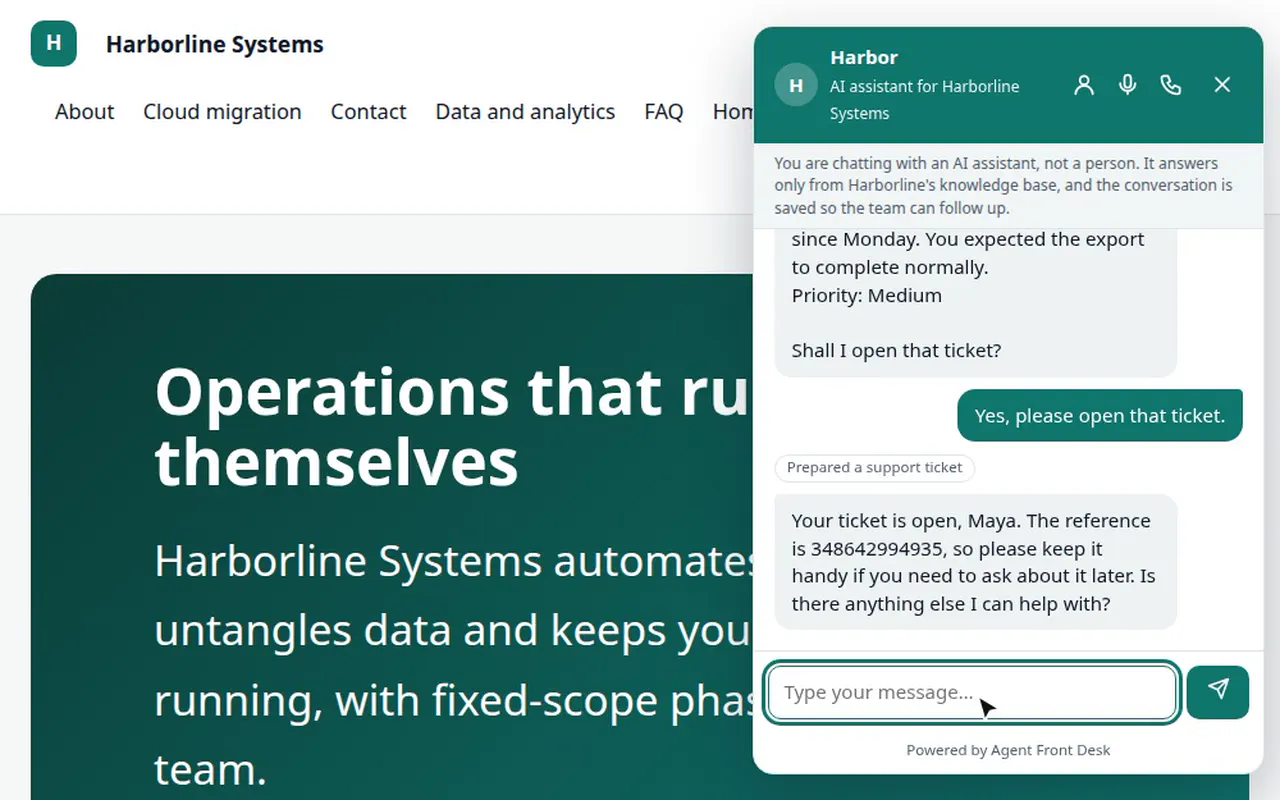
A visitor reports a problem. The assistant reads the ticket back and asks first, files it only after a yes, and gives the reference. Conversations then shows the ticket.
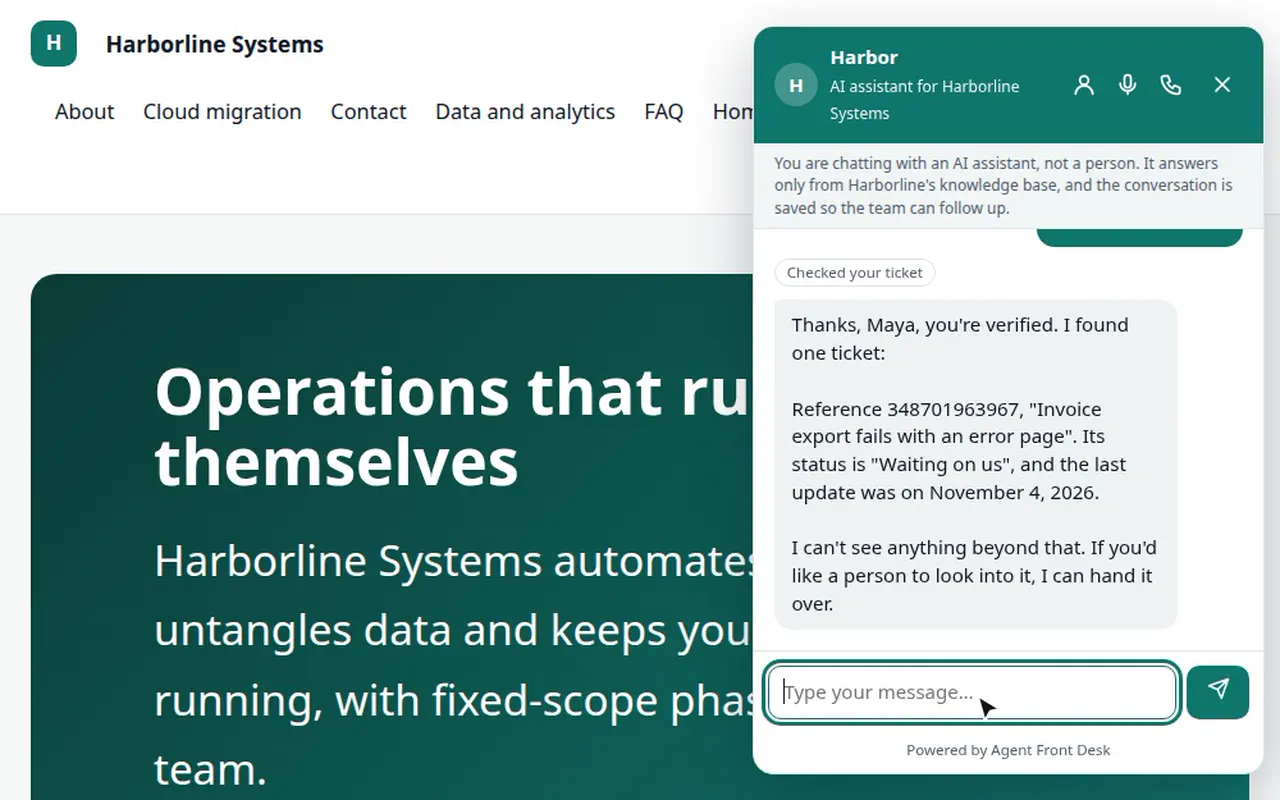
Asking about a ticket first sends a one-time code to the email on file. Only after the visitor types it does the assistant read back their own open tickets.

MCP access

Run your front desk from Claude, Claude Code or ChatGPT. Create tokens, approve apps that connect with OAuth, and disconnect them.
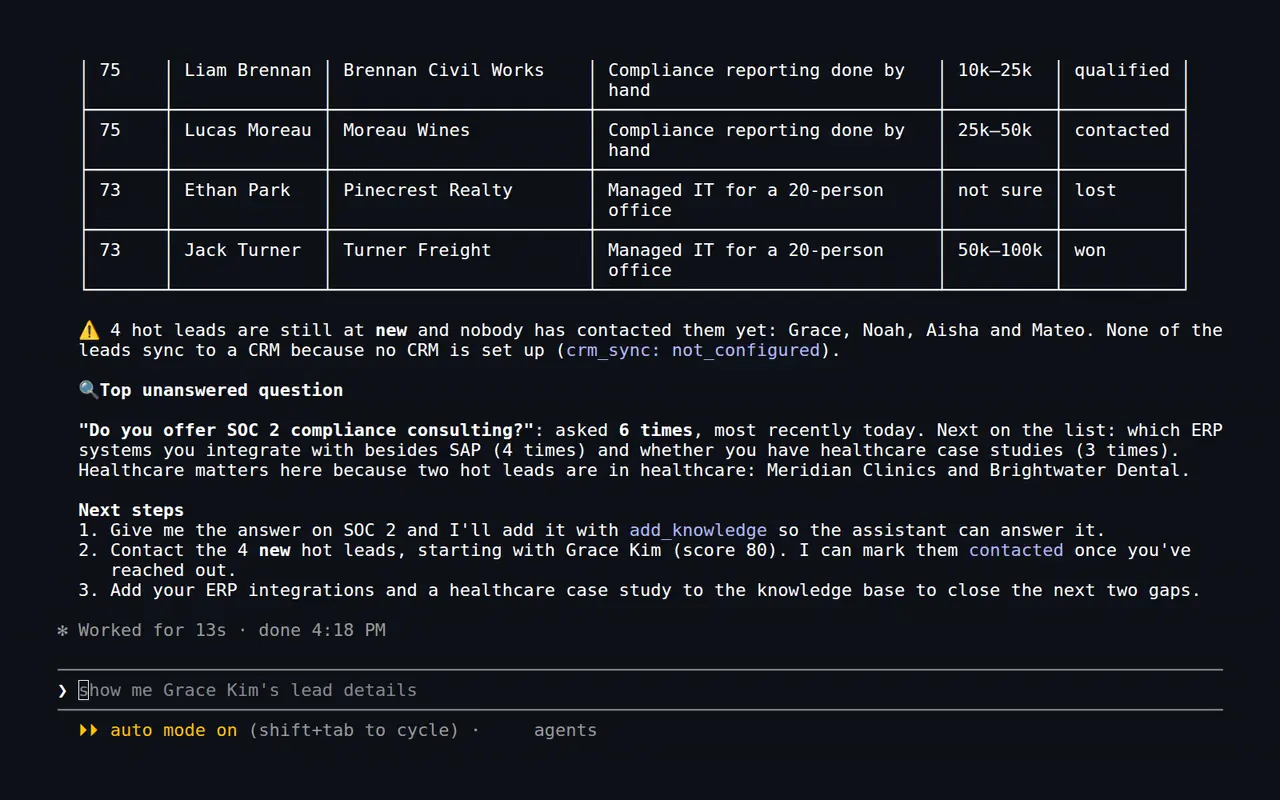
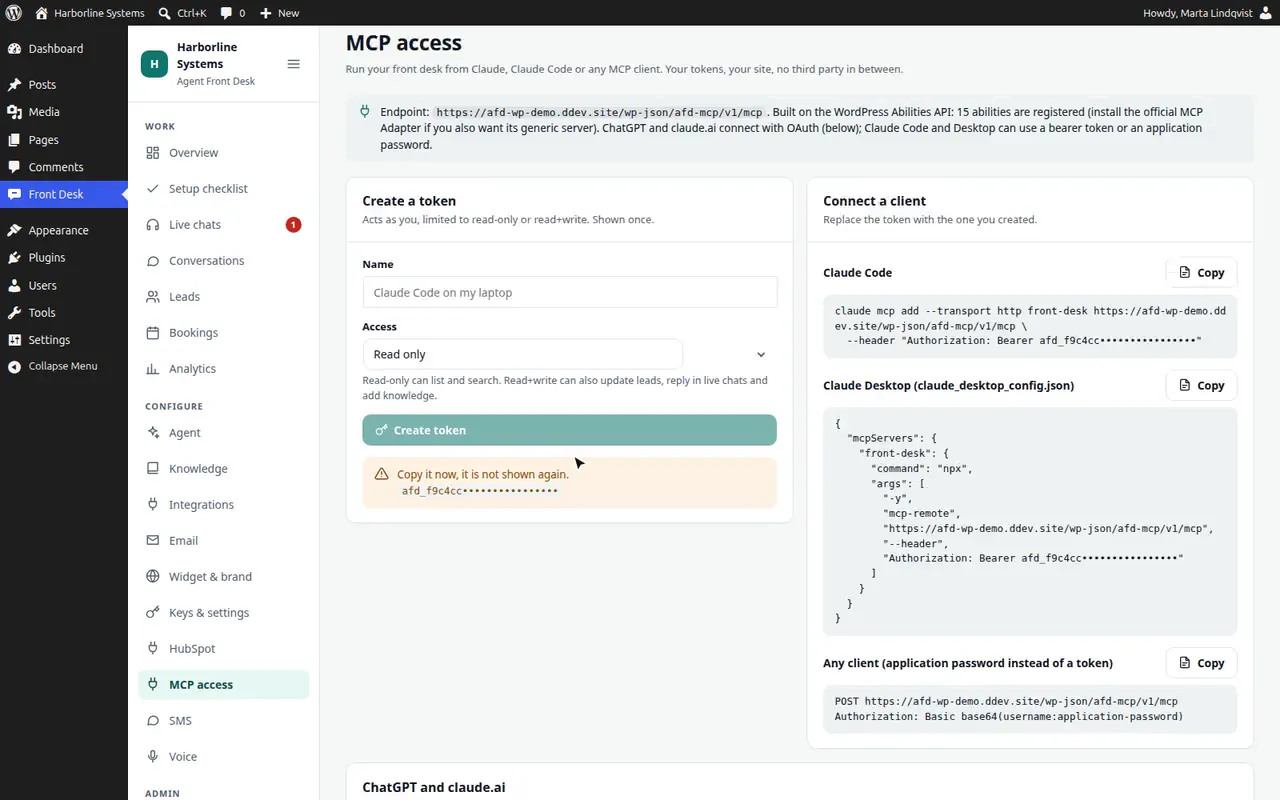
Claude Code, connected over MCP, lists the hot leads and the question the assistant could not answer most often.
Create a read-only or read and write token, copy the setup command, and revoke it when you are done.
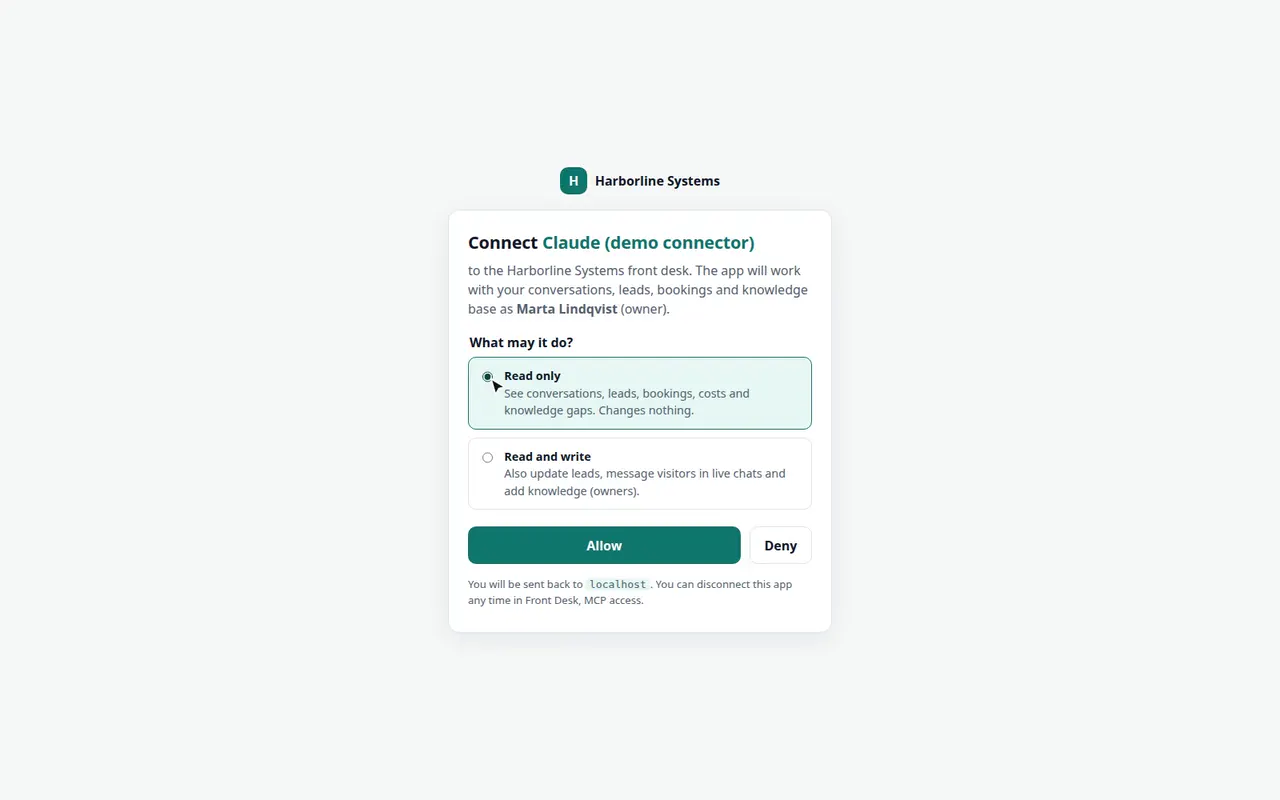
An app such as claude.ai asks to connect. You choose read only or read and write, and you can disconnect it at any time.

SMS

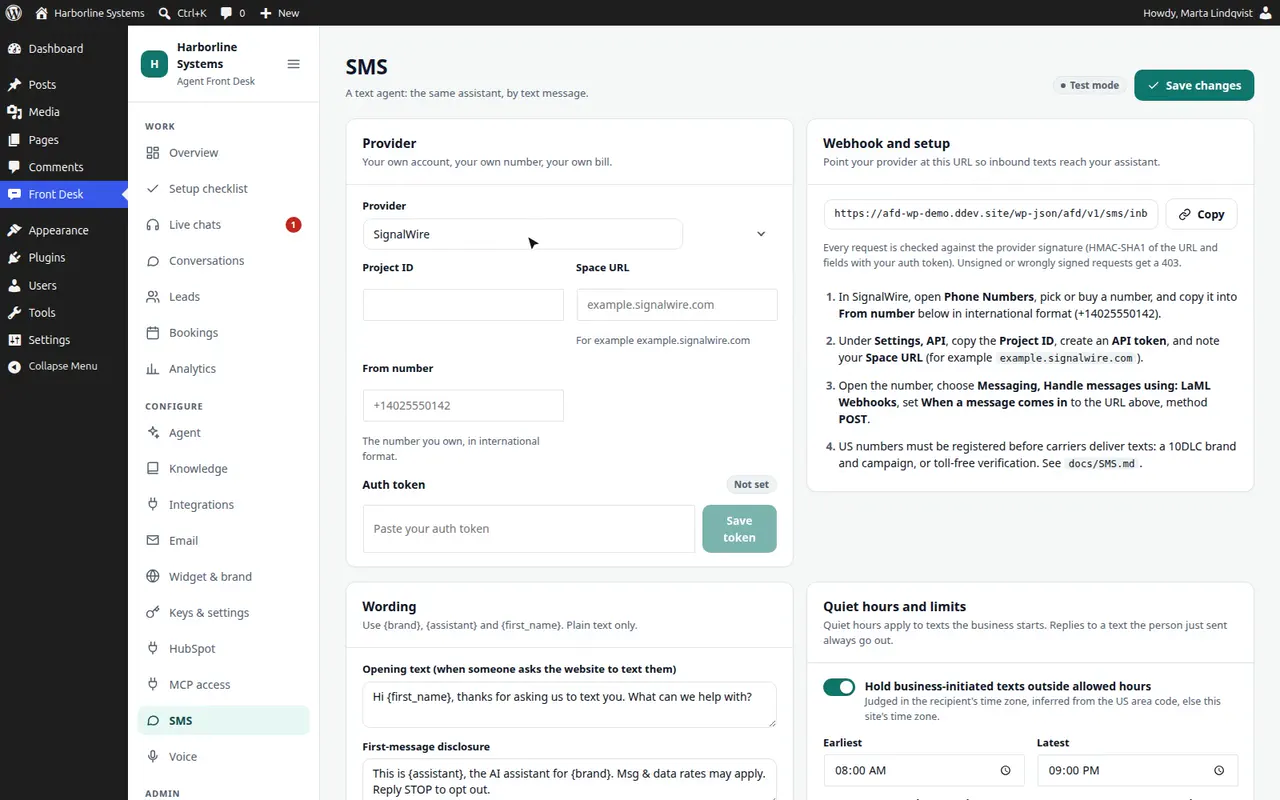
The text agent: provider and number, wording, quiet hours and limits, the Test inbox that sends nothing, and the opt-out list. Staff can take over a thread by text.
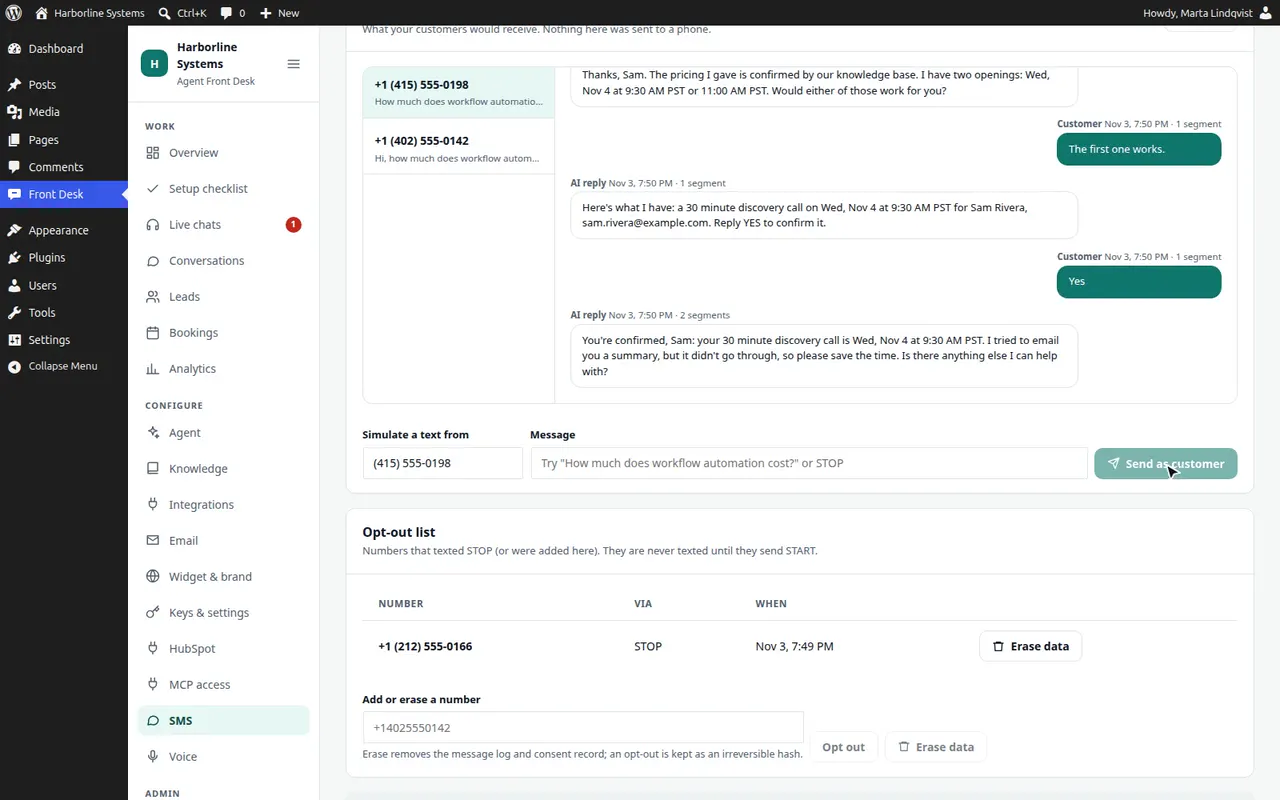
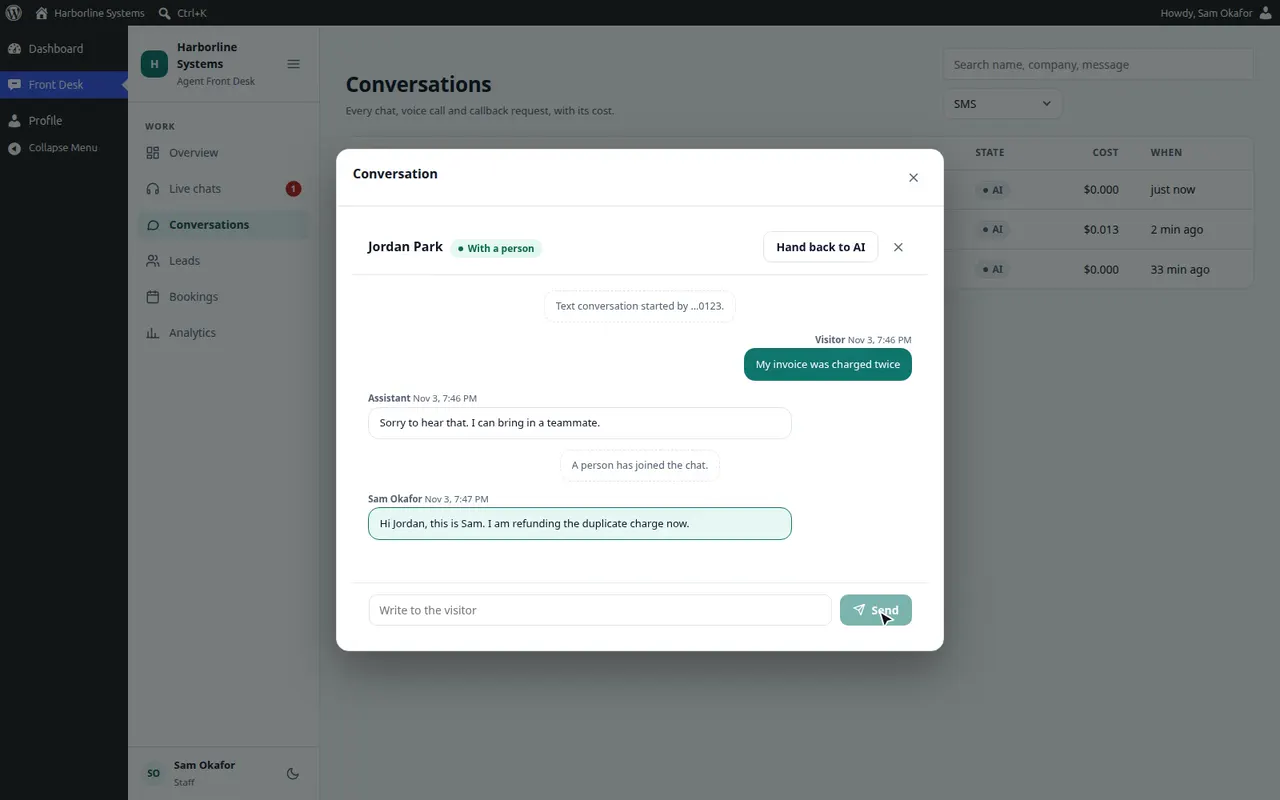
A customer texts, the assistant answers and offers times, the customer replies YES, and the booking appears. This is Test mode: no real text is sent.
Choose Test mode, SignalWire or Twilio, then set the wording, quiet hours, rate limits and the Text me instead option.
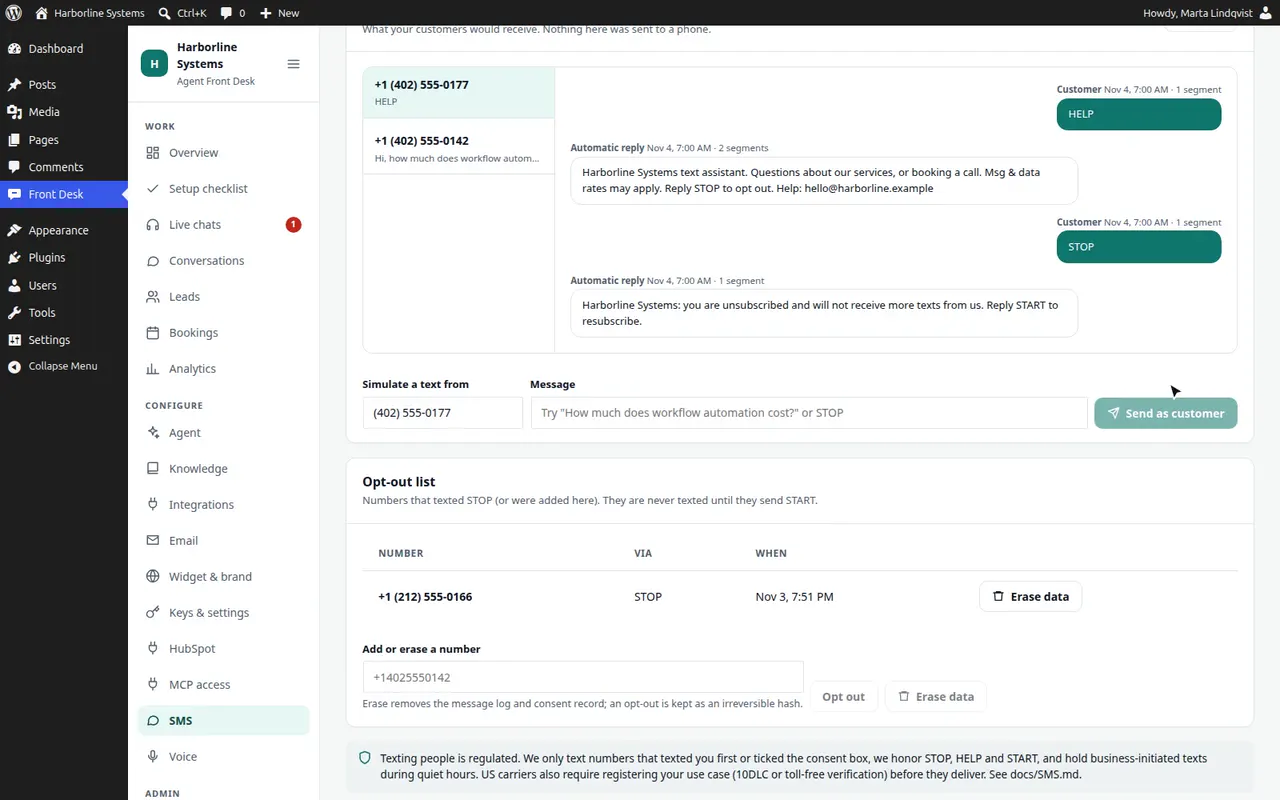
HELP and STOP are answered, an opted-out number gets silence until START, and the opt-out list can be edited.
Staff press Take over, reply, and the reply goes out as a text. The assistant stays quiet until they hand back.

Phone

The phone line: carrier and number, the phone assistant, hours and voicemail, guards and the monthly minute cap, a health check, and Place a test call, where a second number on your account rings the line with a scripted caller.
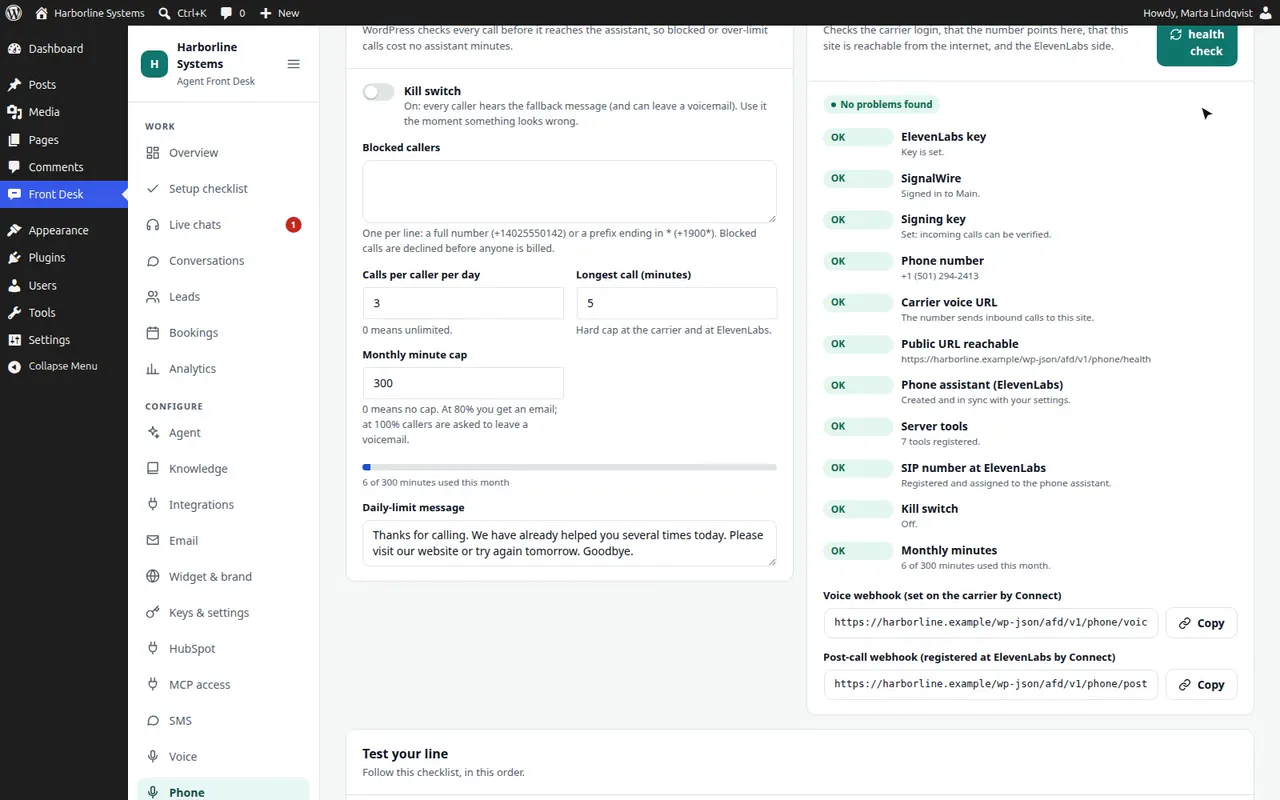
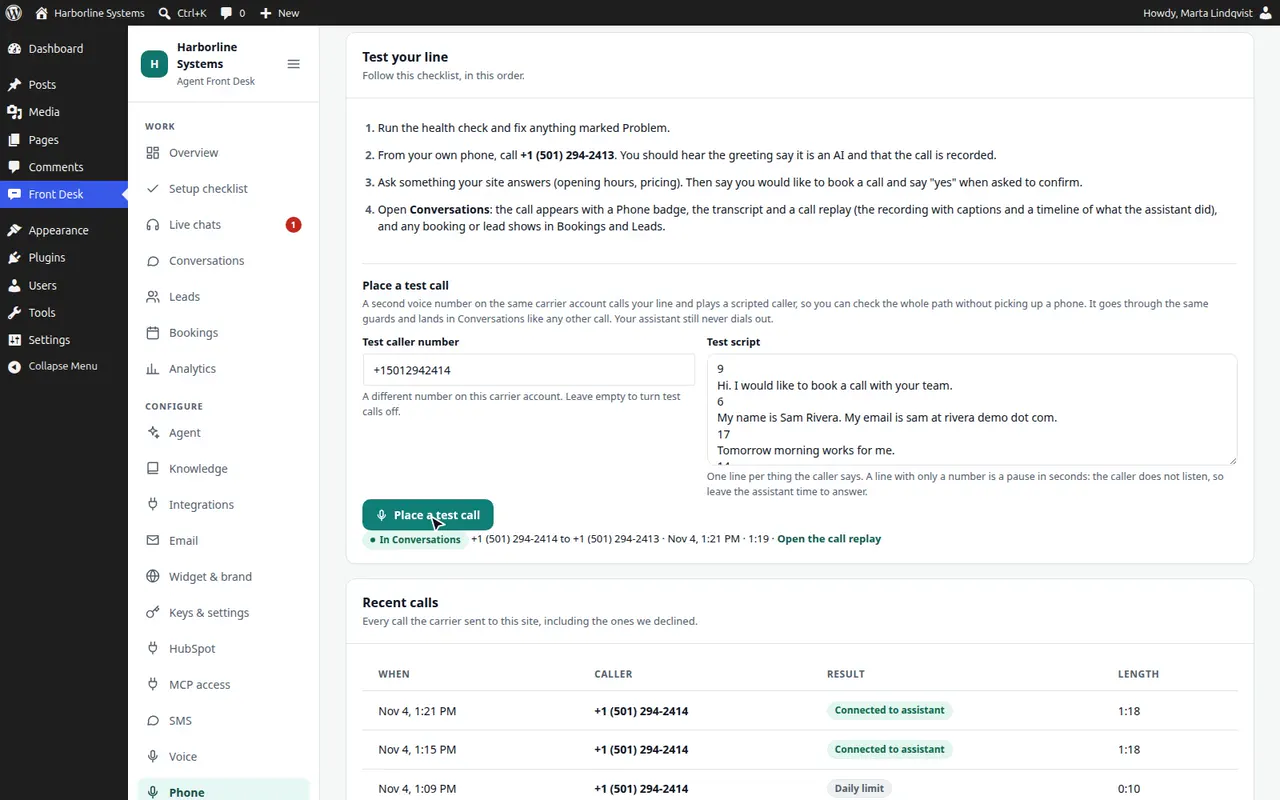
The Phone screen: carrier and number, the phone assistant, hours, guards and the minute cap, and a health check of the whole line.
Place a test call: a second number on your account rings the line, and the finished call opens in Conversations. This is a real call over the phone network.

Voice

Browser voice on your own ElevenLabs account: sync the agent, pick a stock voice, and set the greeting, recording notice and call length.
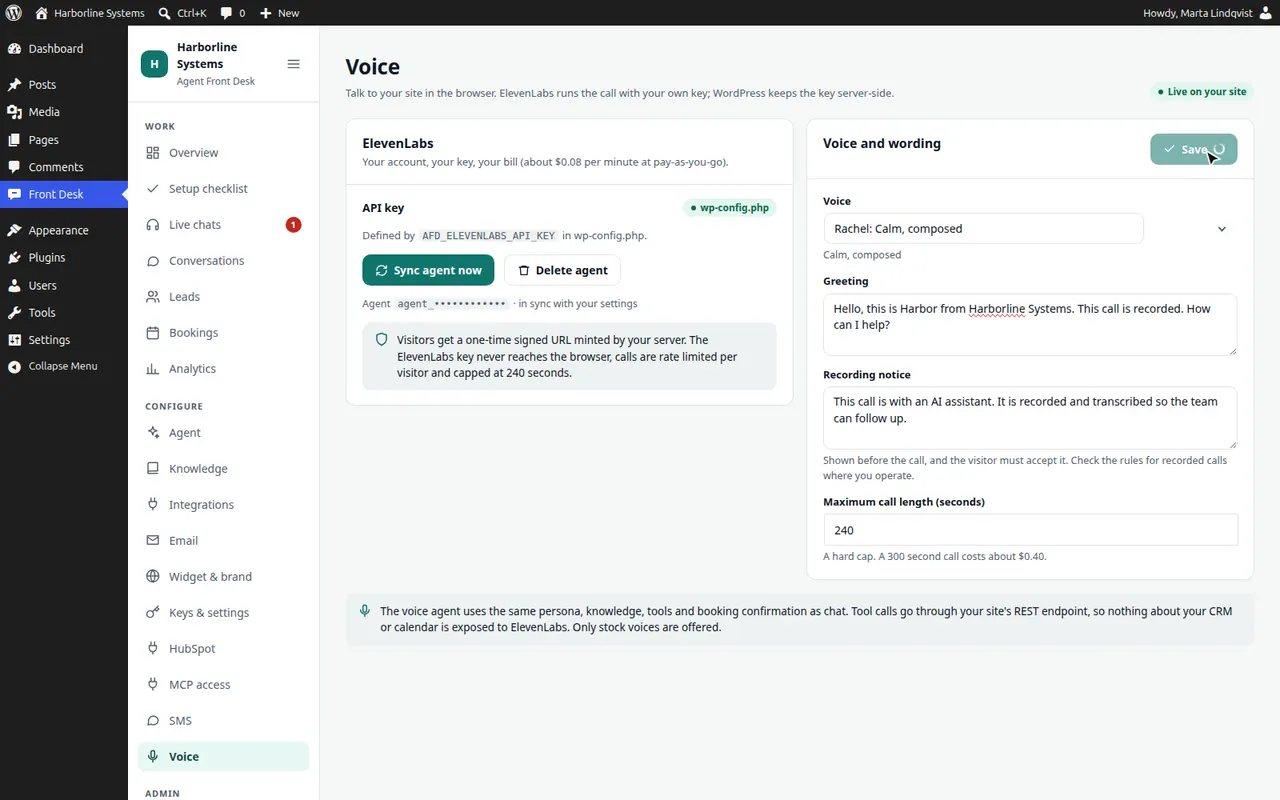
Sync the ElevenLabs agent, pick a stock voice, and set the greeting, recording notice and maximum call length.

Admin

License & updates

Optional. A license key adds automatic updates and support. Everything works without one.
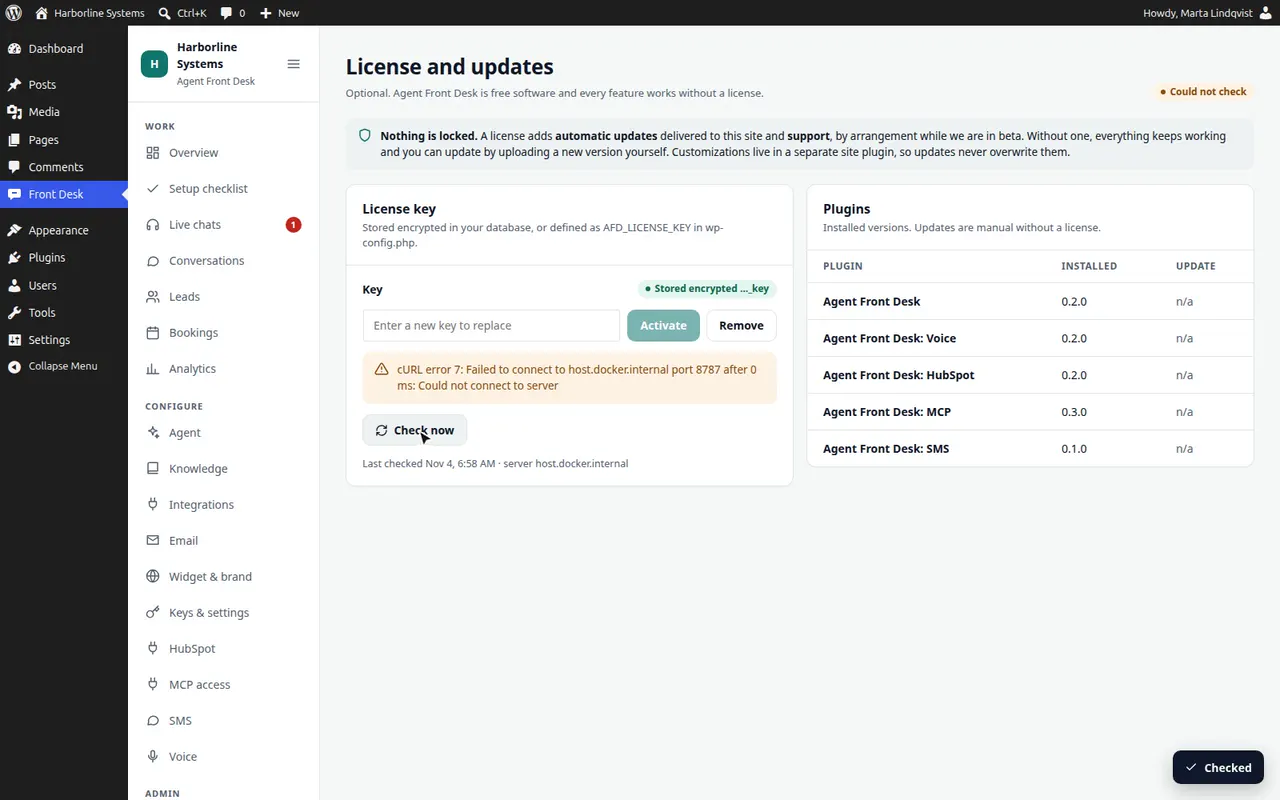
A license is optional. Enter a key, check it against the update server, and see the installed plugins.

Team and Audit log

Owners are WordPress administrators. Give a WordPress user staff access or take it away, and see every change, key and handover in the audit log.
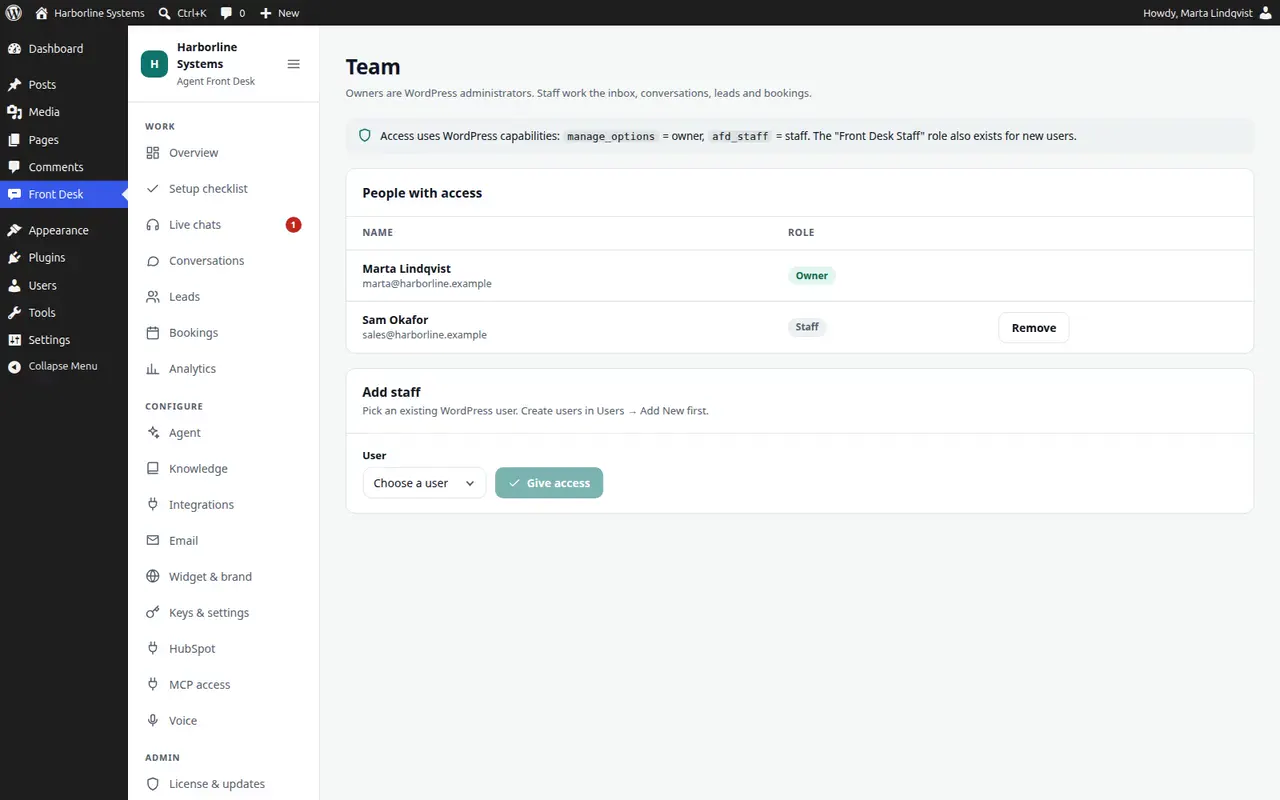
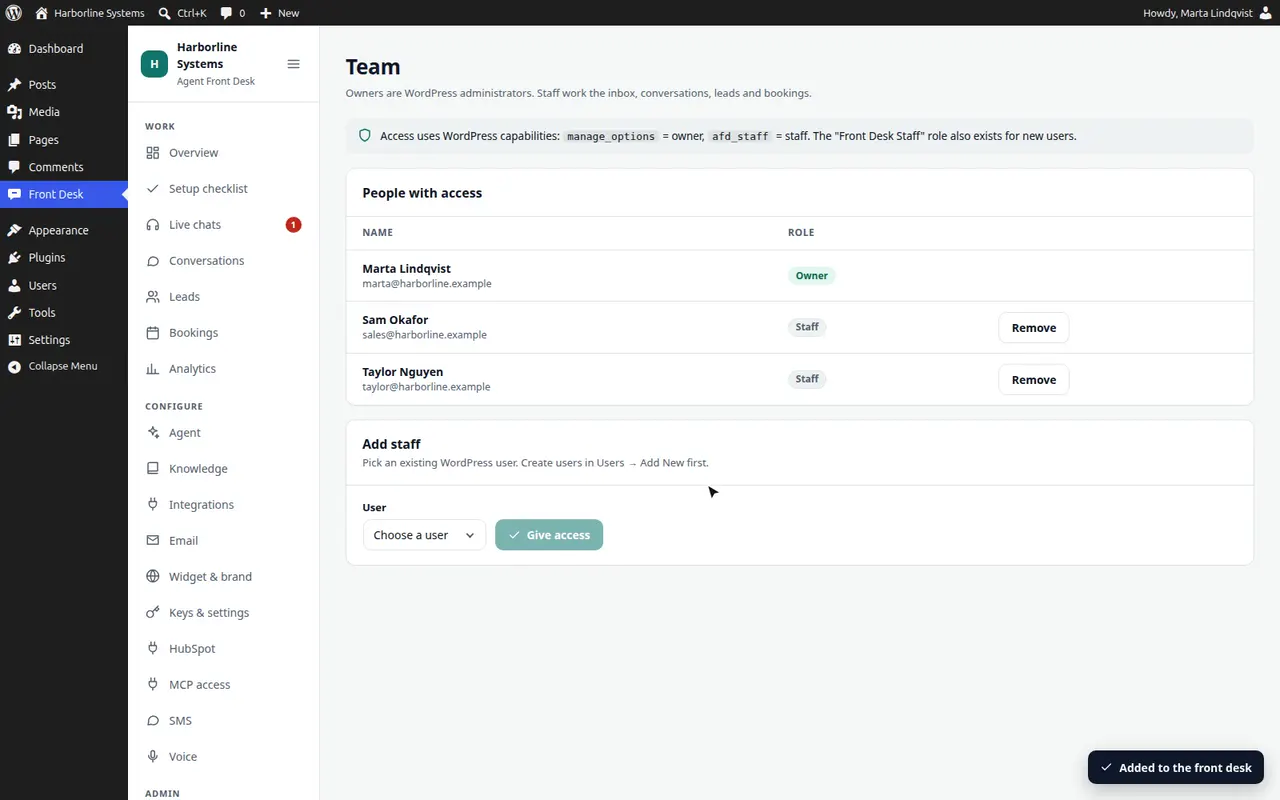
Owners and staff, then the audit log that records changes.
Give an existing WordPress user staff access, remove it again, and see both changes in the audit log.

Light and dark

The admin follows your preference and has a switch in the sidebar.
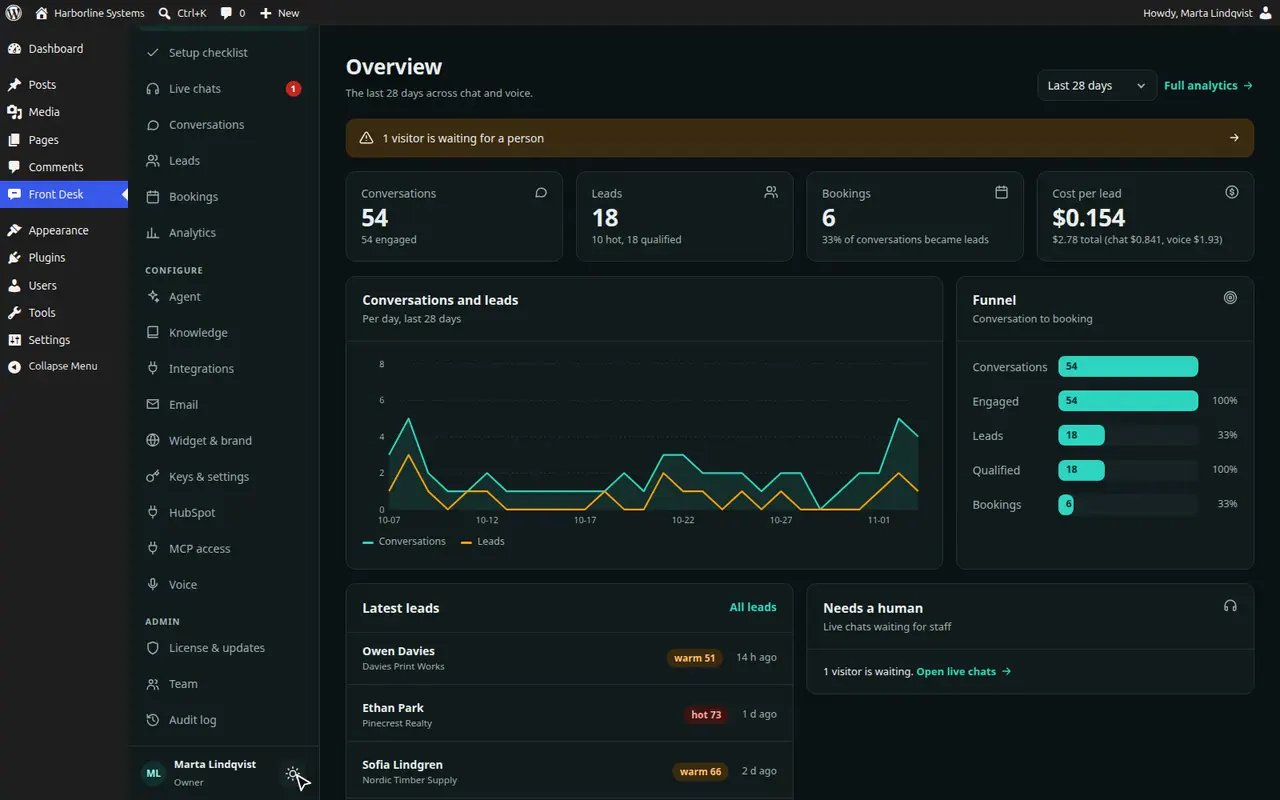
The admin switches between light and dark.

In WordPress and on your site

Blocks and the page editor

Place the chat, a Talk to us button or the callback form with blocks, and exclude a page from the knowledge base in the editor.
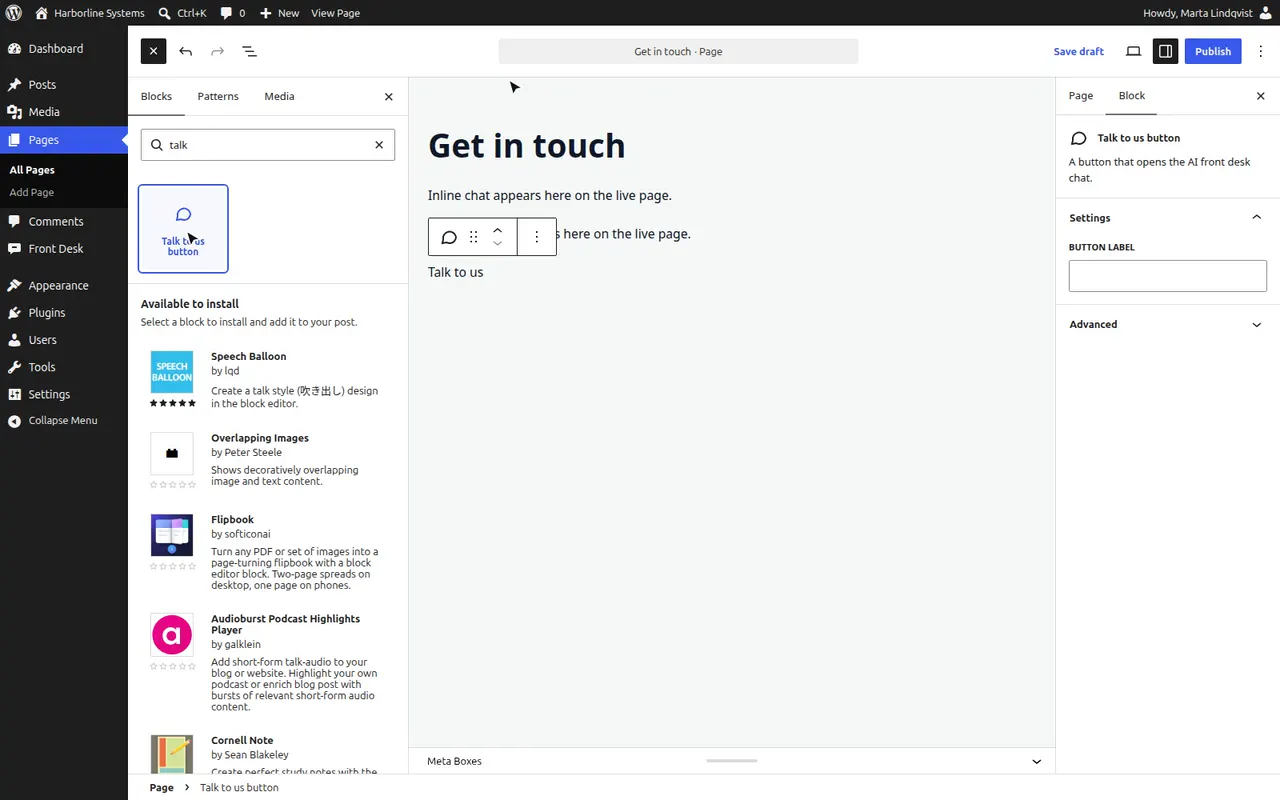
Place the chat, a Talk to us button or the callback form with blocks, and exclude a page from the knowledge base in its own box.

What visitors see

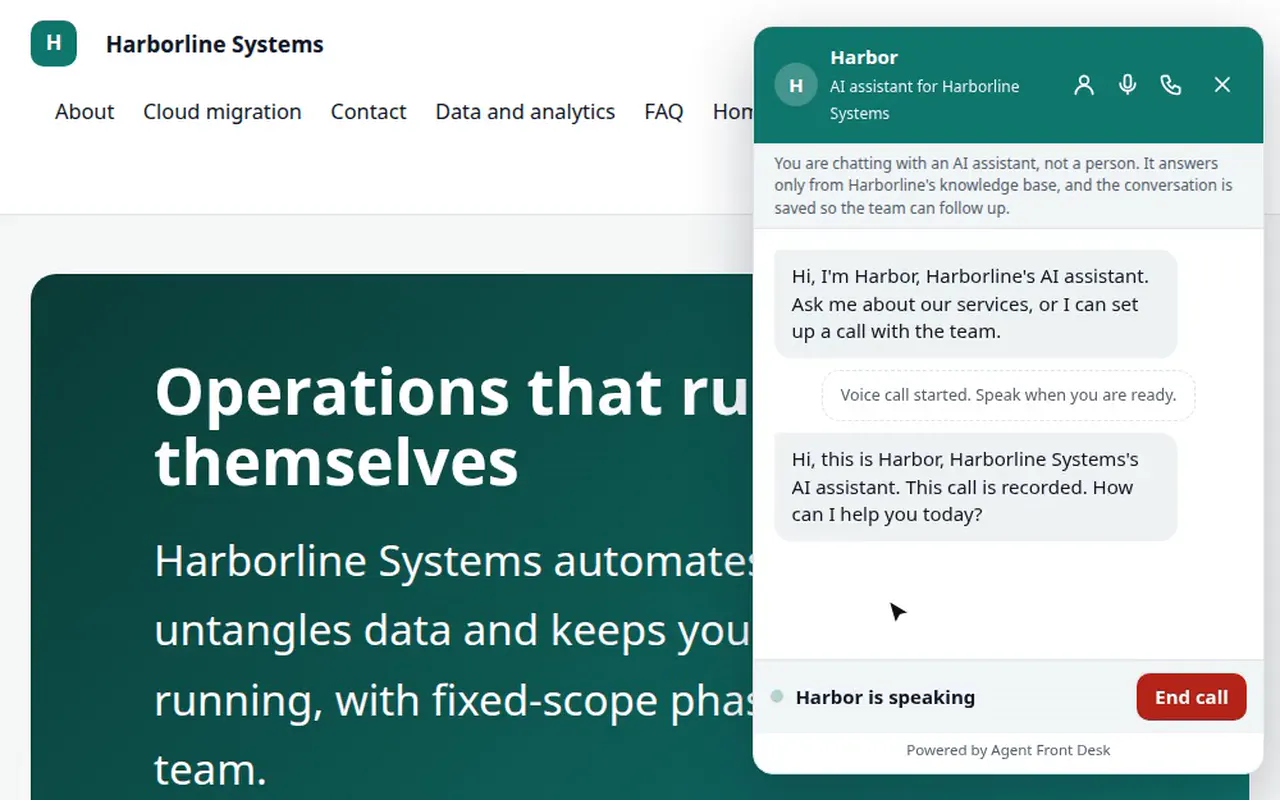
The chat, browser voice, the callback form and Text me instead, as a visitor meets them on your site.
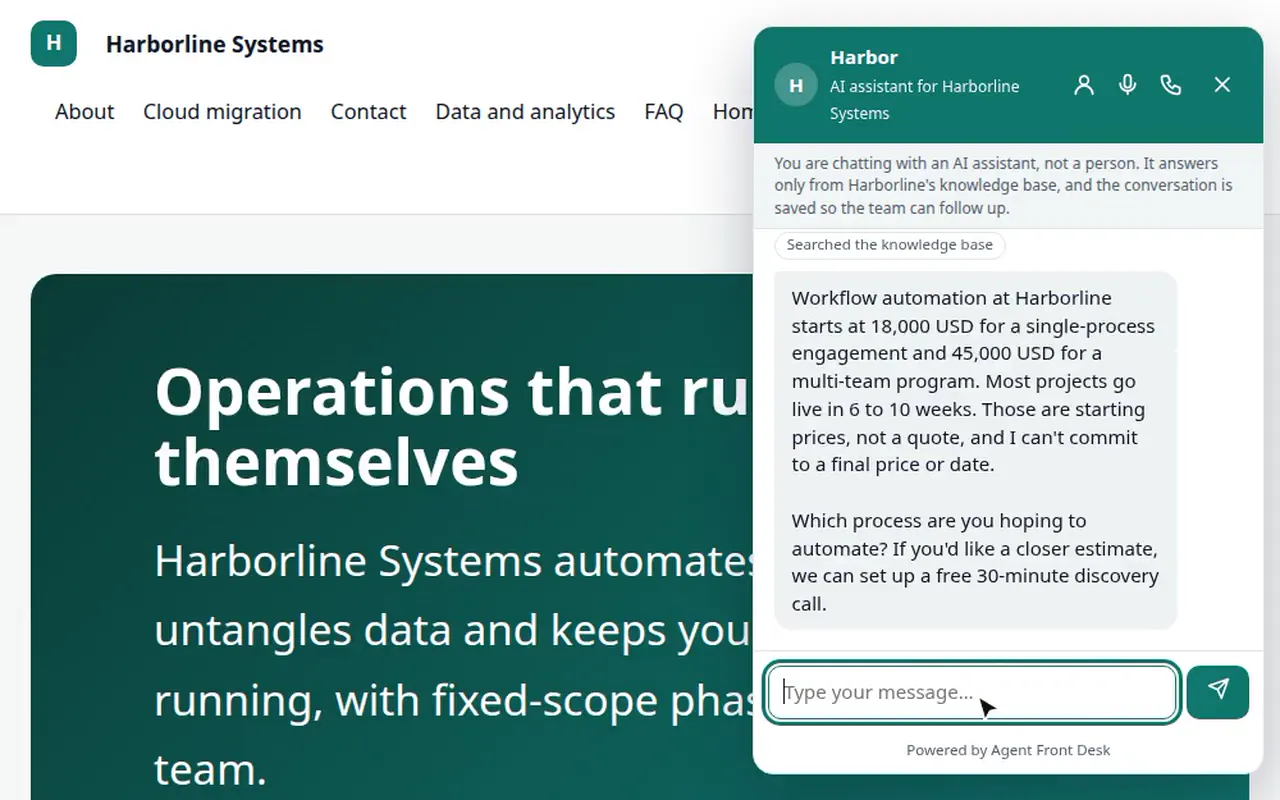
A visitor asks what workflow automation costs, and the assistant answers from the site’s own pages.
A real voice call in the browser: the visitor accepts the recording notice, and the greeting lands in the transcript.
A callback request becomes a lead that your staff see in Leads.
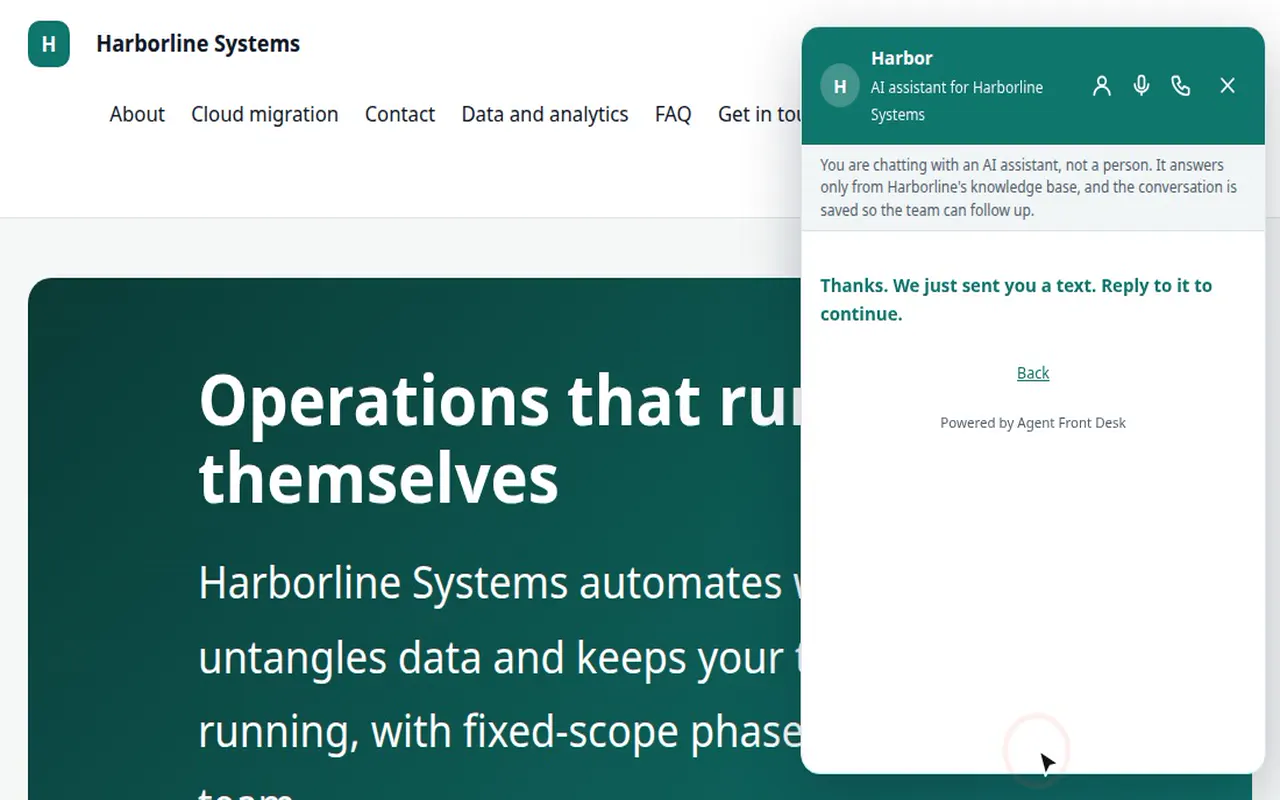
On the site, a visitor asks for a text and ticks the consent box. The opening text lands in the Test inbox.

Want it on your WordPress site?

The private beta has limited spots, and each one is set up by hand. Tell us about your site and your CRM.