Features
Chat, voice and text from one assistant, with a person ready to take over
Every screen on this page is the real WordPress admin, running with a fictional demo client called Harborline Systems. Every feature works without a license.
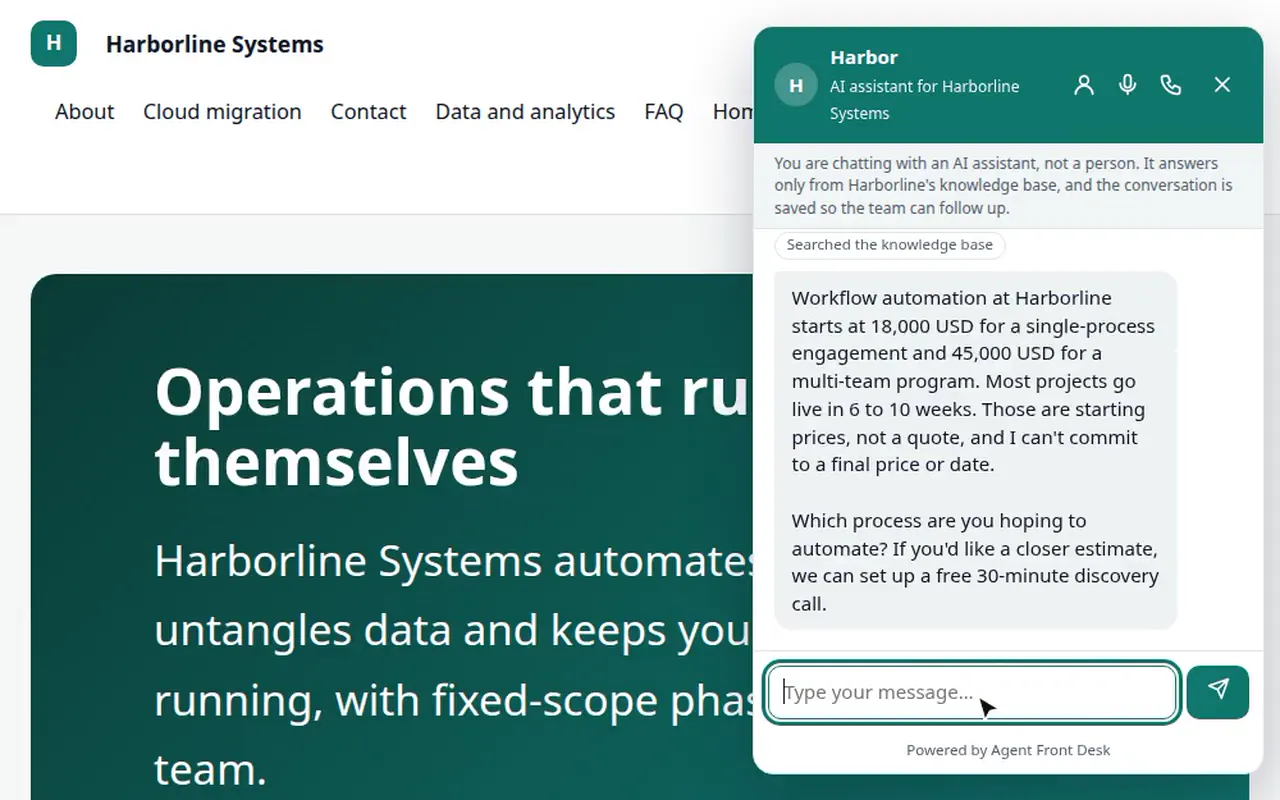
Chat that answers from your own pages
A launcher on your site opens chat. The assistant says it is an AI, searches your knowledge base and answers in a few sentences. If your content does not cover it, it says so instead of guessing.
- Persona, greeting and tone set in the Agent screen
- Allowed and blocked topics you write in plain words
- Suggested questions as buttons
Voice in the browser
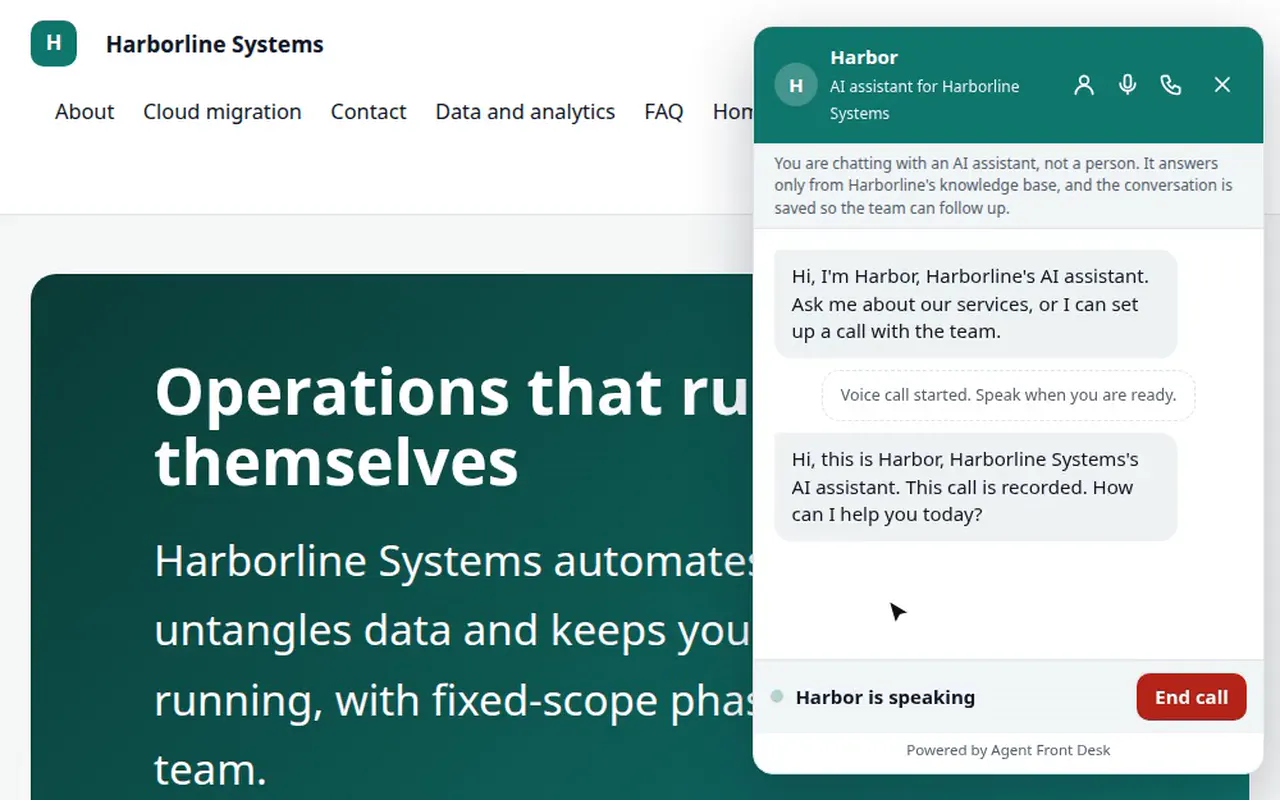
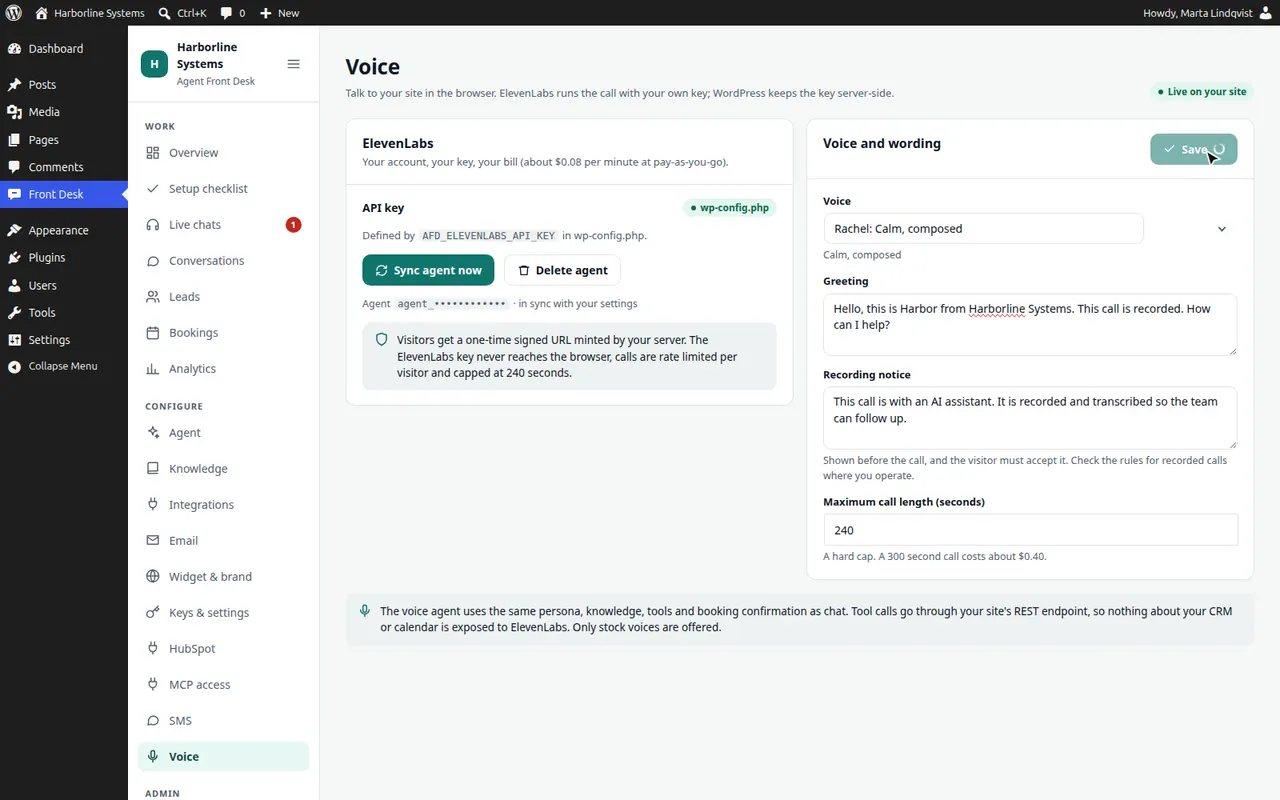
Visitors click the microphone and talk. It is the same assistant with the same tools, so the booking and lead flow work the way they do in chat. Voice runs on your ElevenLabs account with a stock voice you pick. We never use cloned voices.
- A recording notice visitors accept before the microphone starts
- Your ElevenLabs key stays on the server; the browser gets a one-time signed session
- A hard cap on call length that you set
Callback requests
A callback form, as a block, shortcode or inside the chat, creates a lead and notifies your staff, who call back by hand. There are no AI phone calls. When the SMS add-on is active, the form also offers a Text me instead option.
- Notification to the staff addresses you set
- The request appears in Leads like any other lead
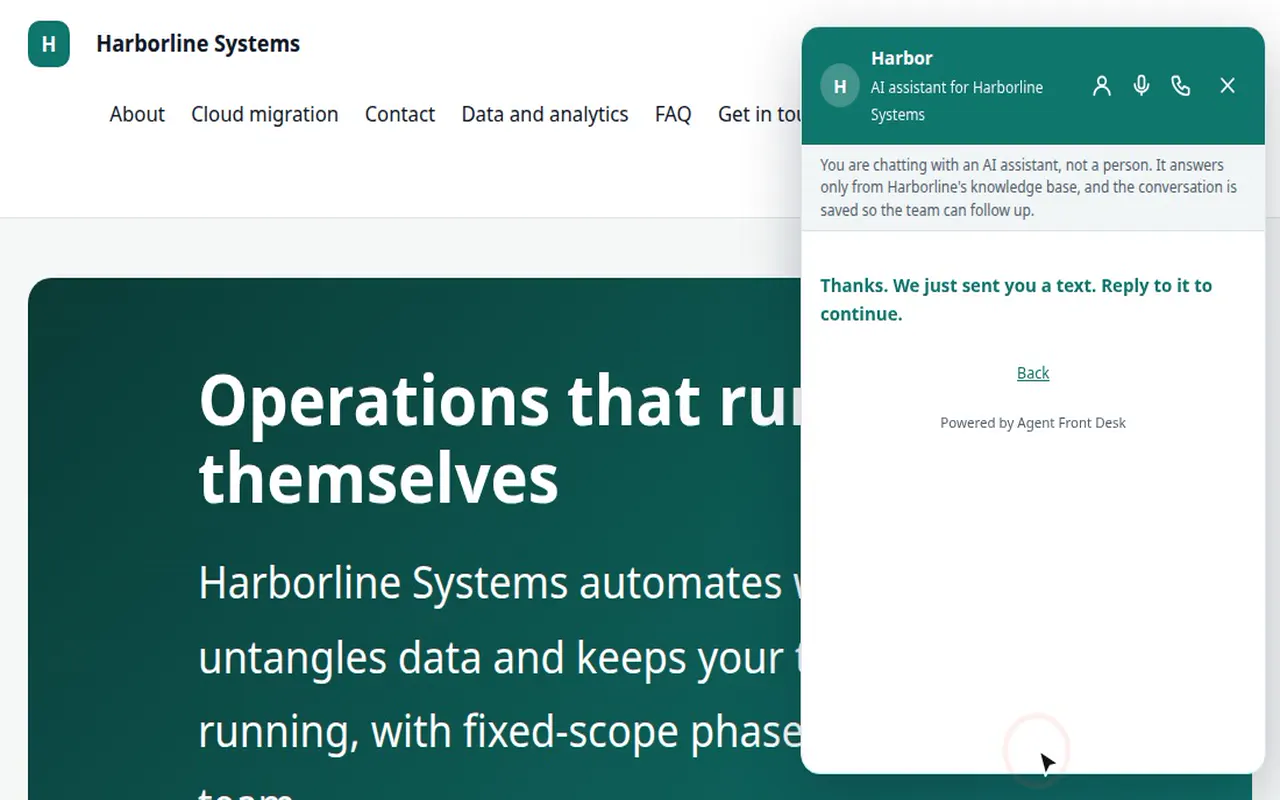
Text with your customers
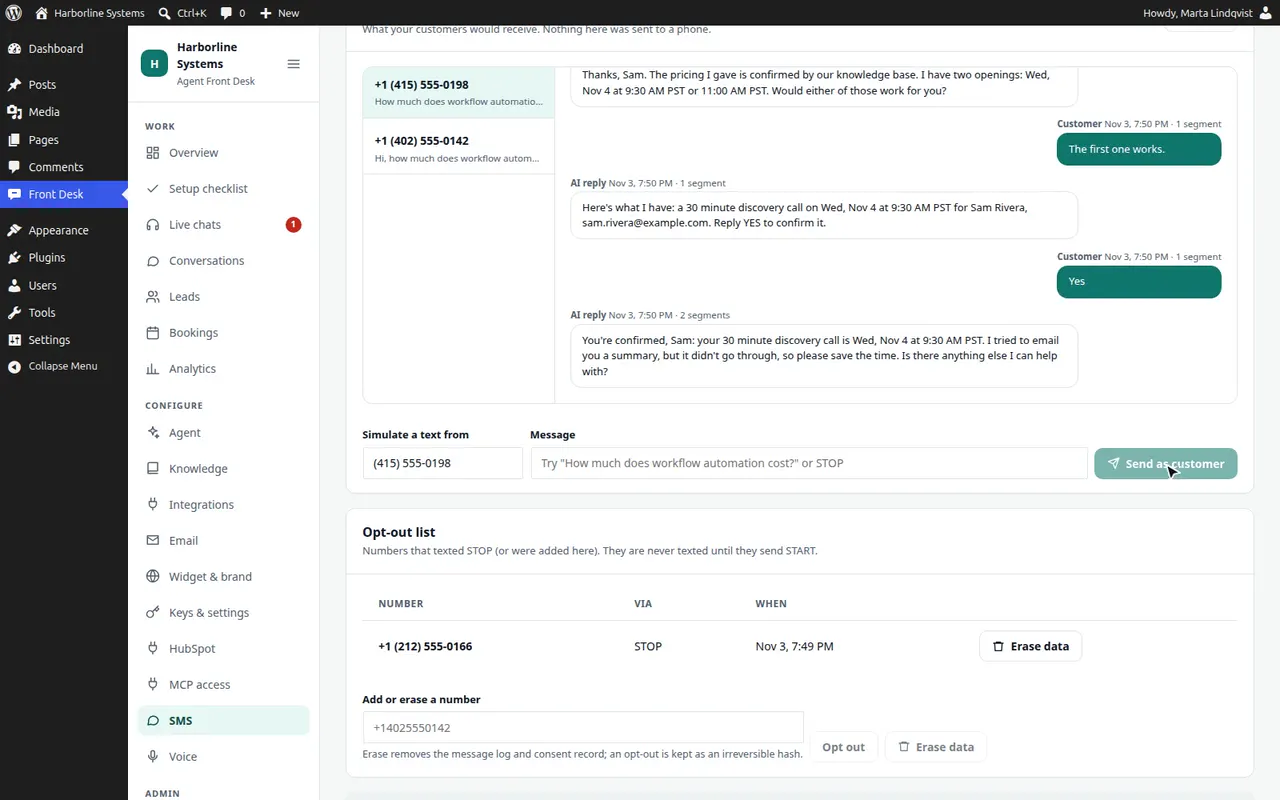
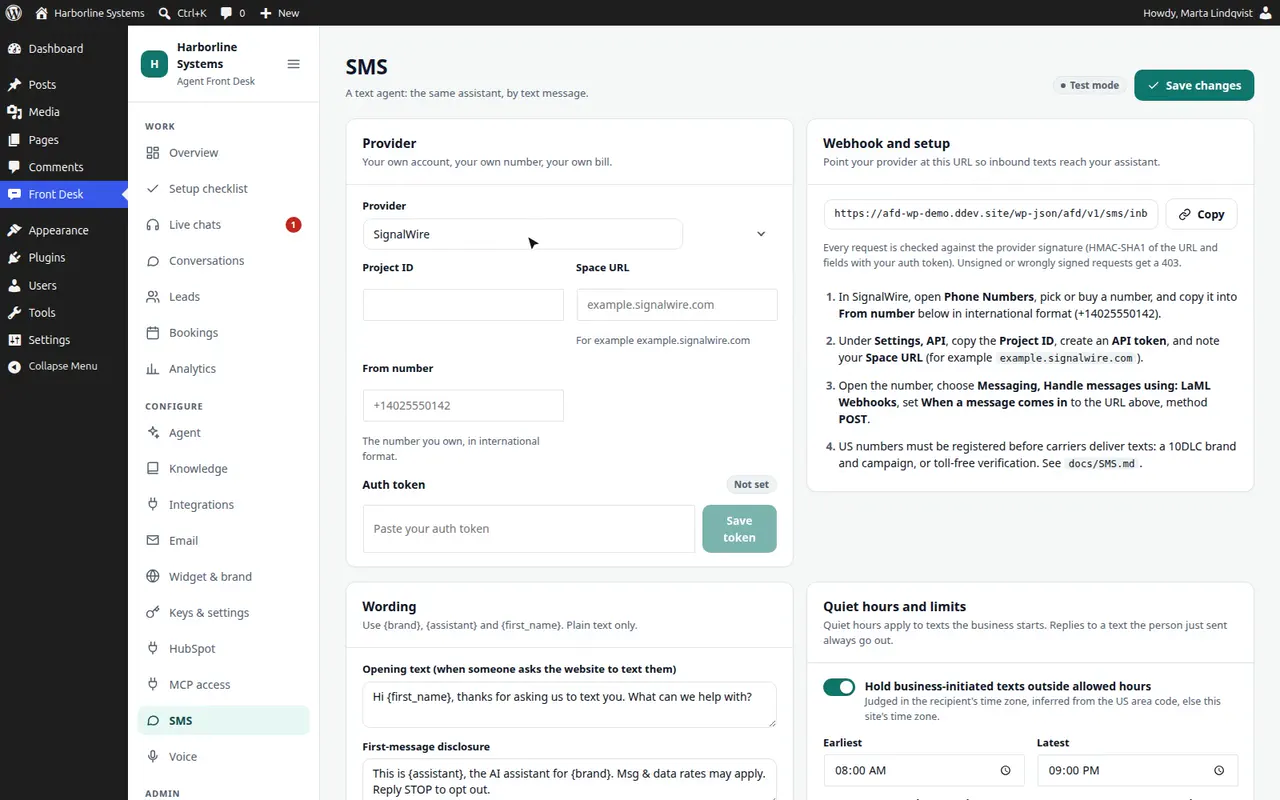
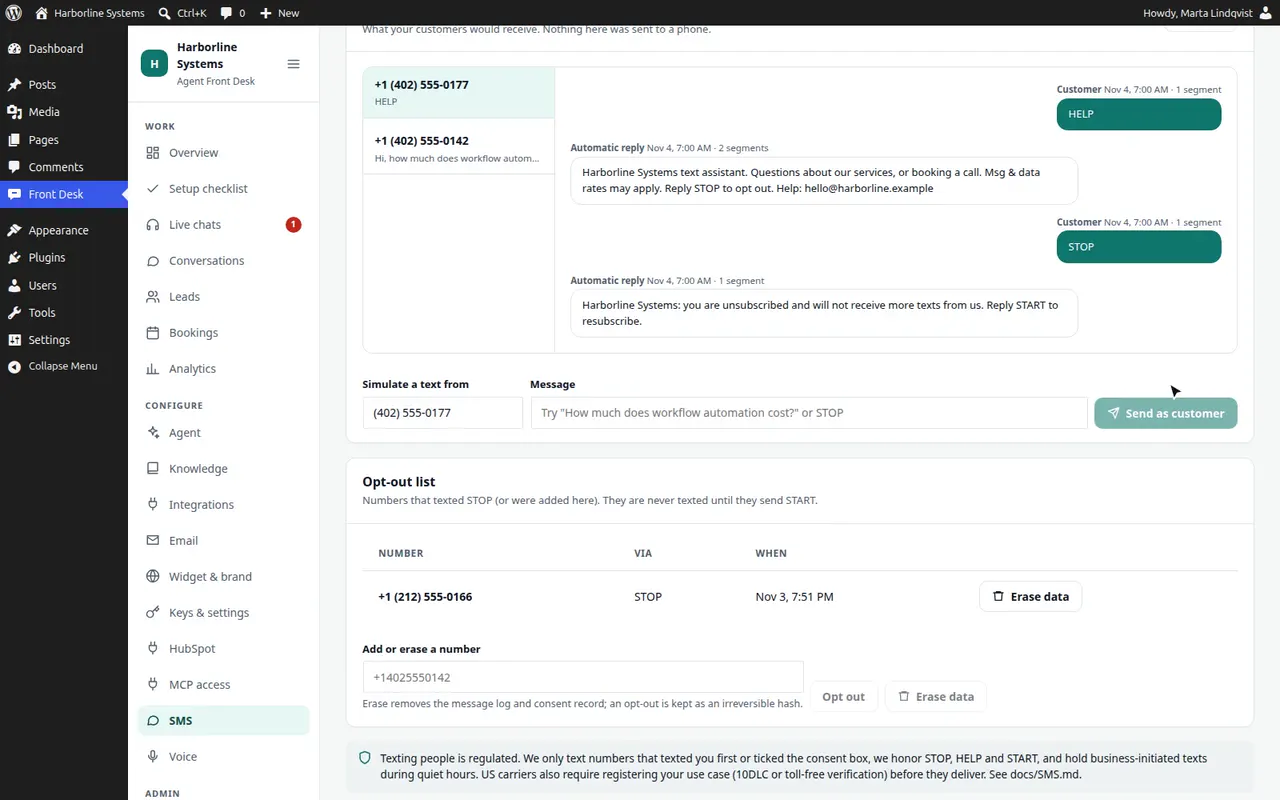
The SMS add-on is the same assistant by text message. A customer texts your business number, or taps Text me instead on your site and ticks a consent box. It answers from your knowledge base, qualifies the lead, offers times, and books only after the customer replies YES. A person on your team can take over by text from wp-admin. It runs on your own SignalWire or Twilio account, and US carriers require each business to register, which takes days to weeks.
- STOP, HELP and START handled, with a consent record for each number
- Quiet hours for texts your business starts, and rate limits
- A Test mode that sends nothing while you try it
Booking that waits for a yes
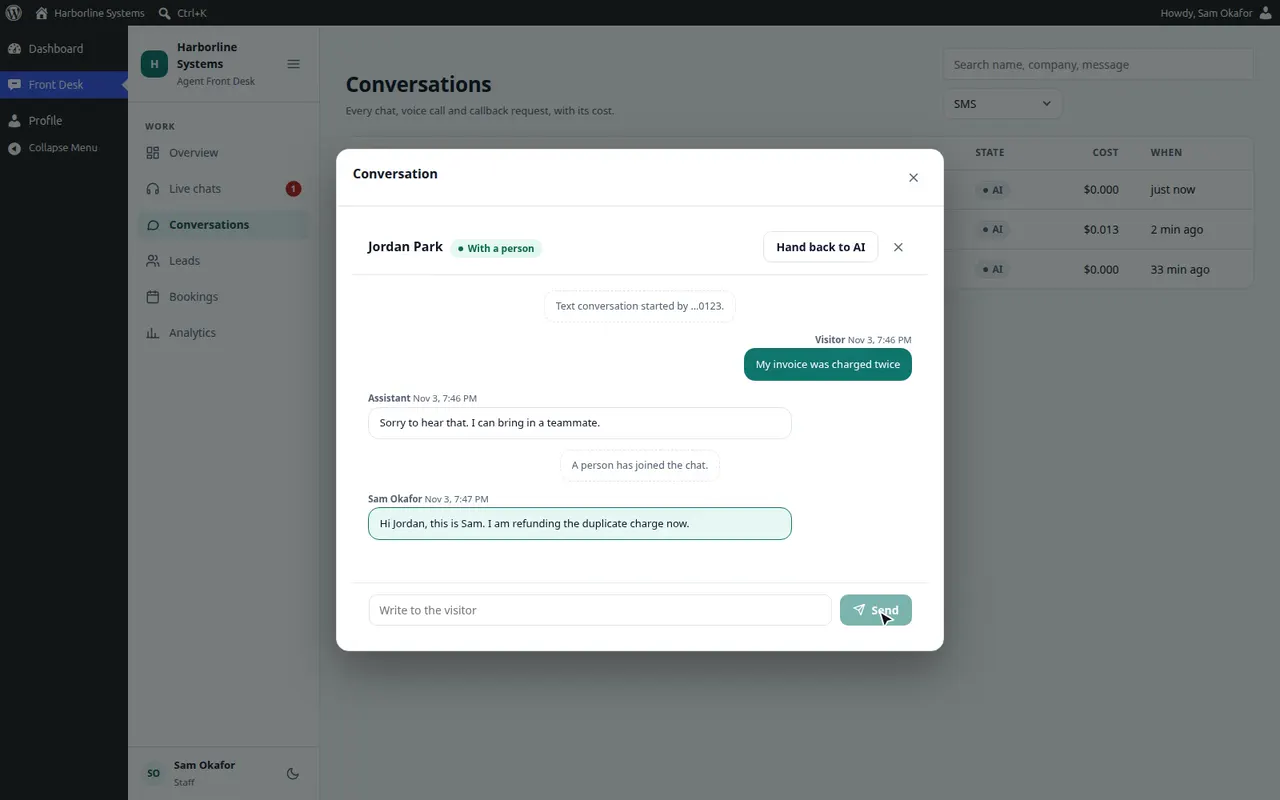
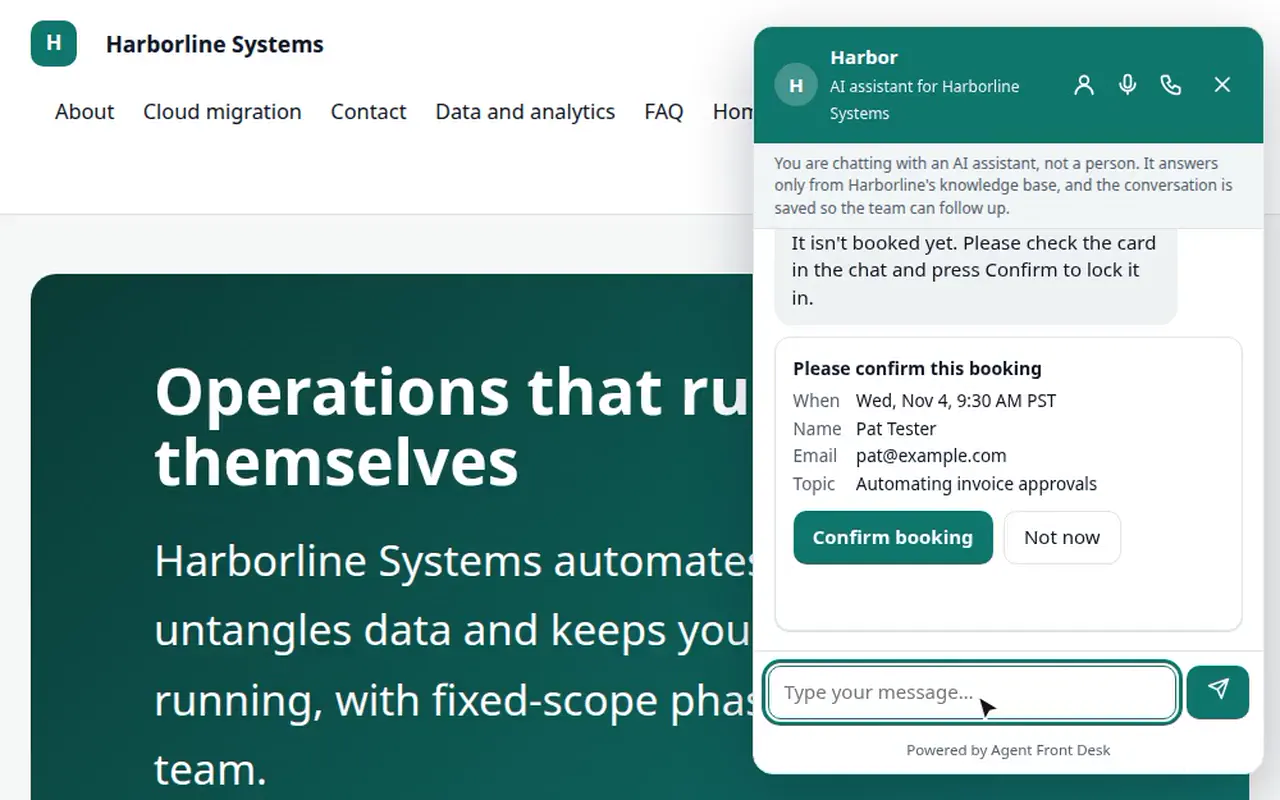
The assistant proposes open times from your booking rules and shows a confirmation card. Nothing is booked until the visitor confirms. On a voice call, the yes is spoken. Confirmed bookings are emailed to the visitor and listed under Bookings. Real calendar free and busy needs a calendar connector, which we build for you on the extension API.
- Days, hours, call length, buffer, days ahead and notice set by you
- Times use your site timezone
- Cancel from the Bookings screen
Lead capture and scoring
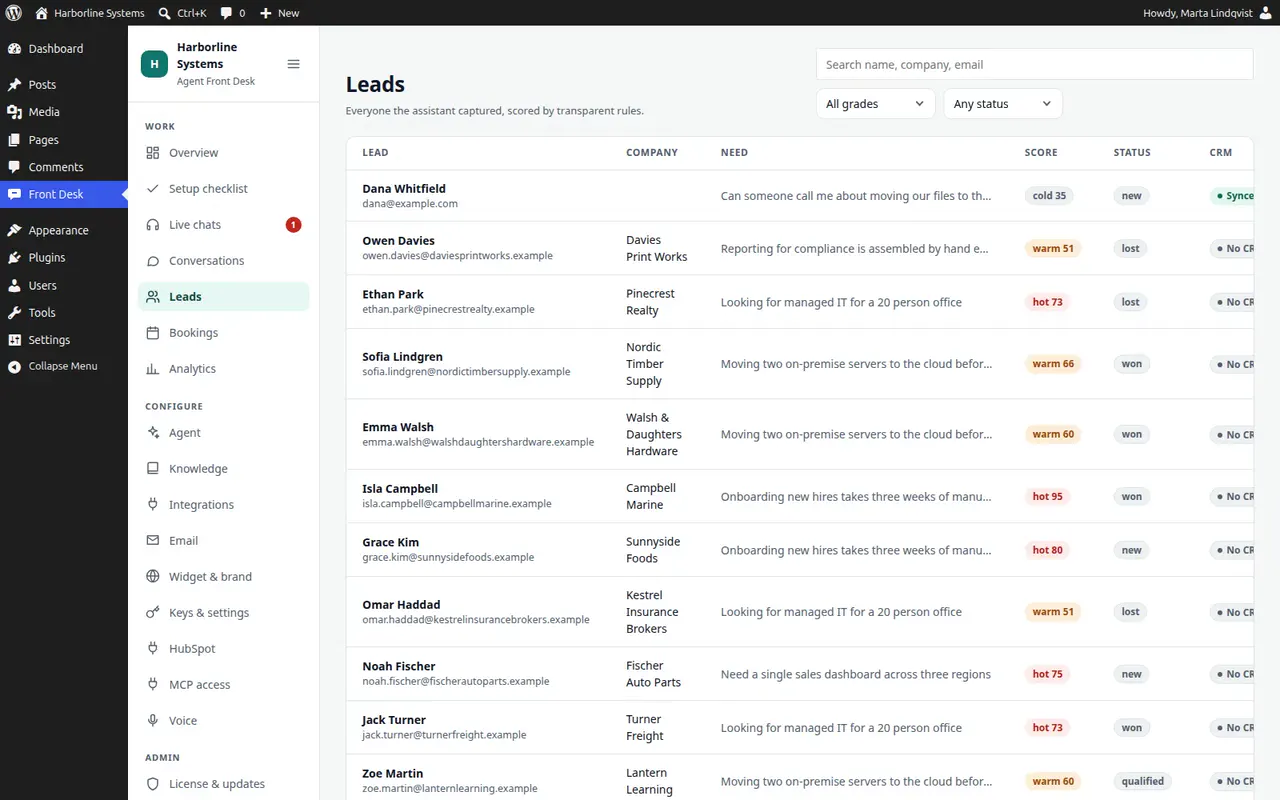
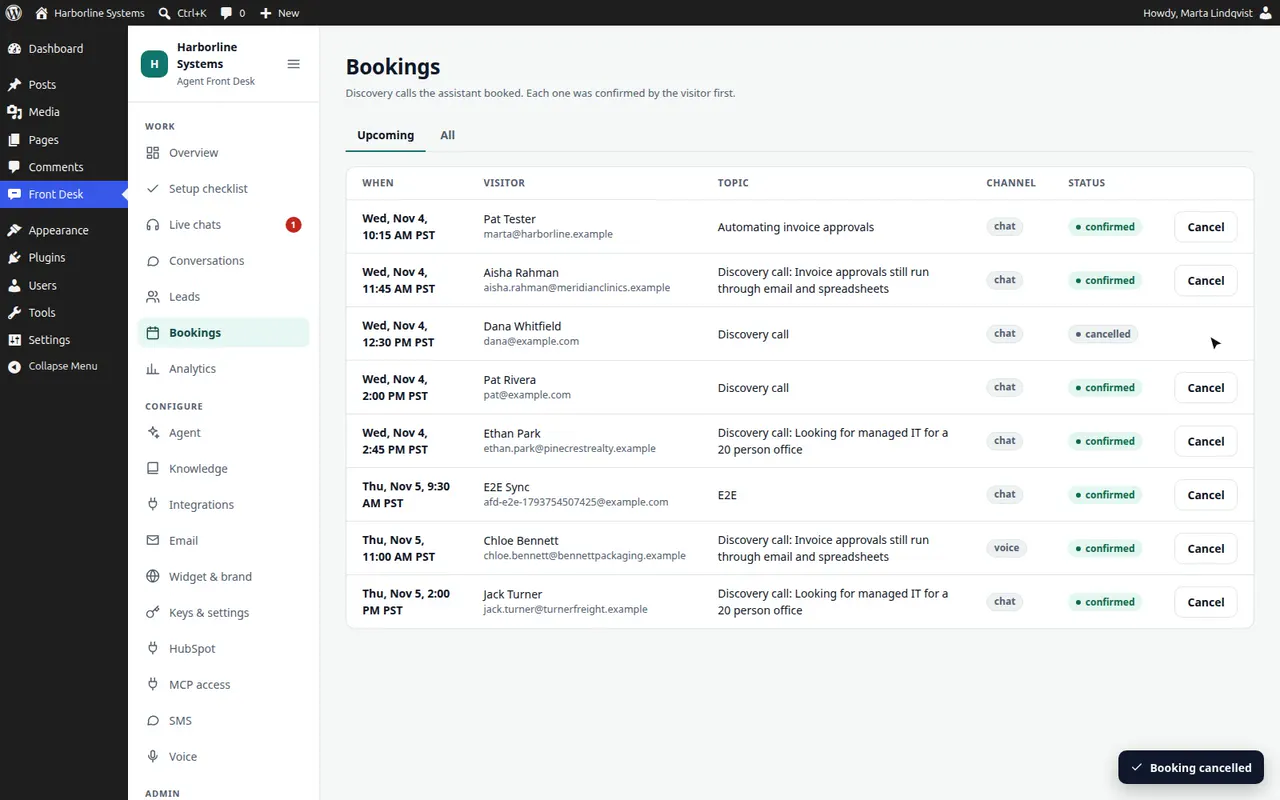
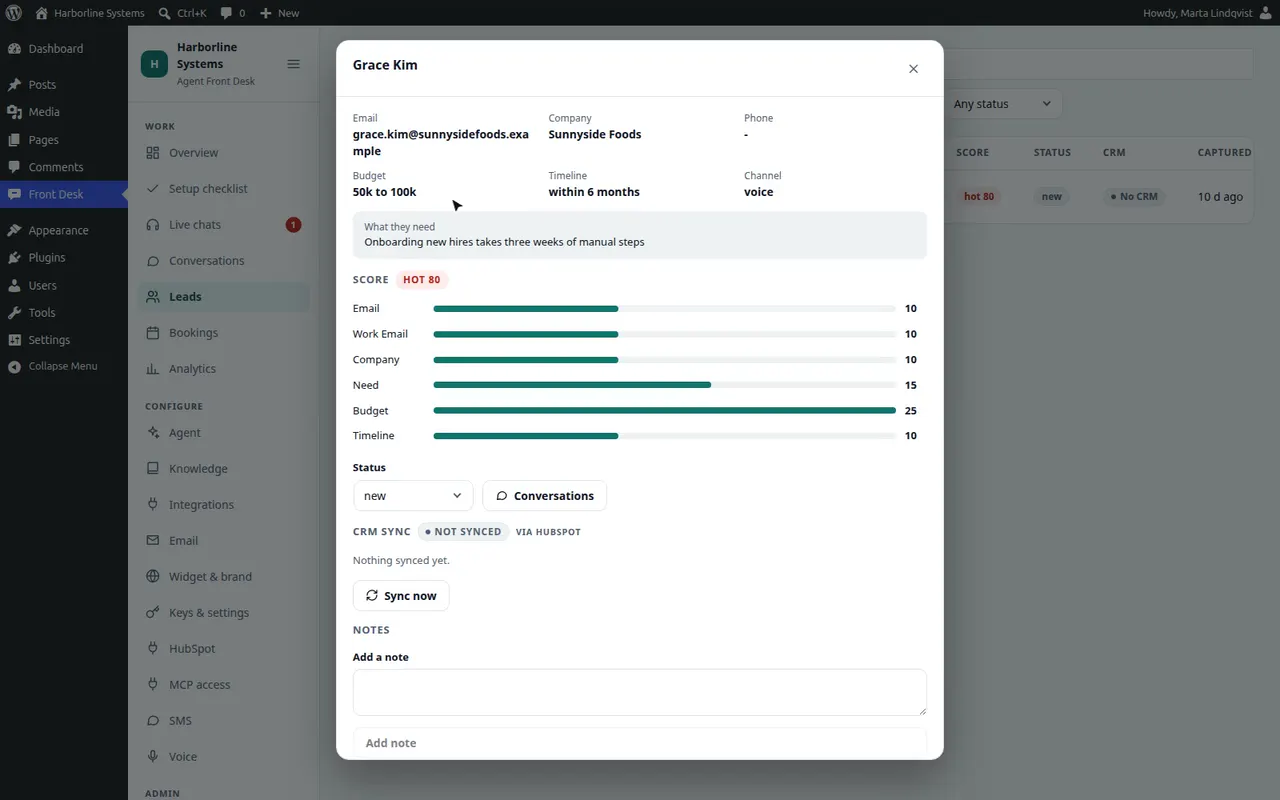
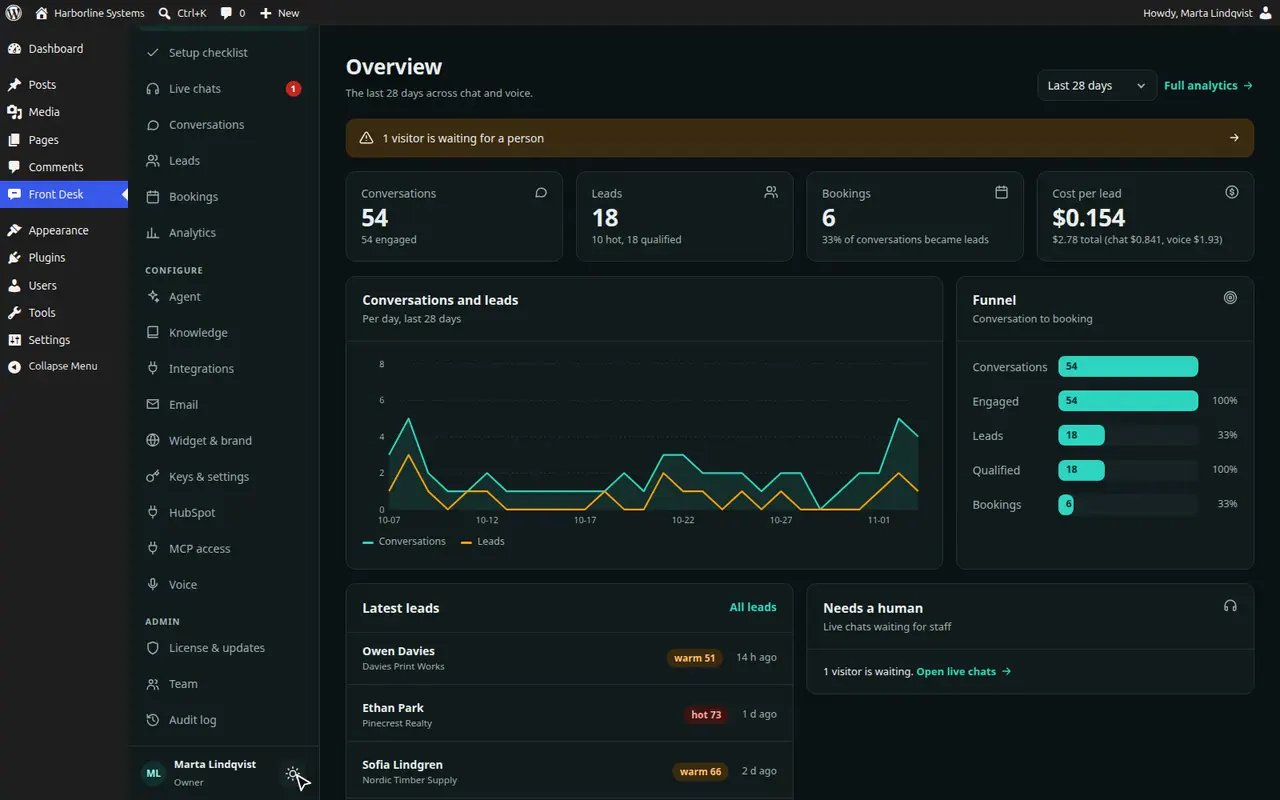
The assistant asks what you need to qualify someone and records it. Each lead gets a score with the points shown, so your team sees why it is hot or warm.
- Score and grade on every lead
- CRM sync state on every lead
- Filter by grade and status
Live human takeover
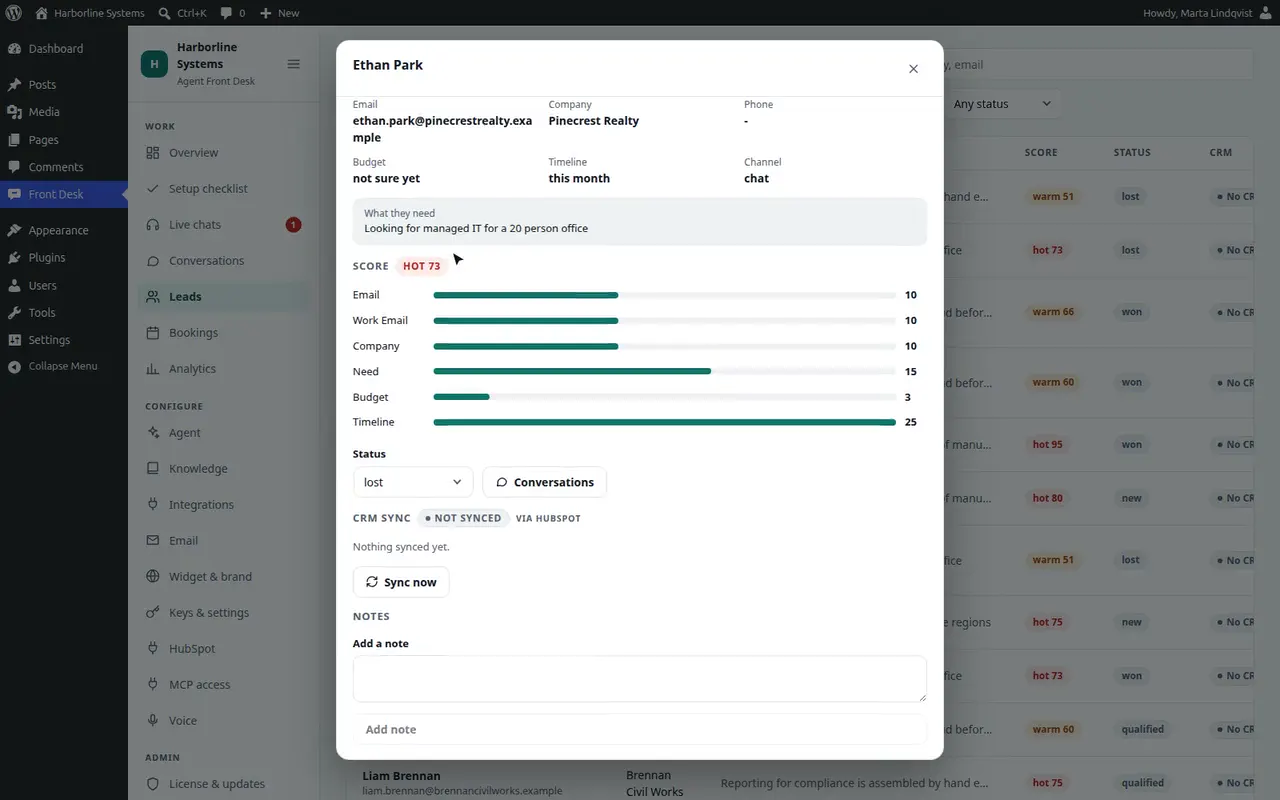
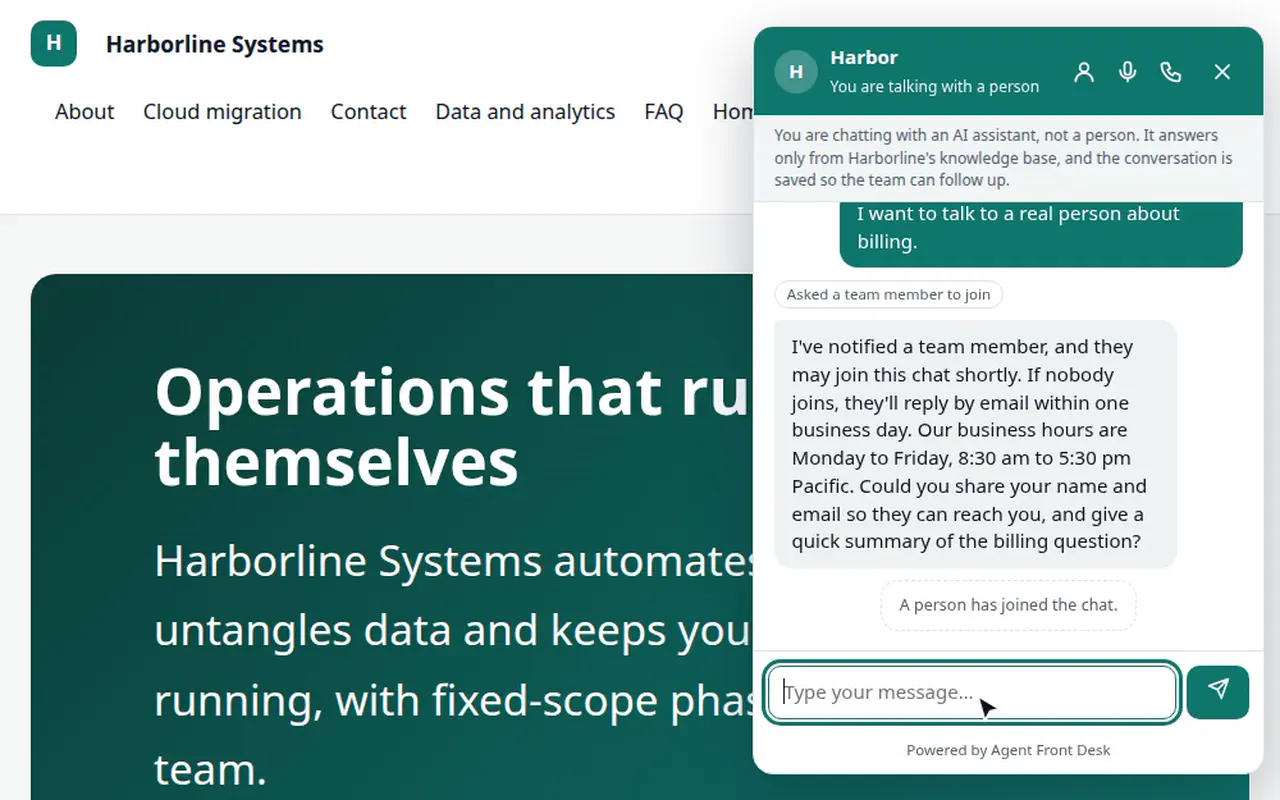
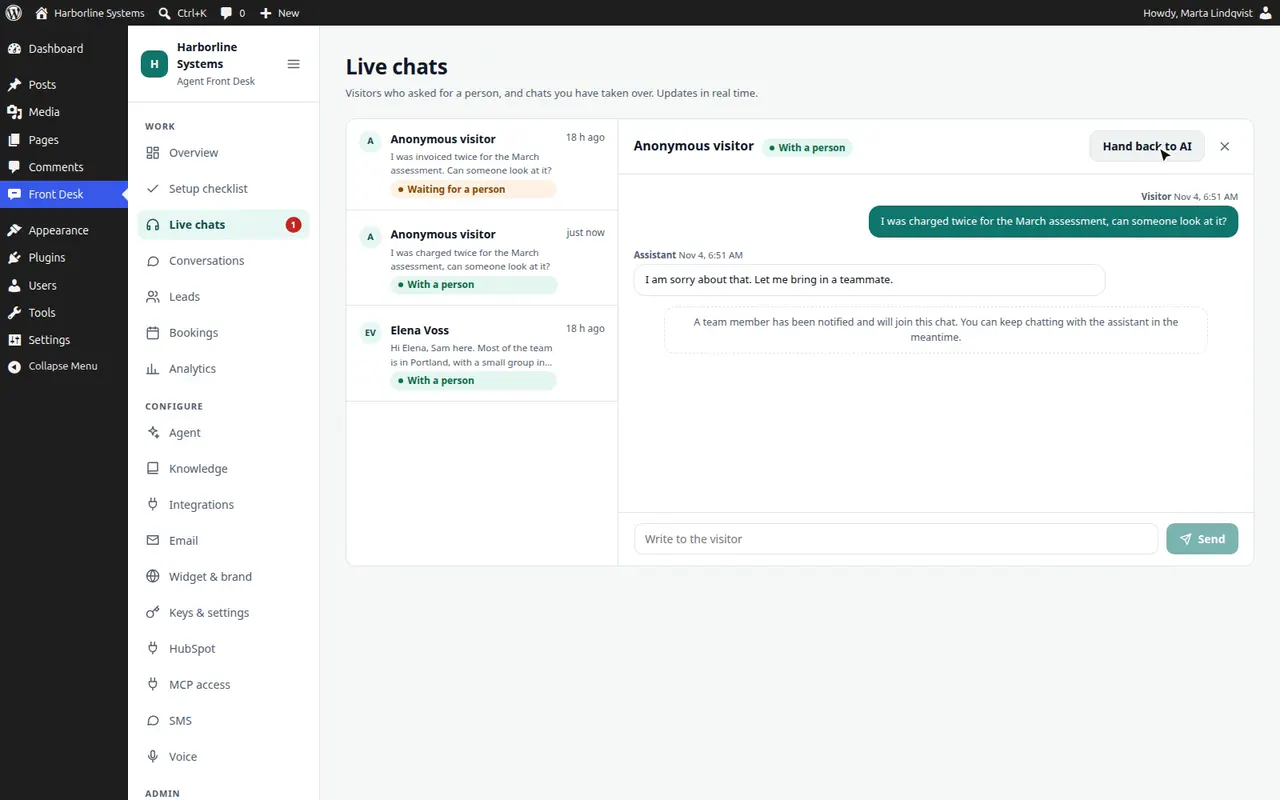
A visitor can ask for a person at any point. Your staff get an email and a waiting chat in Live chats, take over, and the visitor sees that a person has joined. Hand it back to the assistant when you are done. Handover covers chat. It polls about every 2.5 seconds.
- States: AI, waiting, human, back to AI
- Notification email on request
- The visitor always knows who they are talking to
A knowledge base you can test
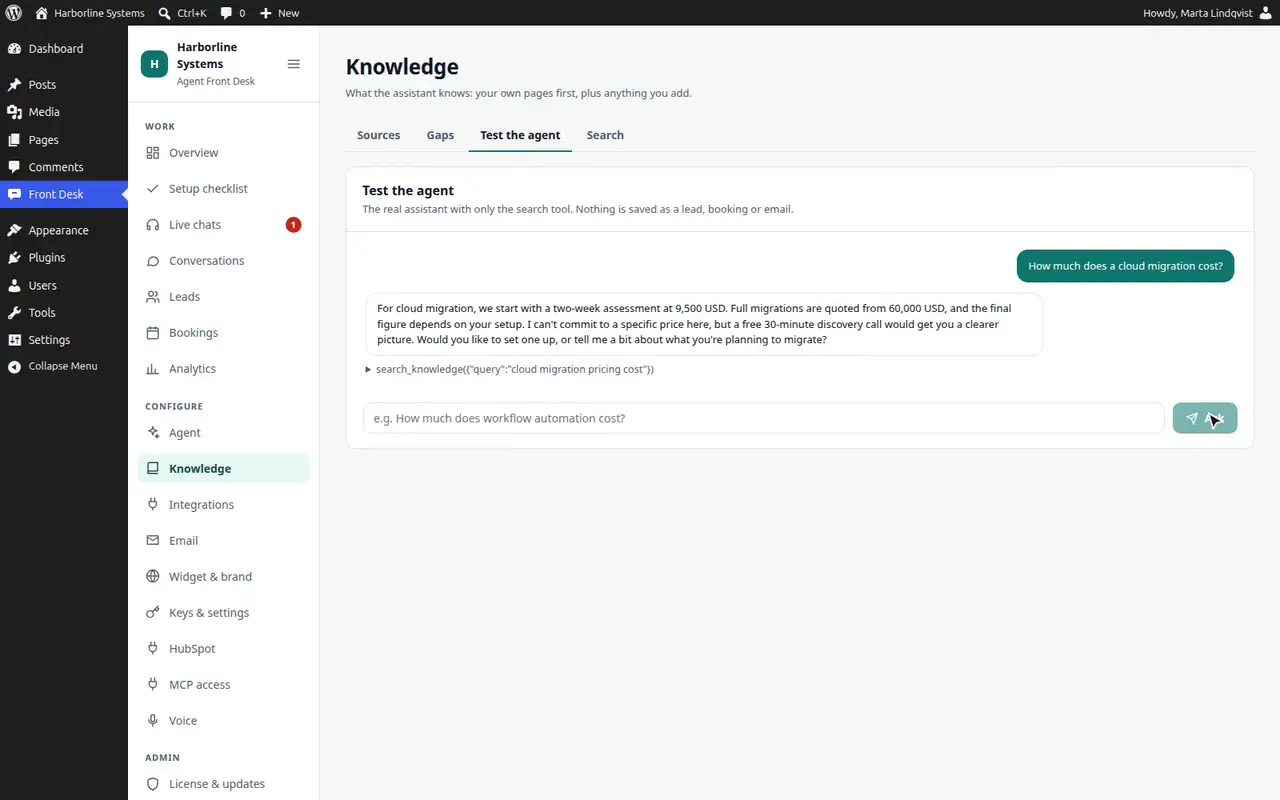
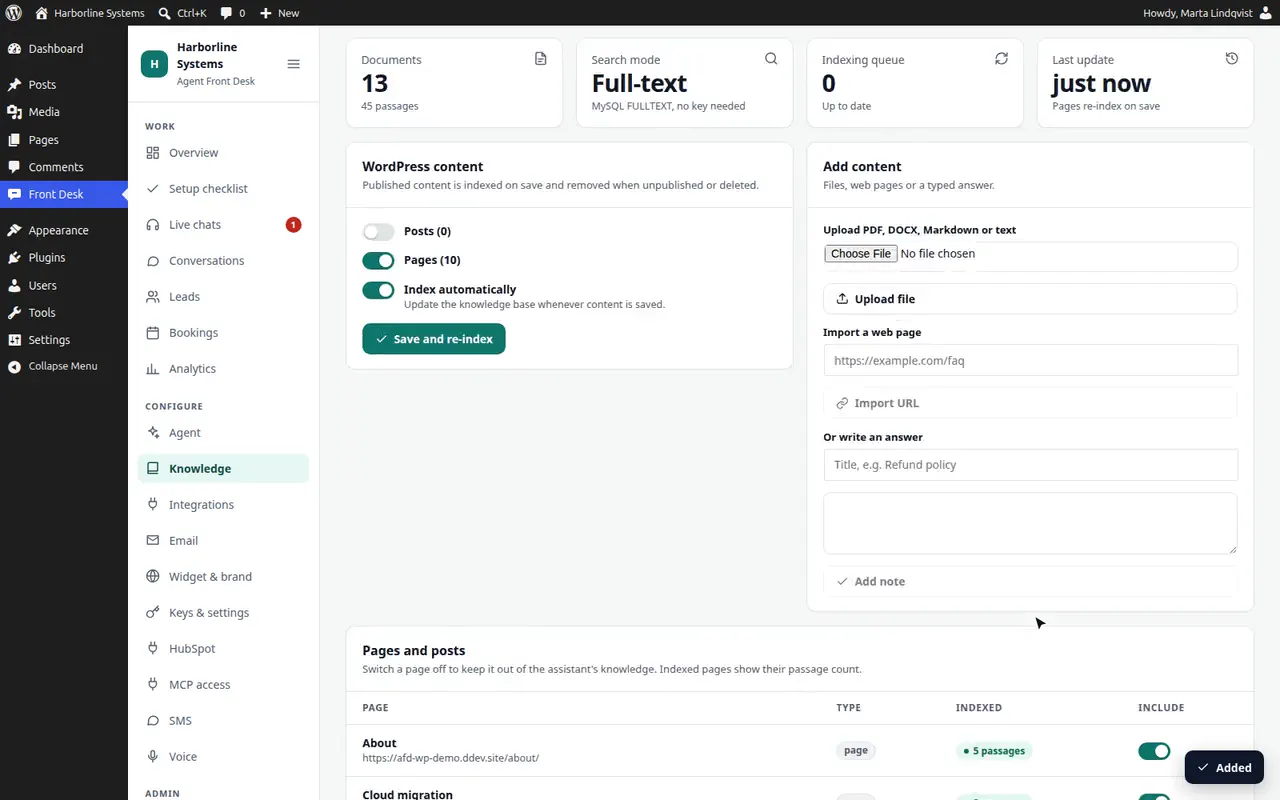
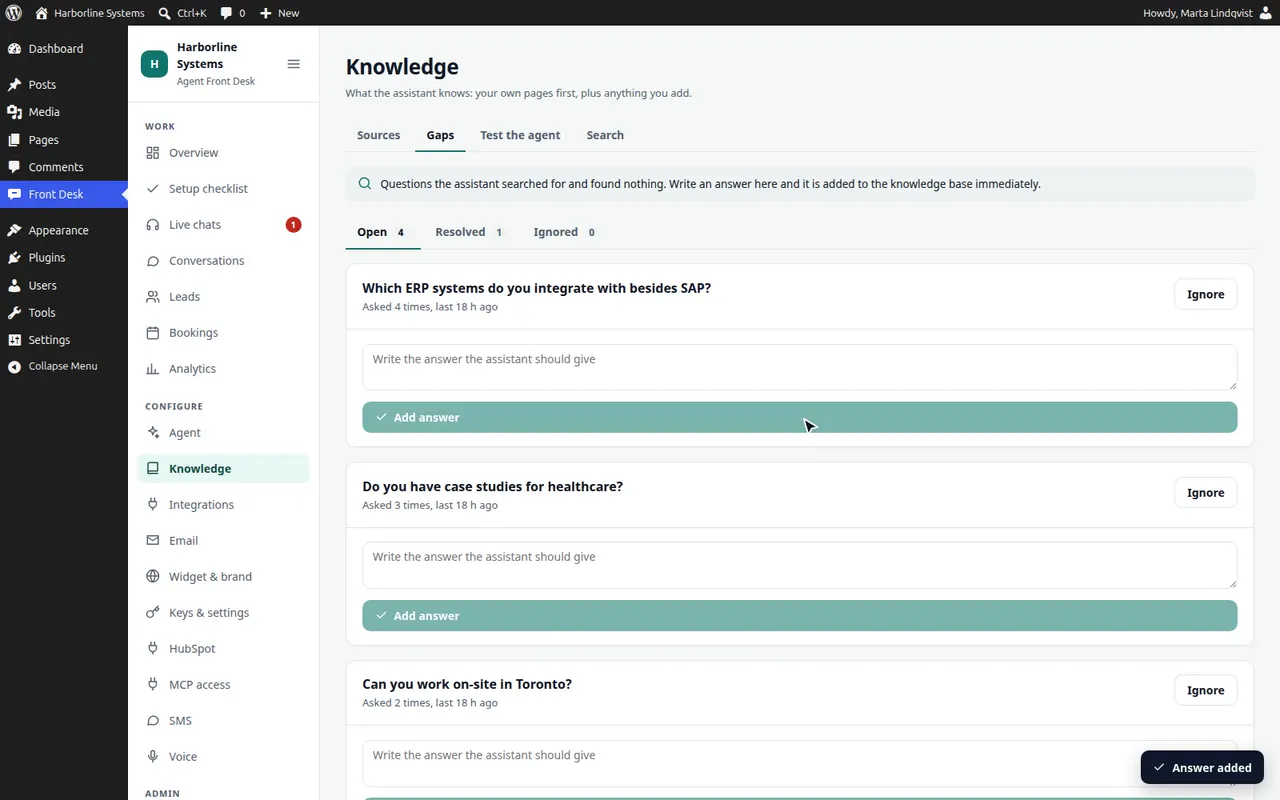
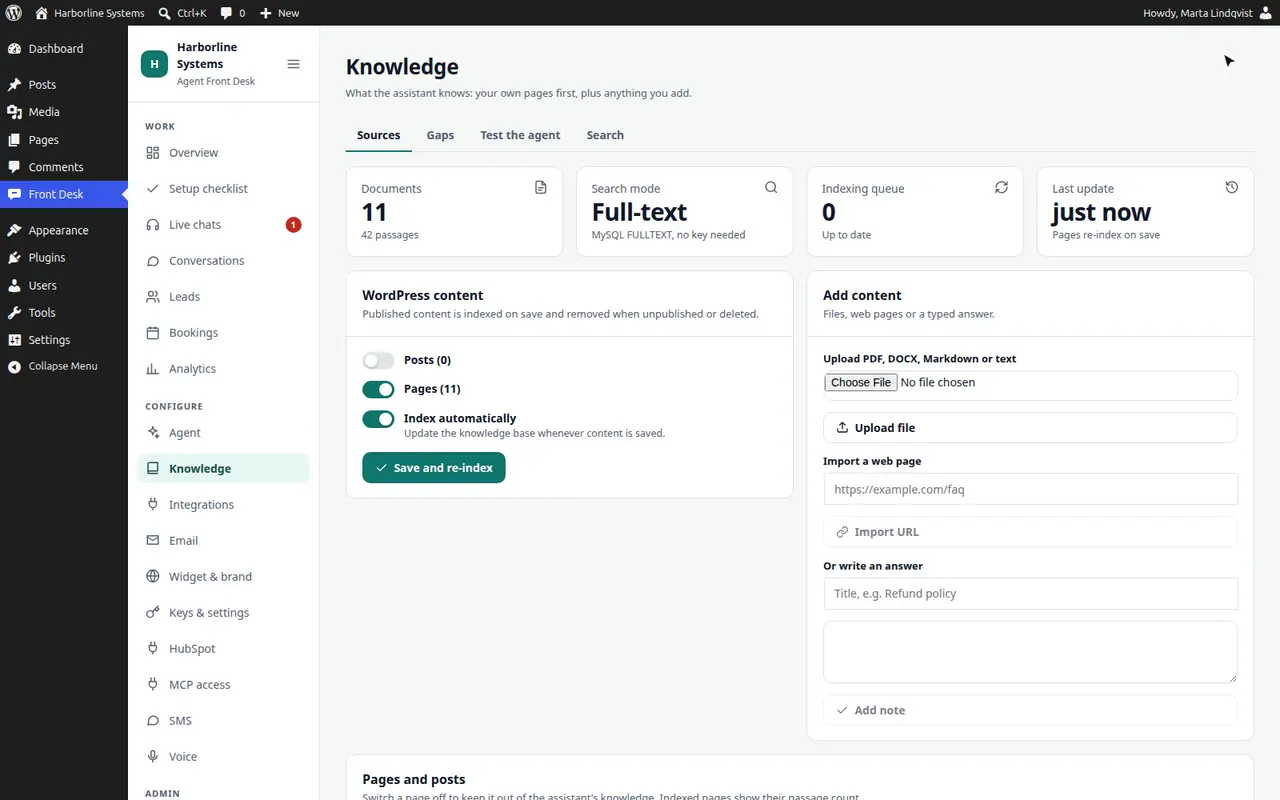
Your published pages and posts are indexed automatically, within seconds of publishing, and removed when you unpublish. Add PDF, Word, Markdown, text, CSV or JSON files up to 10 MB, import a web page, or write an answer. A gaps list shows what visitors asked that it could not answer, and a playground lets you test without creating leads or emails.
- Switch off any page, or exclude it in the page editor
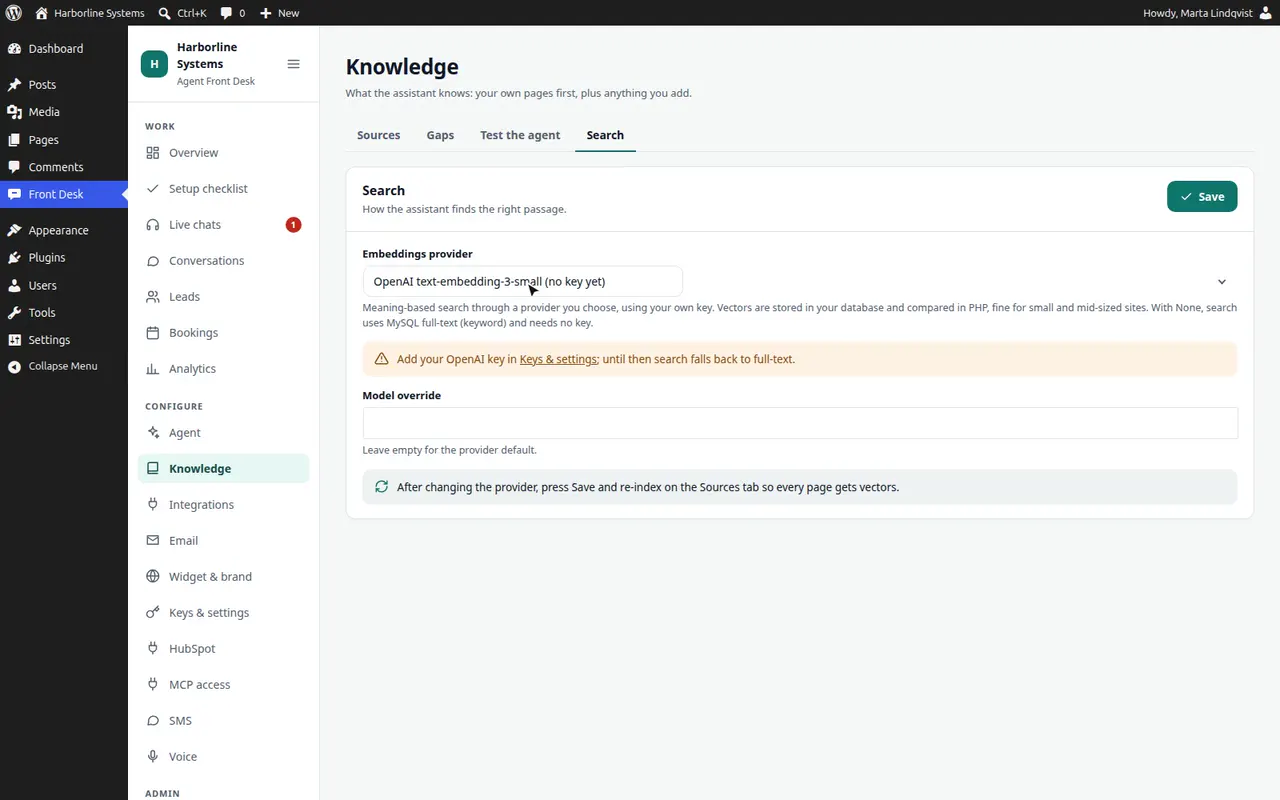
- Optional meaning-based search with OpenAI or Voyage, otherwise MySQL full-text
- Fix a gap by writing the answer right on the Gaps tab
CRM sync
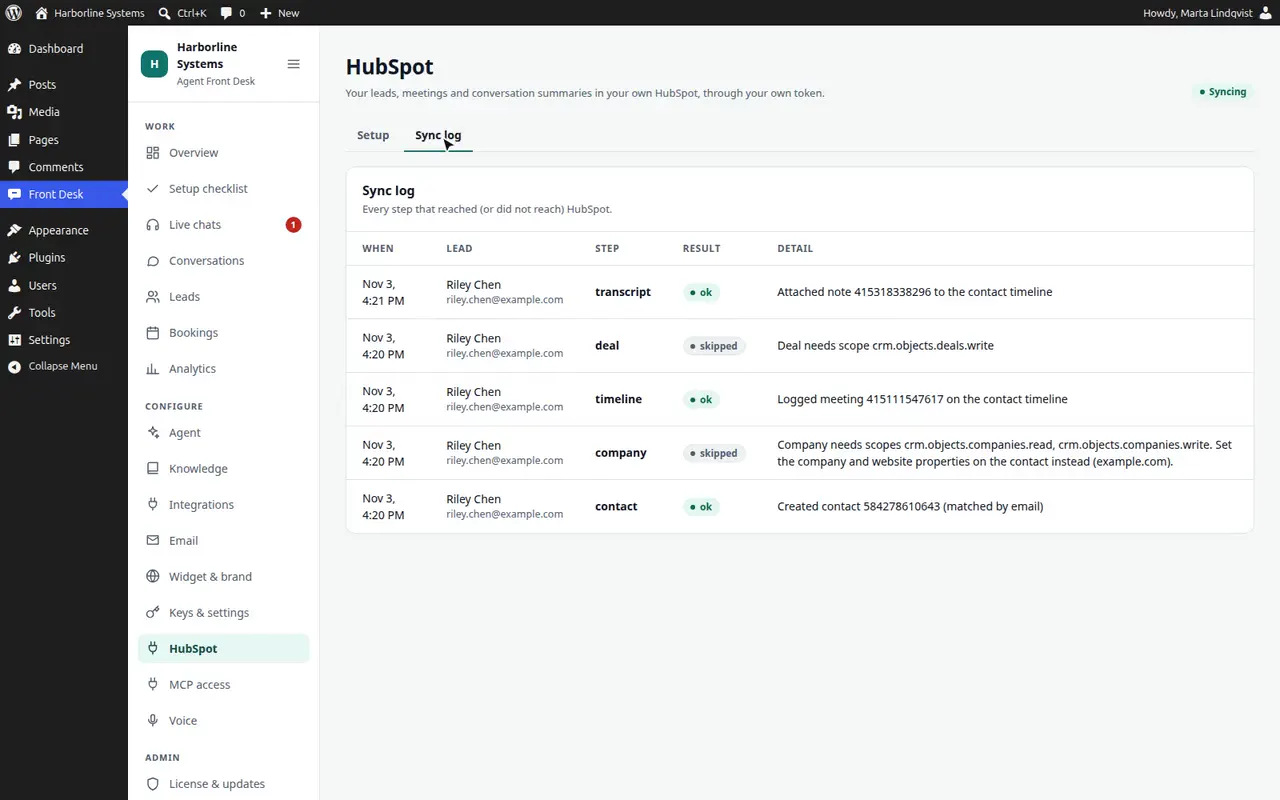
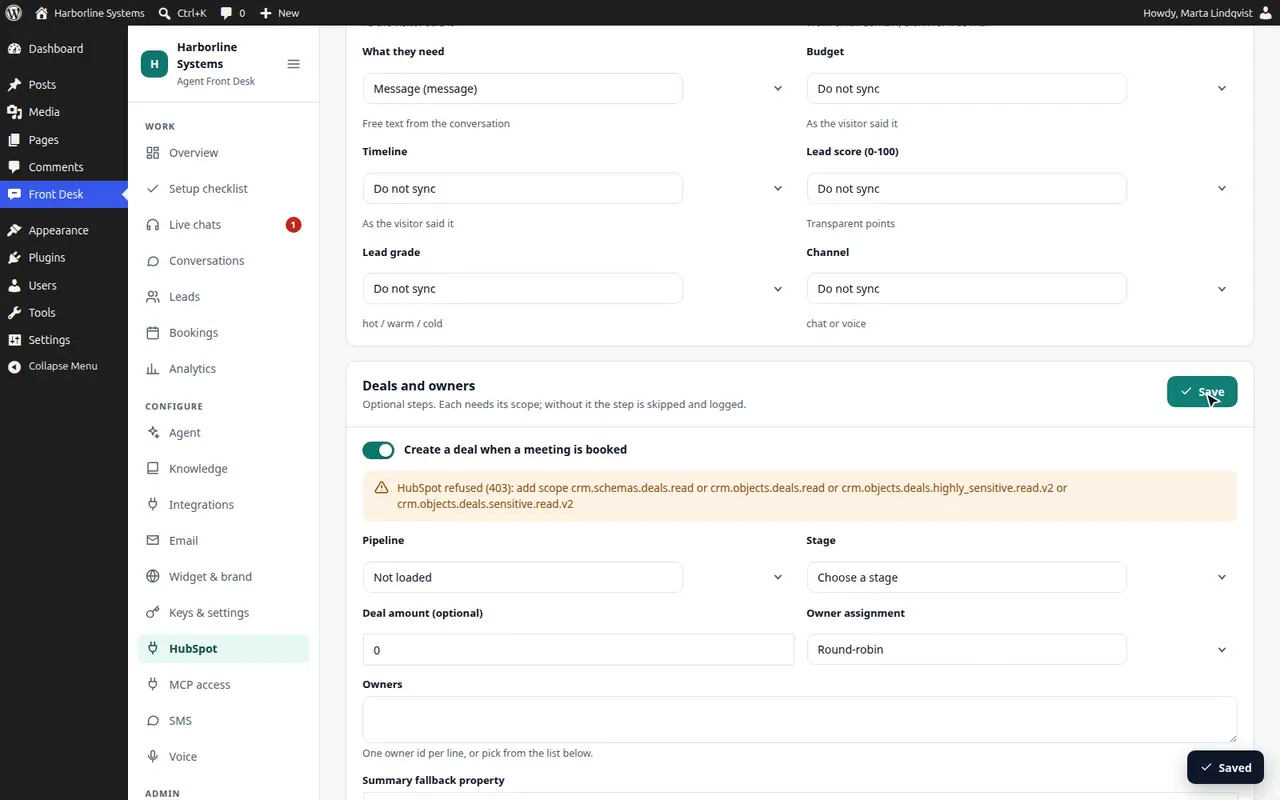
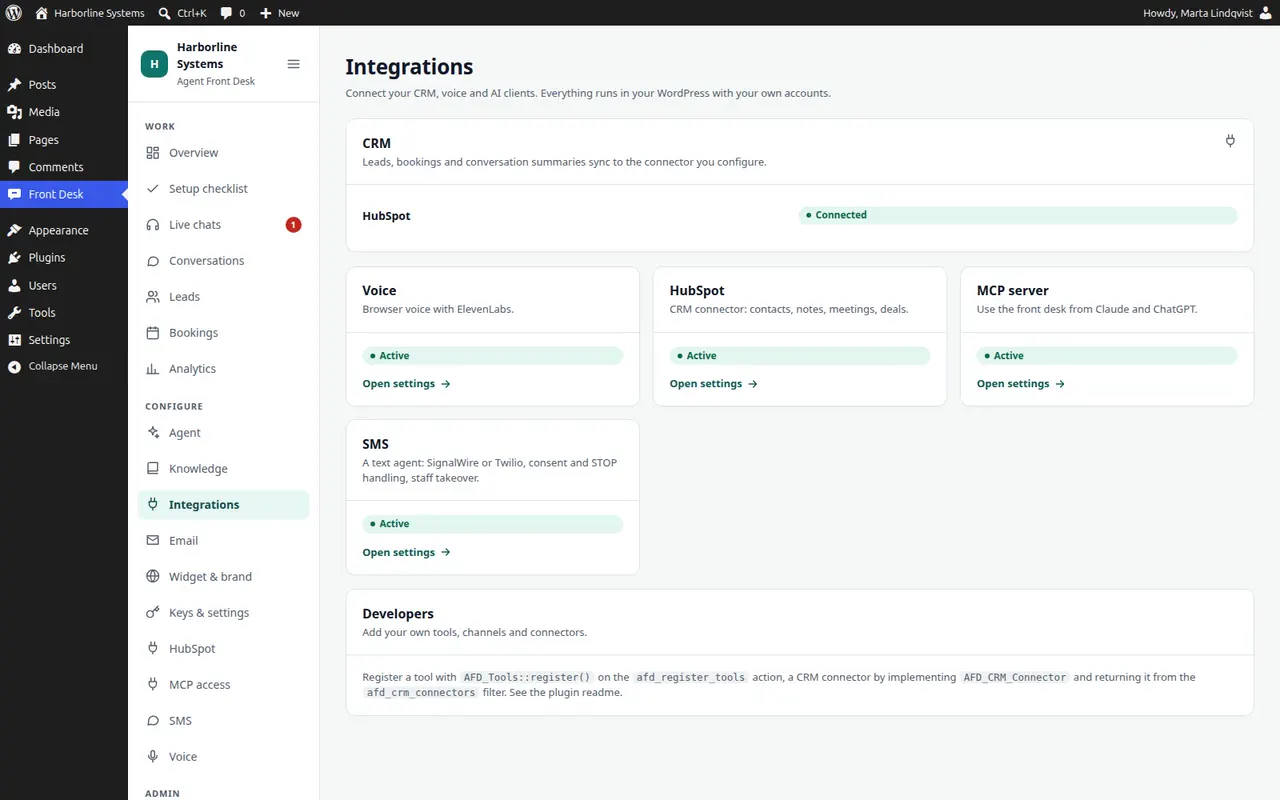
HubSpot is built in. Contacts are created or updated by email, notes and meetings land on the timeline, and, when your scopes allow, the company is found or created, a deal is opened in the pipeline you choose, and an owner is assigned. Failed jobs retry with backoff, and a step that lacks permission is logged with the exact scope to add. Other CRMs are connected as part of an implementation, on our connector interface.
- Field mapping from your real properties
- Fixed or round-robin owner assignment
- Sync log and retry on every lead
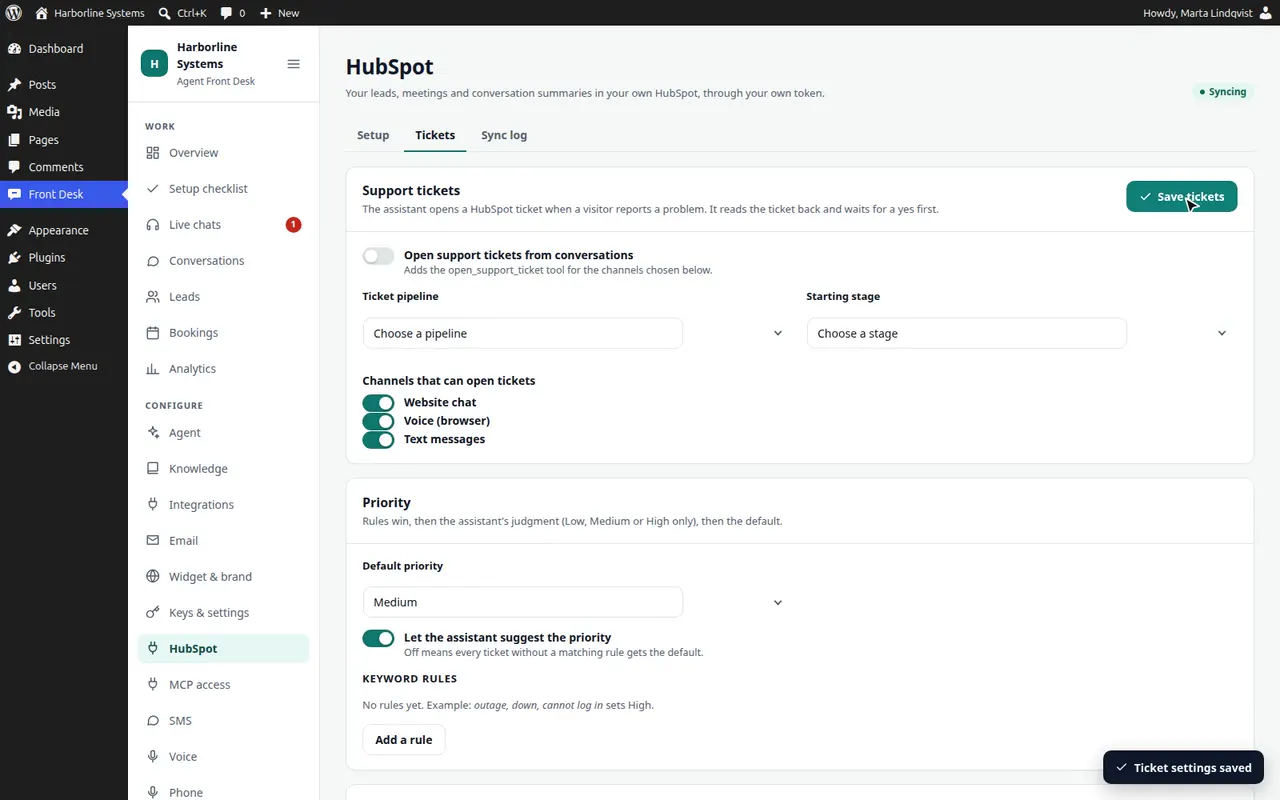
Support tickets in HubSpot
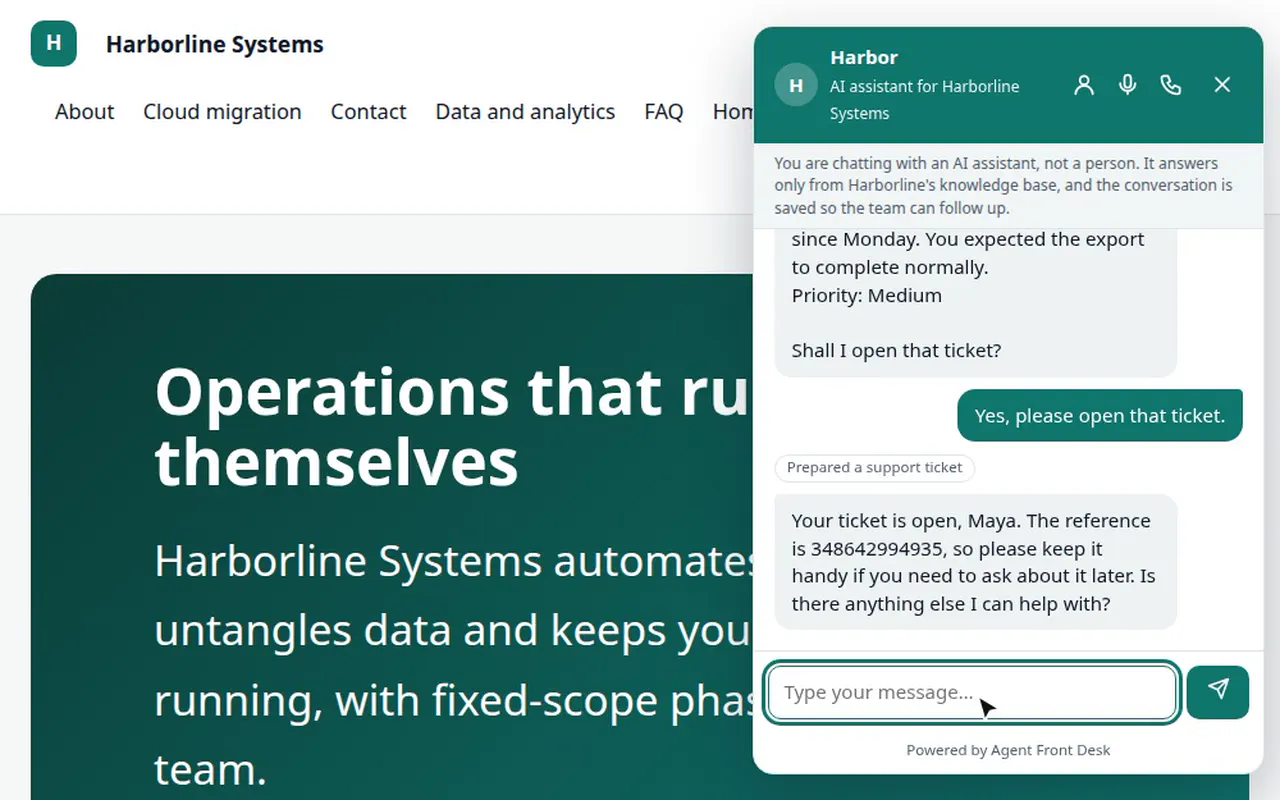
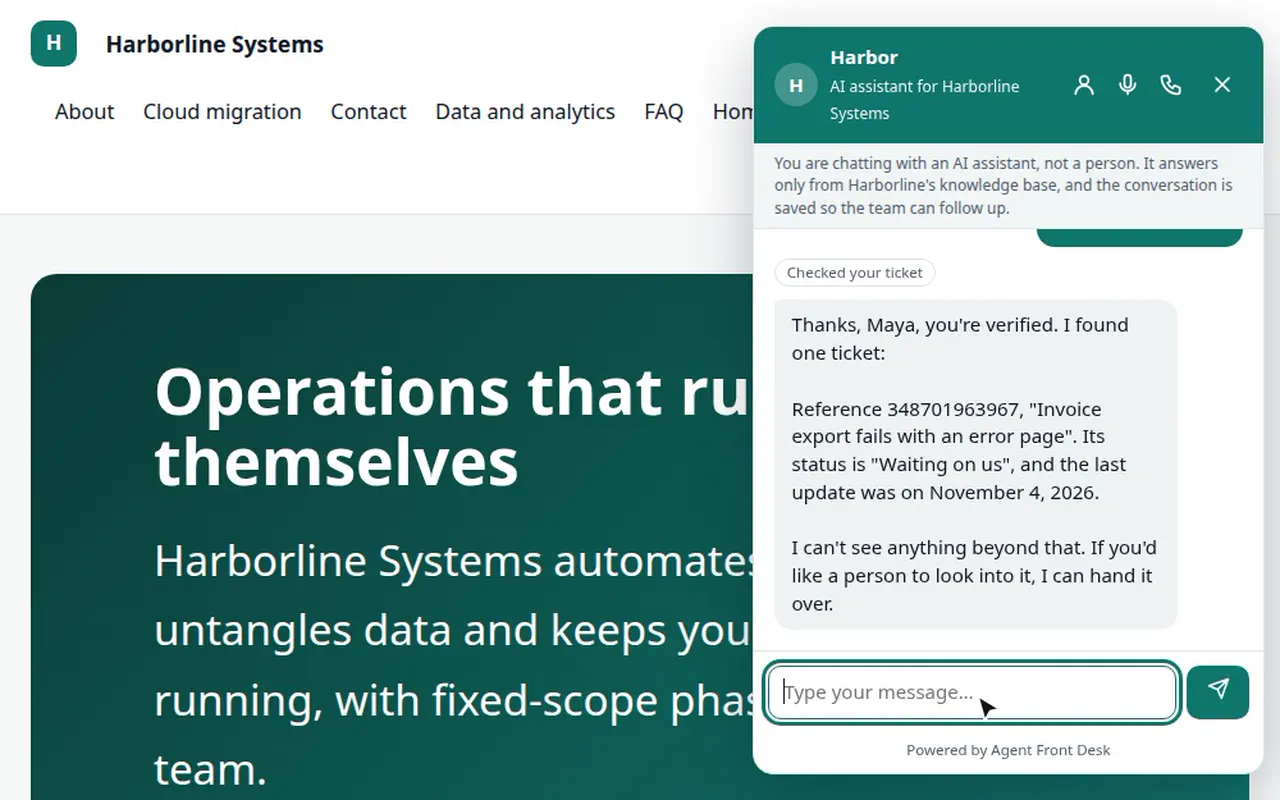
When a visitor reports a problem instead of asking a sales question, the assistant reads a ticket back and asks. After the visitor agrees it opens a HubSpot ticket in the pipeline and stage you choose, with the contact, a priority and the conversation as a note, and gives the visitor the reference. Later messages and staff replies are added to the ticket. A visitor can ask for the status of their ticket, but only after typing a one-time code emailed to the address on file. It needs the ticket scopes; without it the assistant offers a person.
- Priority from your keyword rules, then the assistant, then your default
- An optional ticket when a handover finds nobody available
- Status lookup shows only the visitor’s own open tickets, never internal notes
MCP, run it from ChatGPT or Claude
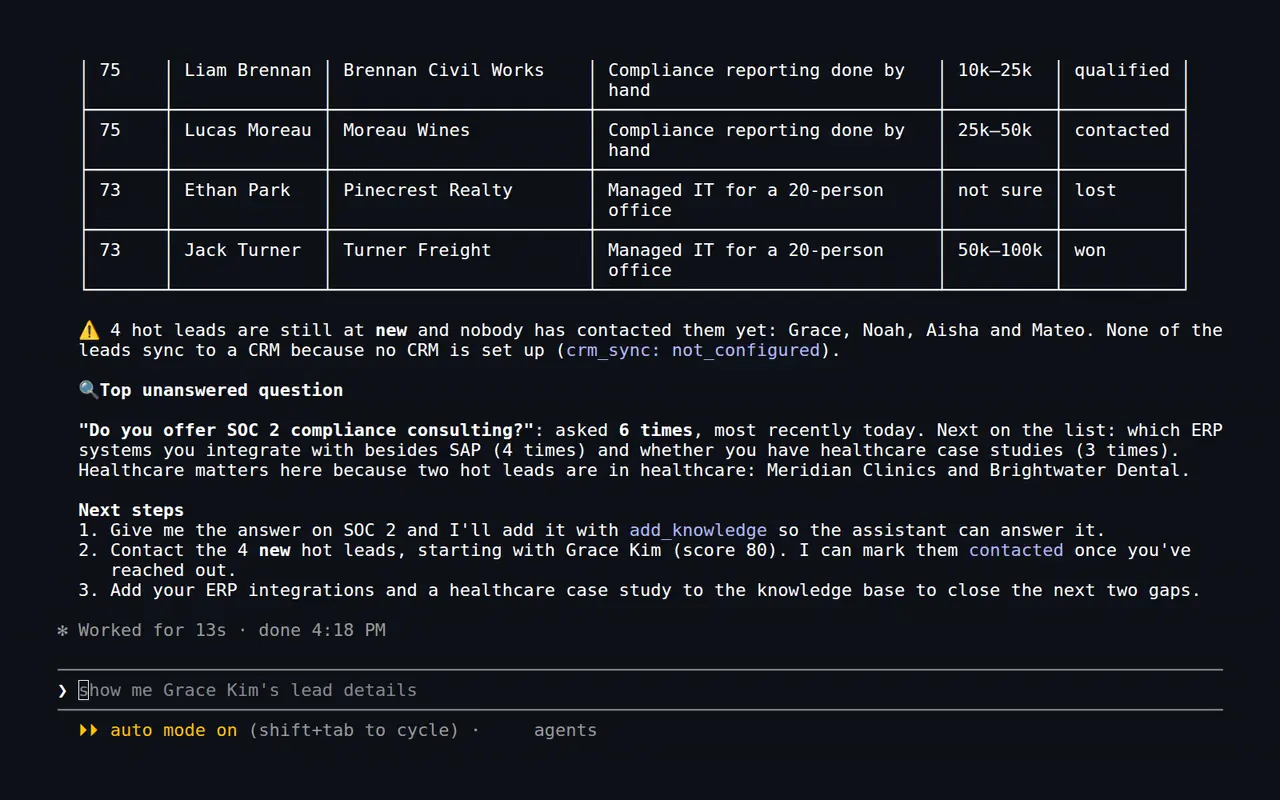
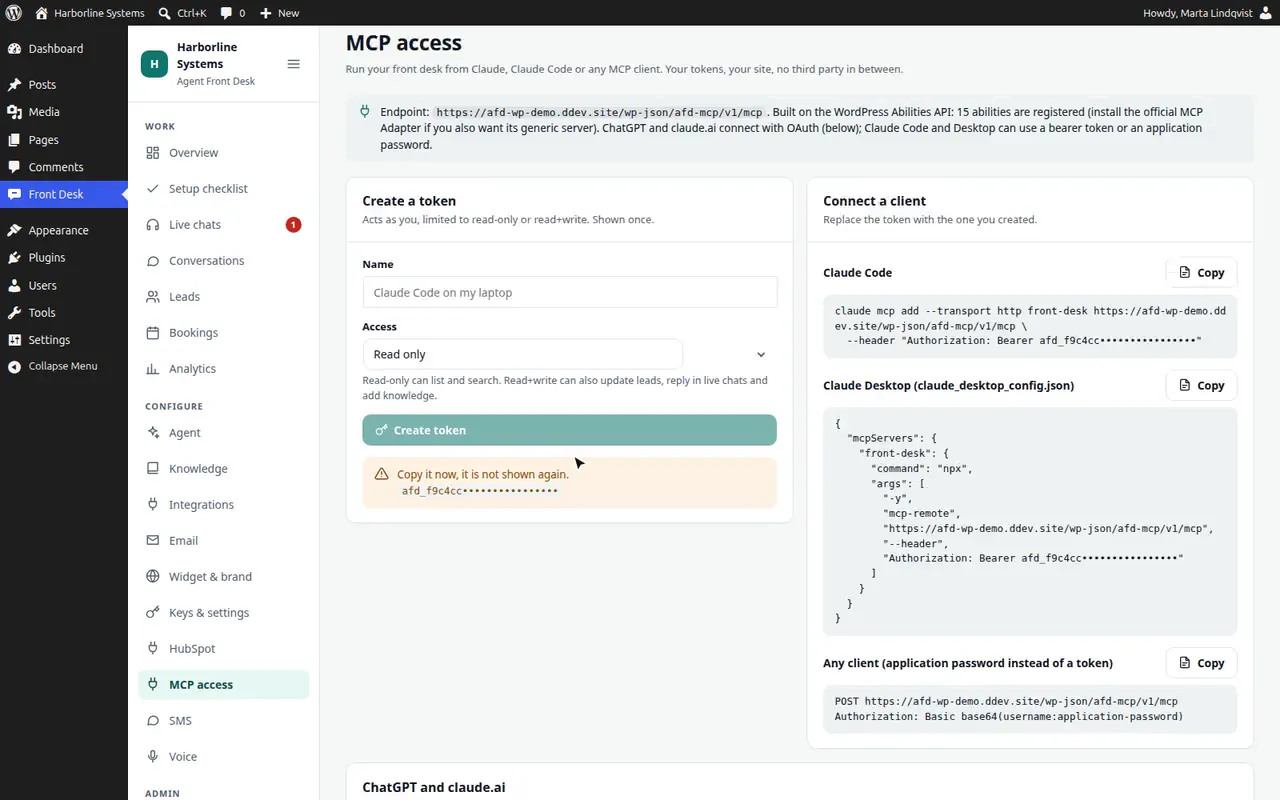
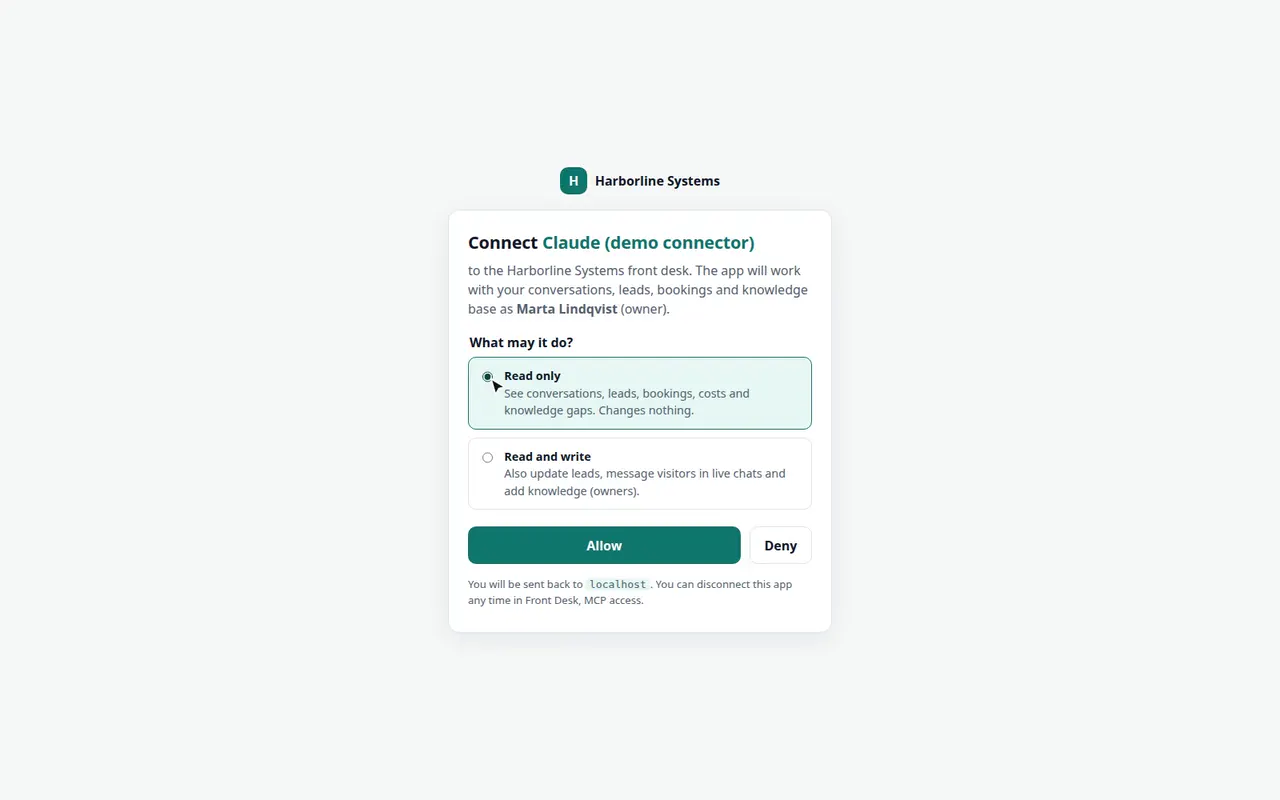
The MCP add-on is a remote MCP server inside your WordPress. Connect ChatGPT or claude.ai as a custom connector with OAuth, or use a token with Claude Code and Claude Desktop. Choose read-only or read and write. 15 tools, every call and denial audited.
- Ask for your hot leads, read a conversation, check costs
- Reply in a live chat or add knowledge, if you allowed writes
- Disconnect any app from the Connected apps list
A widget for your WordPress site
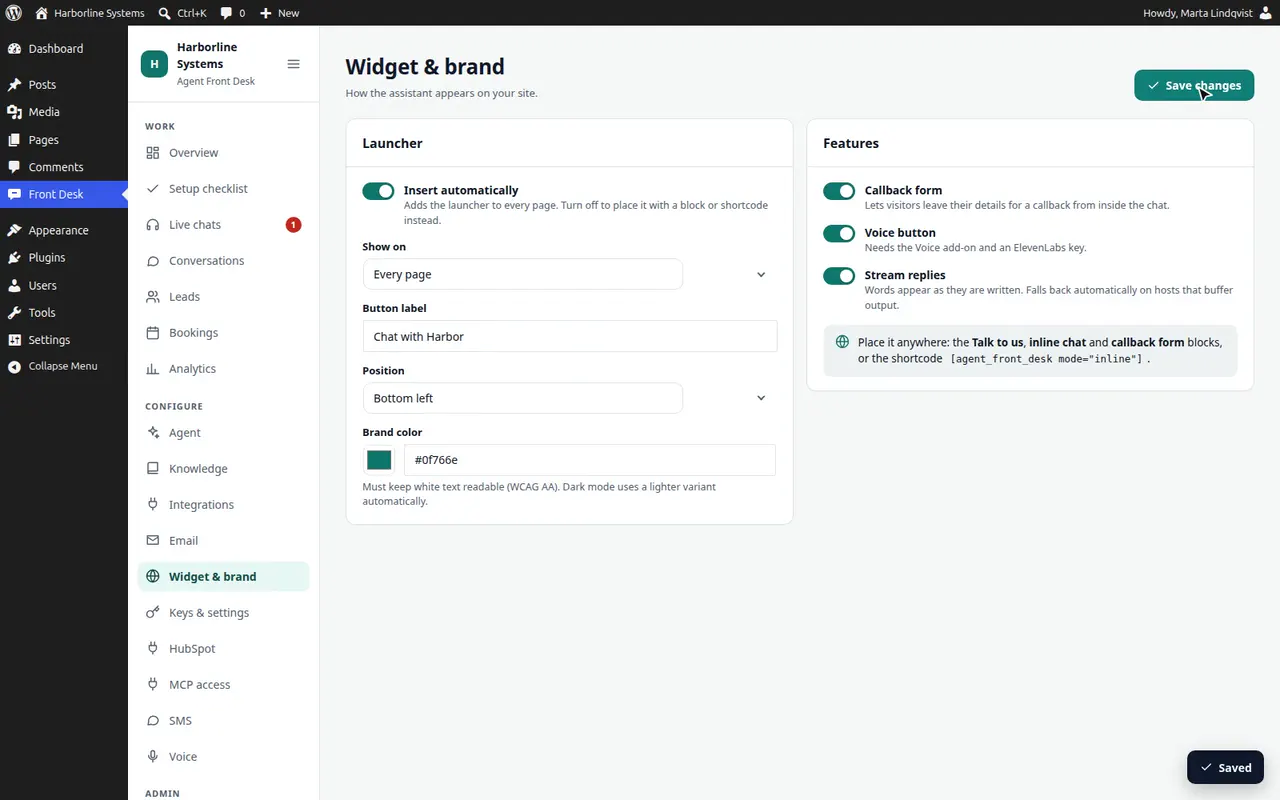
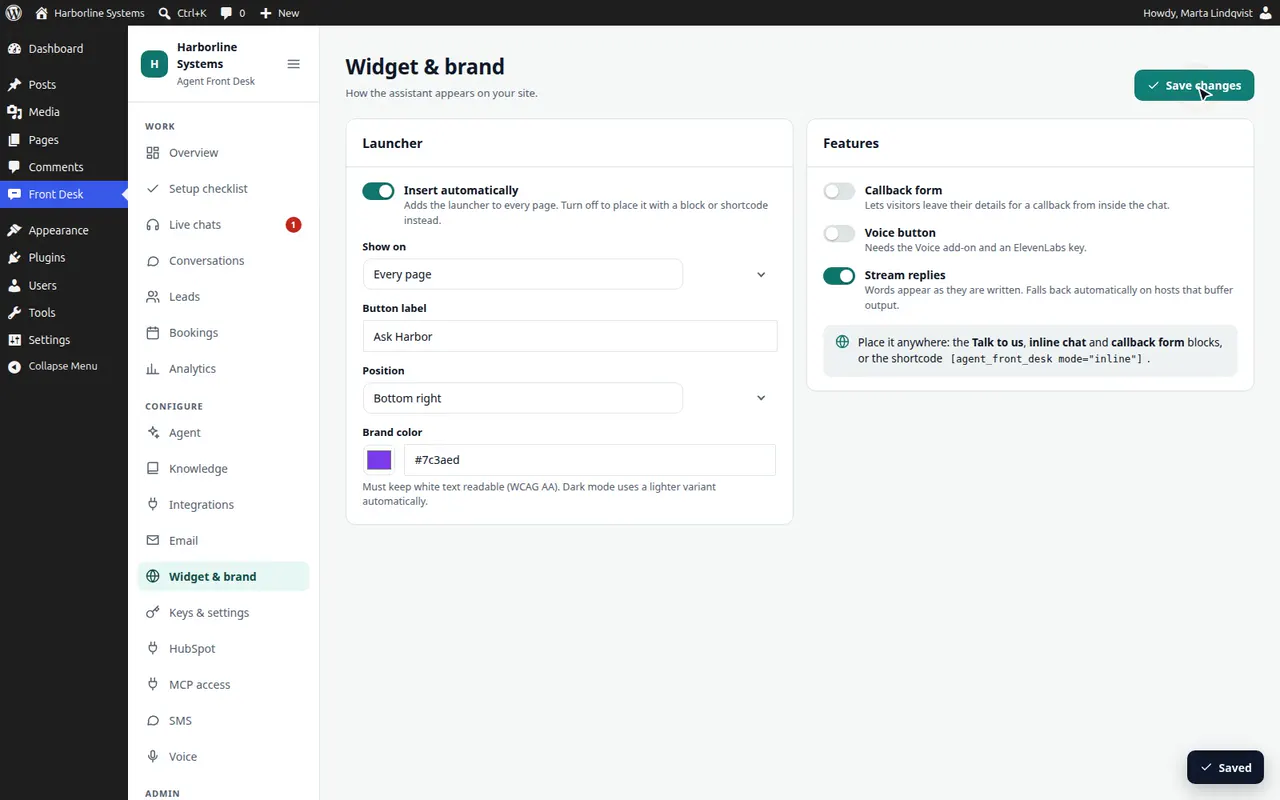
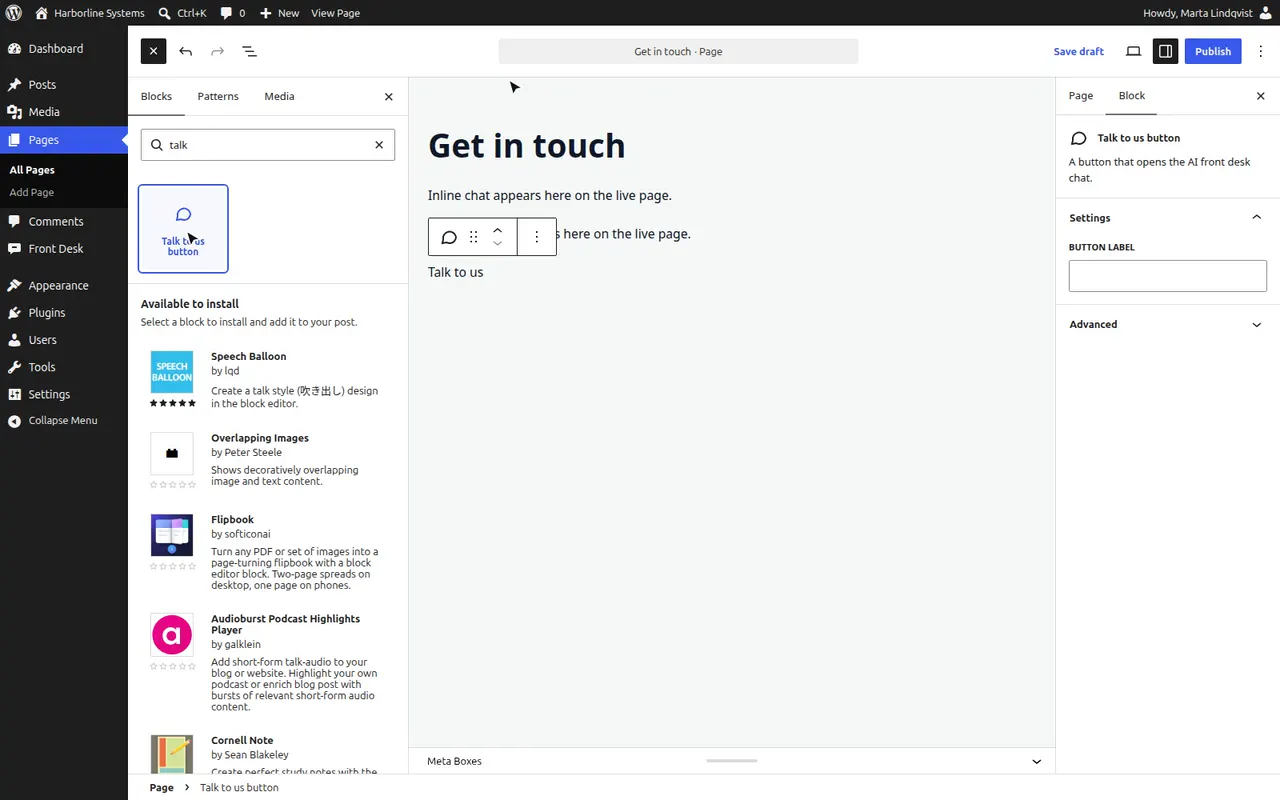
The launcher is inserted automatically, or placed with a block or shortcode. It is themed to your brand and sits in a shadow root so your theme cannot break it. Hide it on pages like checkout with one filter.
- Brand color, launcher label and position settable
- Insert automatically, or place it with a block or shortcode
- No iframe
Analytics and costs
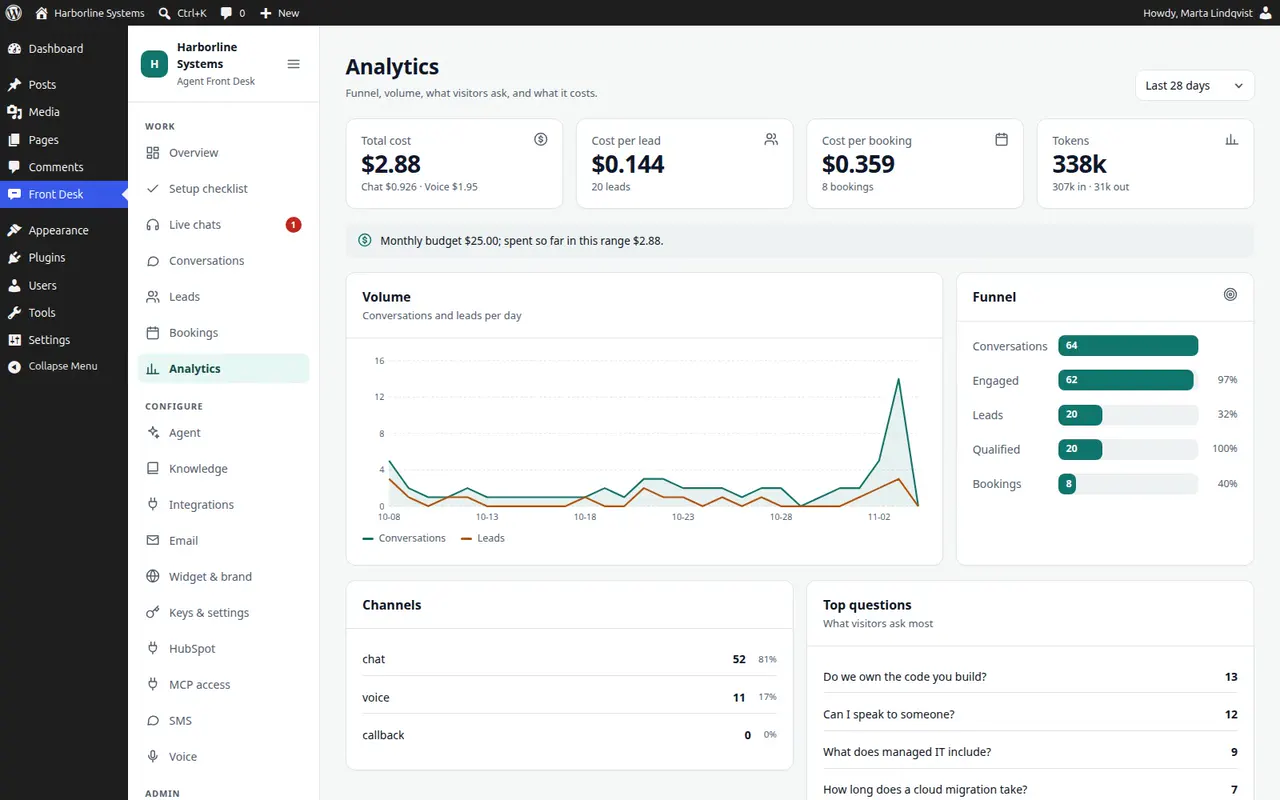
See the funnel from conversation to booking, what visitors ask, which channel they used, and what each lead and booking cost in AI and voice usage. Set a monthly budget and see your spend against it.
- Cost per lead and per booking
- Top questions and knowledge gaps
- Chat and voice split
Team, roles and audit log
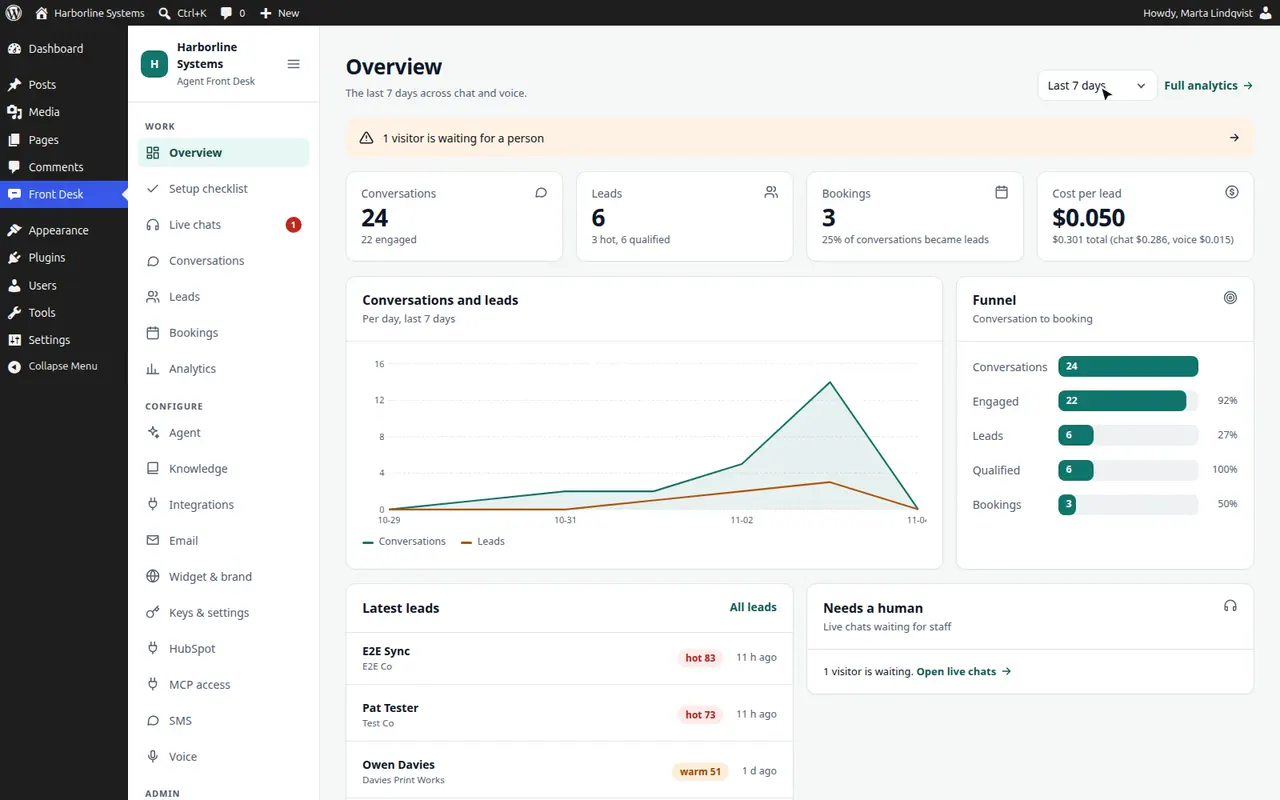
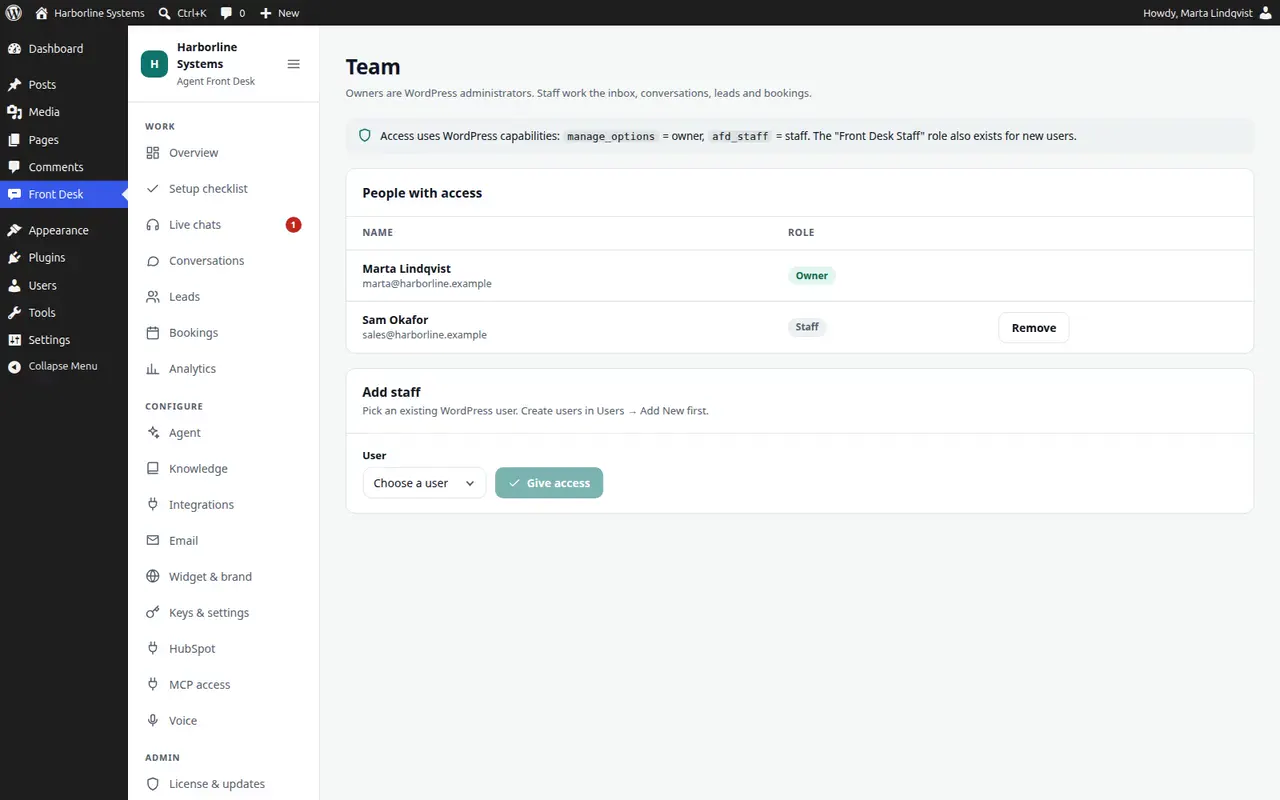
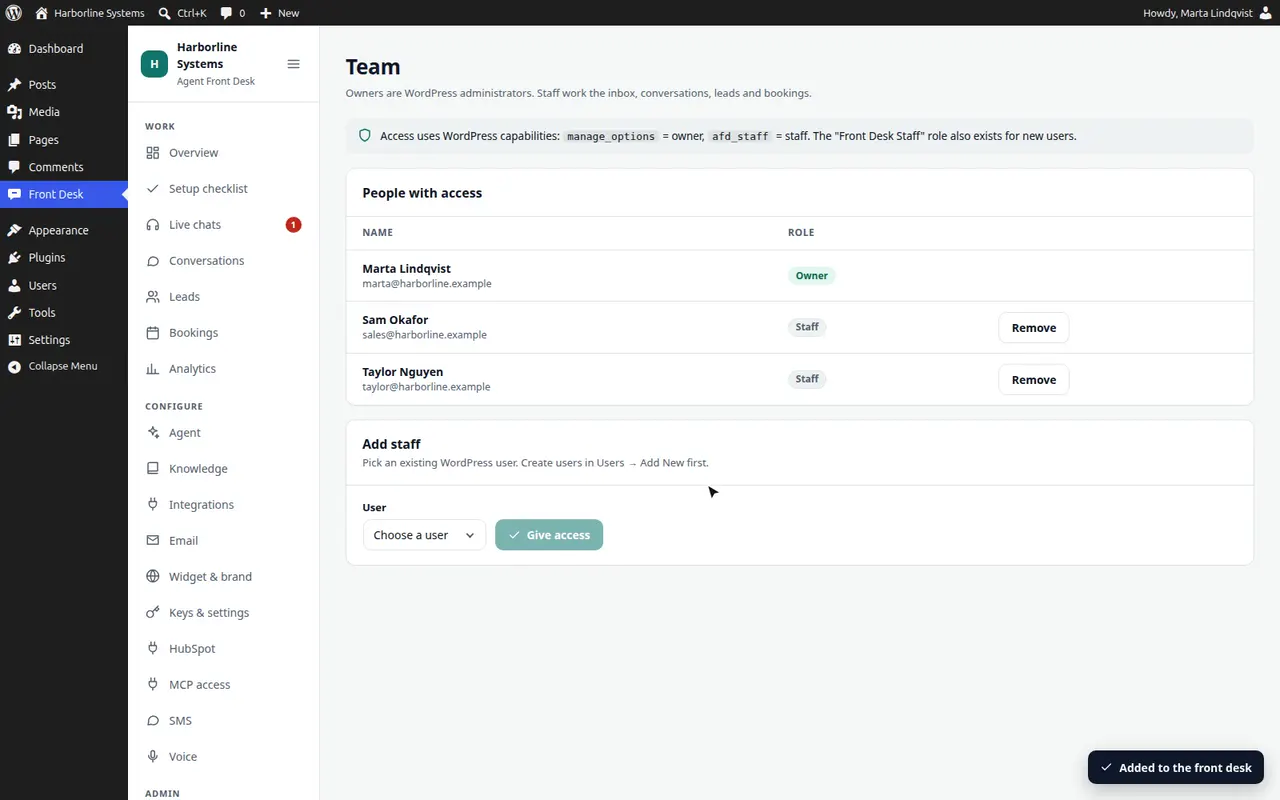
Owners are WordPress administrators and configure everything. Staff have a Front Desk Staff role for conversations, leads, bookings, live chats and analytics. The audit log records settings, integration, knowledge and team changes, and every MCP call.
- Two roles, built on WordPress capabilities
- Add the staff capability to any existing user
- Secrets are never shown in the log
Set it up from one admin
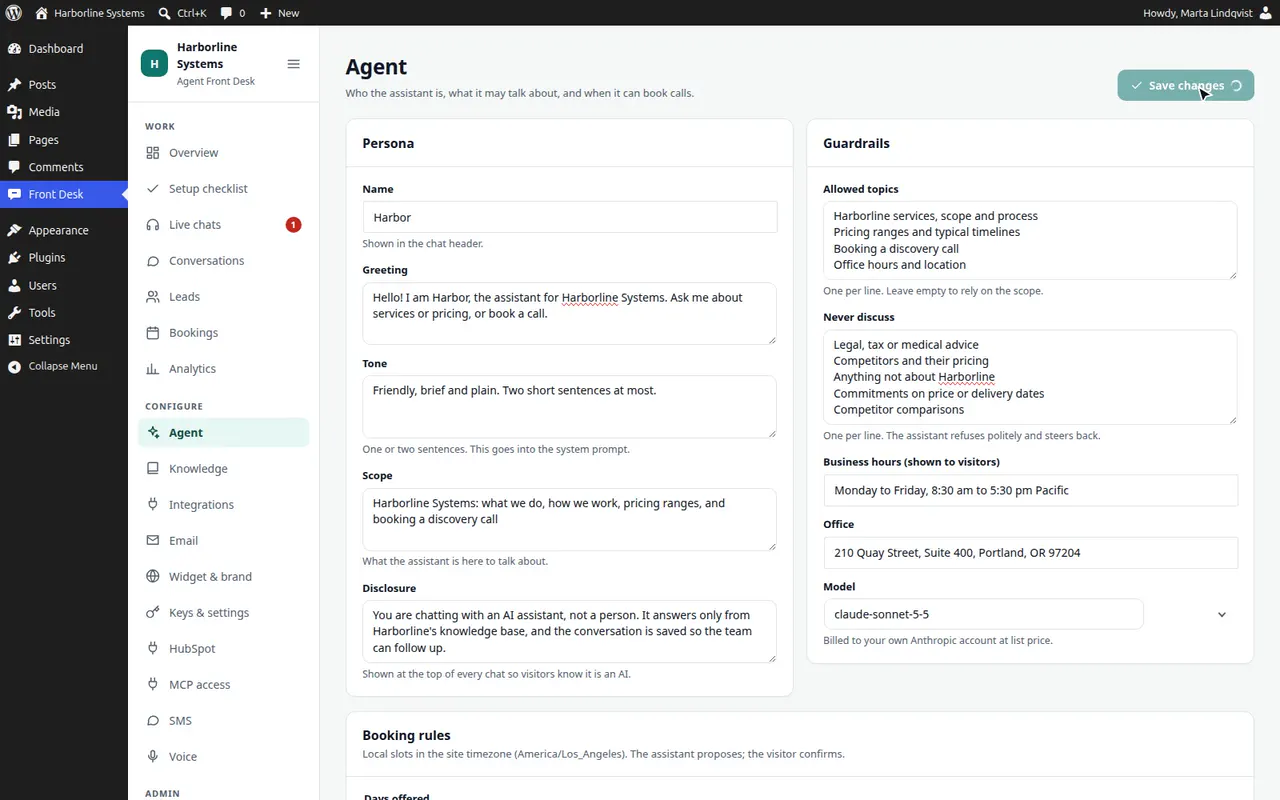
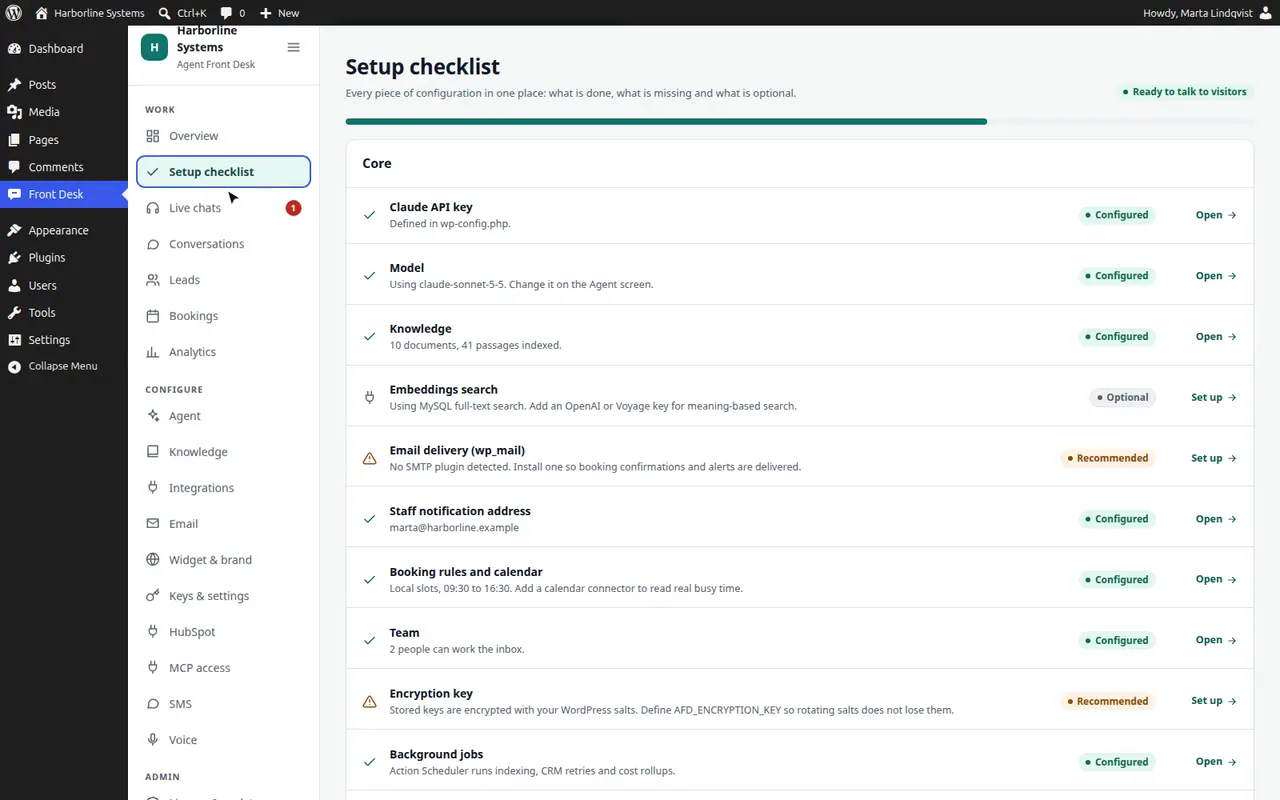
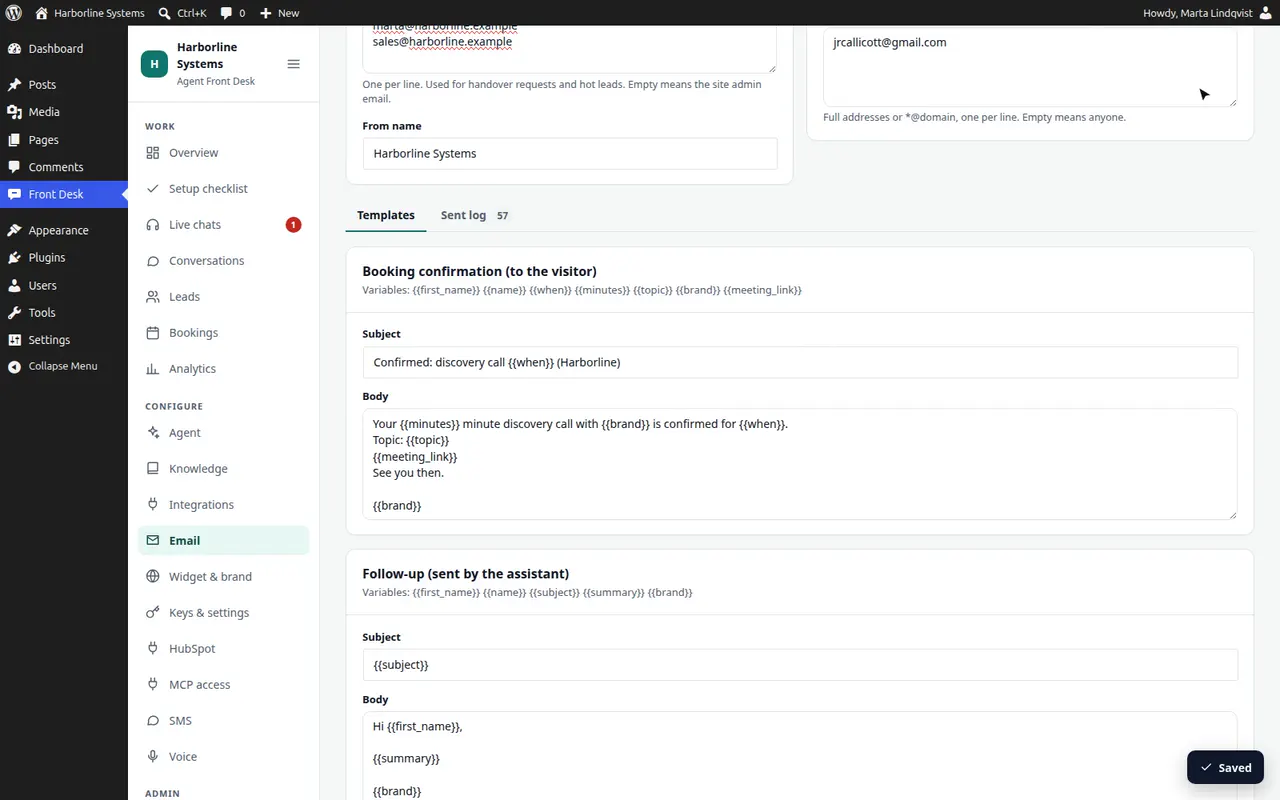
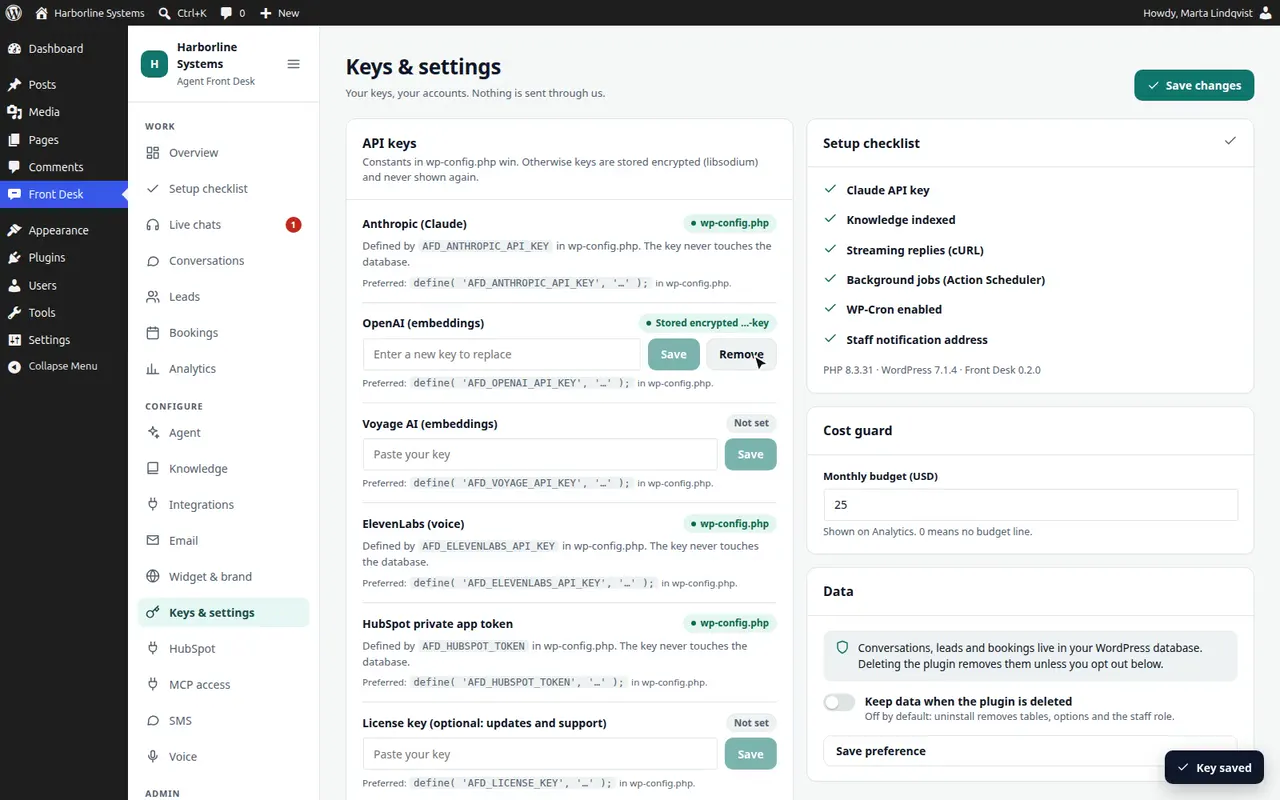
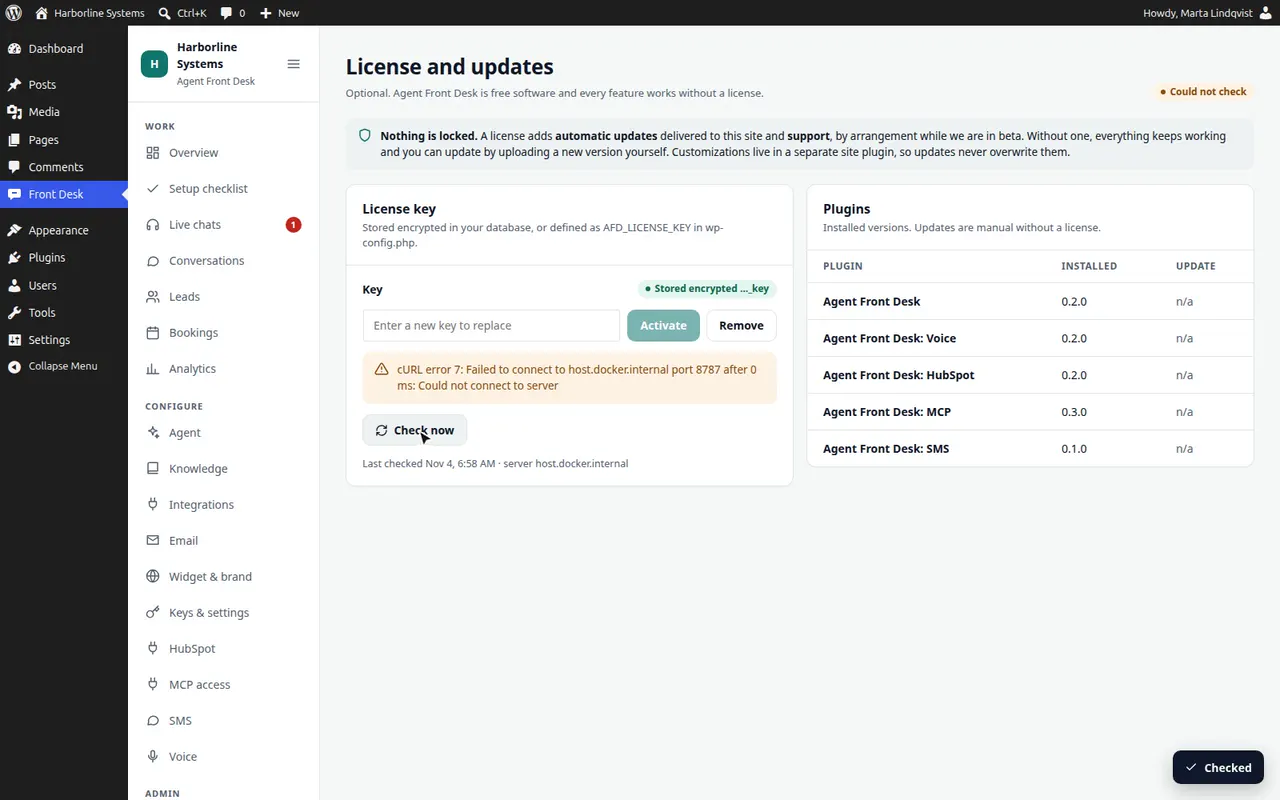
The Agent screen sets the persona, guardrails and booking rules. A Setup checklist shows what is configured, what is missing and what is optional. Email, keys, integrations and the optional license each have their own screen.
- Persona, topics the assistant must not discuss, business hours and booking rules
- Keys stored encrypted, or read from wp-config.php
- A log of every email sent or blocked, with a sandbox allowlist for testing
Accessibility, WCAG 2.2 AA
There are visible focus rings, labeled controls, live regions for chat and reduced motion support. Automated axe checks pass on the admin screens in light and dark and on the widget. They are not proof on their own, so we do a keyboard and screen reader pass for each client before launch.
- Light and dark admin
- Keyboard use throughout
- Manual pass before launch
Want it on your WordPress site?
The private beta has limited spots, and each one is set up by hand. Tell us about your site and your CRM.