HubSpot integration
An AI receptionist that writes to your HubSpot
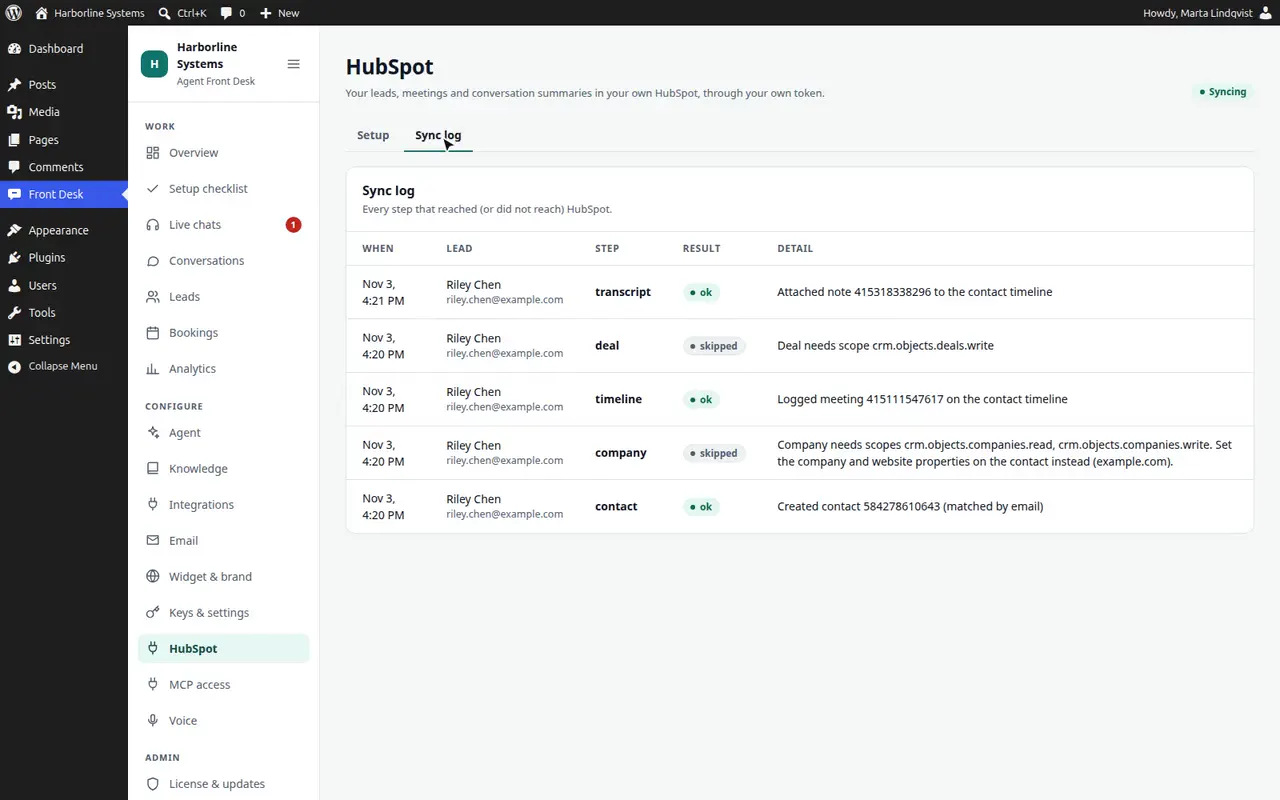
The HubSpot add-on connects with a private app token from your own HubSpot account. Every lead the assistant captures is synced, and you can see exactly what happened to each one.
What syncs
Contacts, notes, meetings, companies and deals
- Contacts are created or updated by email, so no duplicates
- A conversation summary and the meeting are added to the contact timeline
- The company is found or created from the work email domain
- A deal is opened in the pipeline and stage you choose when a meeting is booked
- An owner is assigned, fixed or round-robin
- Failed steps retry at 1 minute, 5 minutes, 30 minutes, 2 hours and 6 hours, or with Retry now
- A CRM problem never reaches the visitor
Help desk
Support tickets, opened only after the visitor says yes
For a visitor with a problem rather than a sales question. Needs the ticket scopes on your private app.
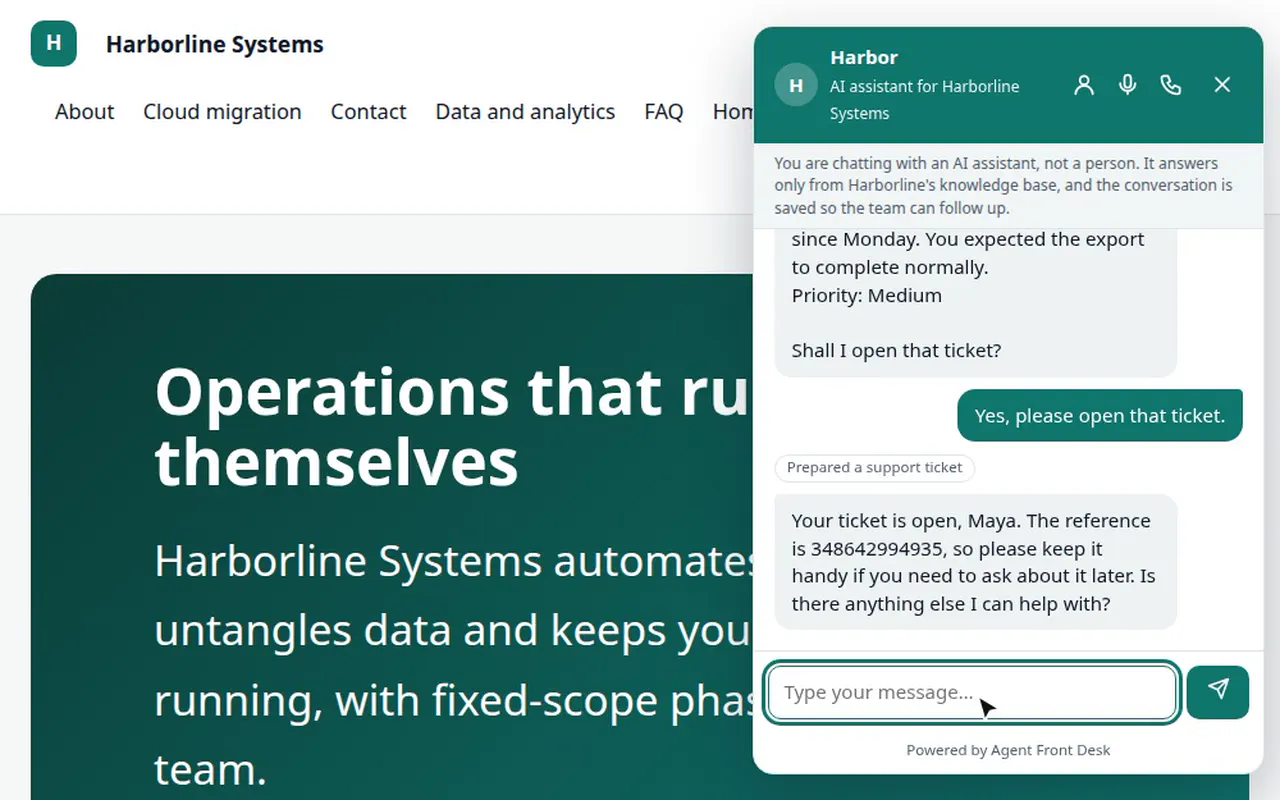
- The assistant reads the subject, summary and priority back and asks first. The server refuses to file the ticket until the visitor has answered in a later message
- The ticket lands in the pipeline and stage you choose, with the contact, the company when known, a priority and the conversation as a note on the ticket
- The visitor gets the ticket reference in the reply
- Later messages and staff replies are added to the ticket in batches, through the same queue with a log and retry
- If a handover finds nobody available, a ticket can be opened as well as the staff email
- Conversations and Leads show a ticket badge that links to the HubSpot record
Status checks that cannot leak
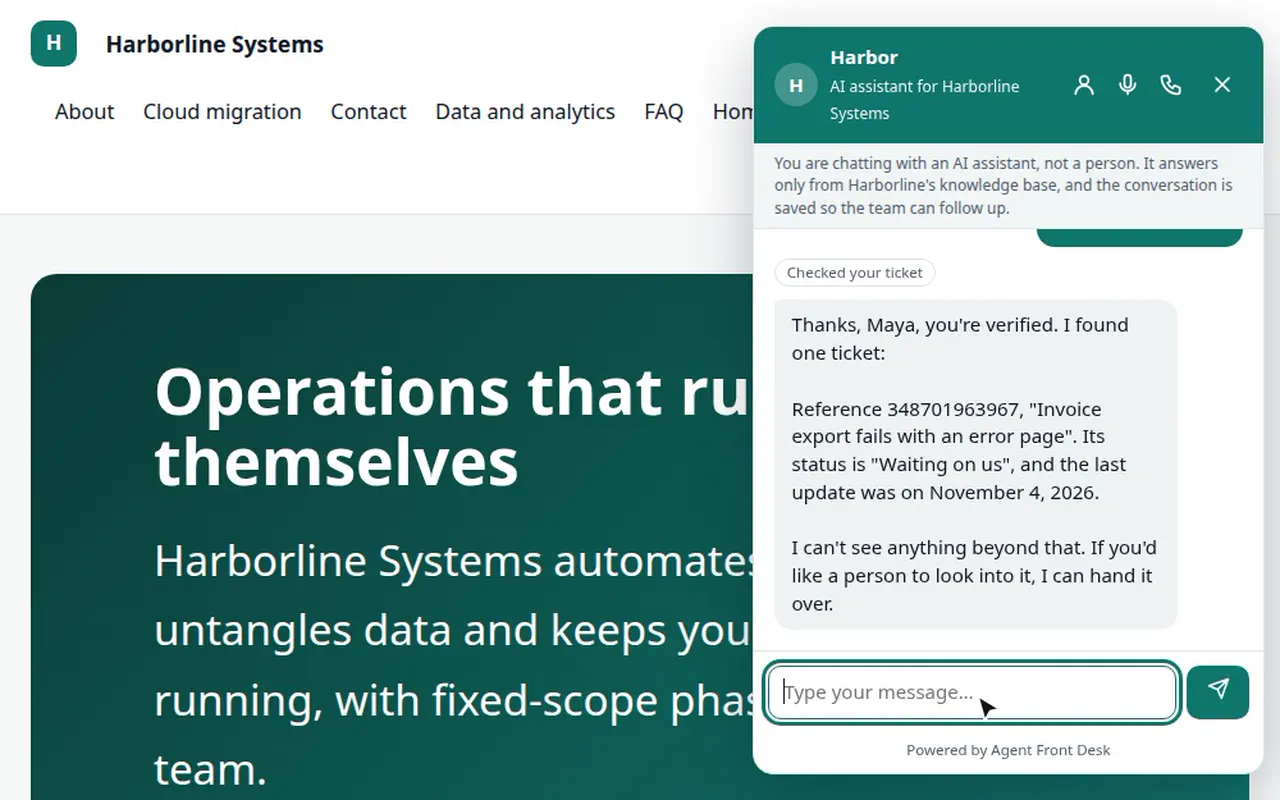
- The visitor gives an email; a six digit code is sent to the contact’s address in HubSpot. The answer is the same whether or not the address exists
- The code works once, for ten minutes, in that conversation only, and is cancelled after five wrong tries. Requests are rate limited
- After the code, only subject, stage and last update of that contact’s open tickets are read back. Internal notes and other contacts’ tickets are never requested
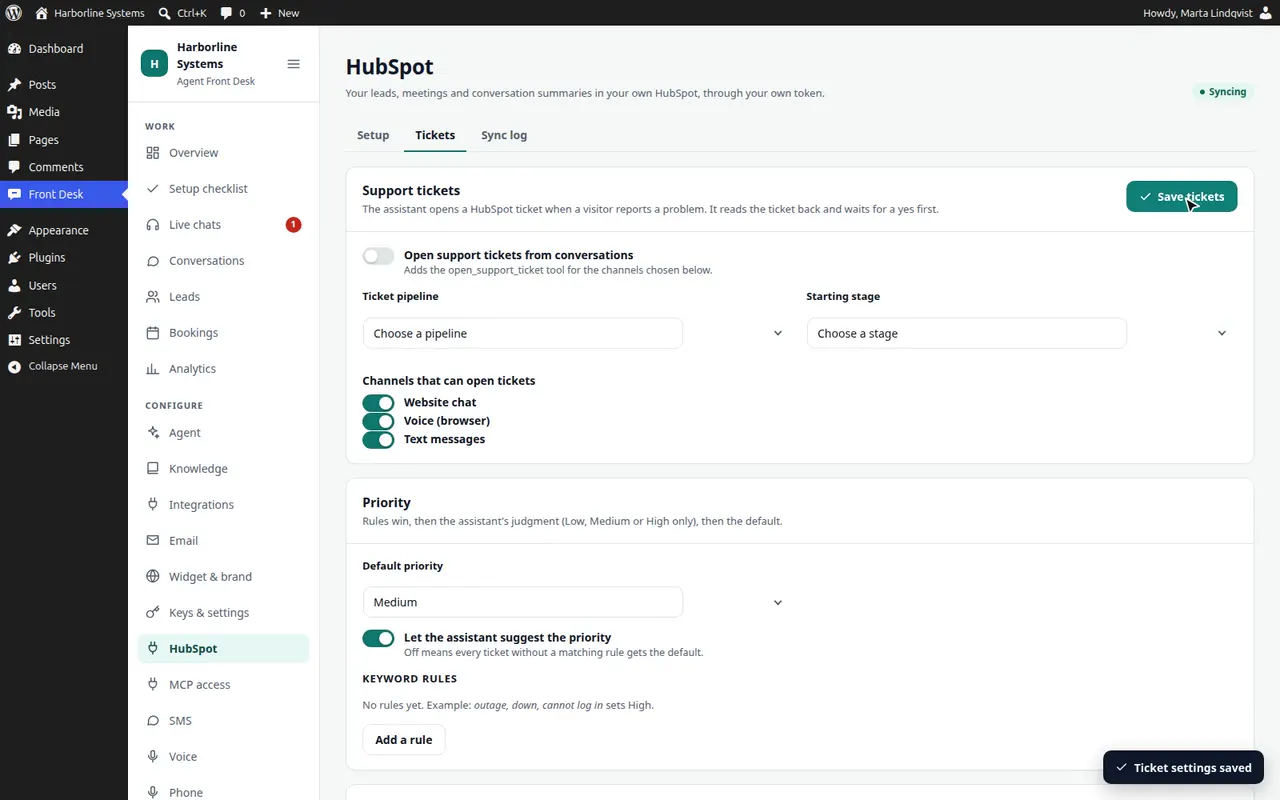
The Tickets tab loads your ticket pipelines and stages live from HubSpot. Set keyword rules for priority, choose which channels may open tickets (chat, voice, text), and switch the handover fallback and the status lookup on or off. If the ticket scopes are missing, the tab names the exact scopes to add and nothing else changes.
Scopes, and what happens without them
Only the first row is required. A step that lacks a scope is skipped and written to the sync log with the exact scope to add. It never fails the sync.
| Feature | Scope | Without it |
|---|---|---|
| Contacts: create or update (deduped by email), conversation notes, meetings on the timeline | crm.objects.contacts.write | Nothing syncs. This is the one required scope. |
| Field mapping from your real properties | crm.schemas.contacts.read or crm.objects.contacts.read | Default property names are used. |
| Company found or created from the work email domain and associated | crm.objects.companies.read and crm.objects.companies.write | Company and website are set as properties instead. |
| A deal when a meeting is booked | crm.objects.deals.write | No deal is created. |
| Choose the deal pipeline and stage | crm.schemas.deals.read or crm.objects.deals.read | No pipeline list to pick from. |
| Owner assignment, fixed or round-robin | crm.objects.owners.read | No owner is set. |
| Support tickets: create them, list ticket pipelines and stages | crm.objects.tickets.write and crm.schemas.tickets.read (or the older tickets scope) | The assistant does not offer tickets and offers a person. |
| Transcript and follow-up notes on the ticket | crm.objects.tickets.write and crm.objects.contacts.write | The ticket is created without notes, and the step is logged as skipped. |
| Ticket status lookup | crm.objects.tickets.read, crm.schemas.tickets.read and crm.objects.contacts.read | The assistant offers a person instead. |
Setup
How we connect it
About 45 minutes, with someone who can create a private app in your HubSpot.
- 1.You create a private app in HubSpot with the scopes above.
- 2.We paste the token into wp-config.php or the HubSpot screen, and press Test connection.
- 3.We map each lead field to a property your sales team actually uses.
- 4.We pick the pipeline, stage and owners.
- 5.A test lead goes through the widget, and we check the contact, meeting and note in HubSpot, then delete the test contact.
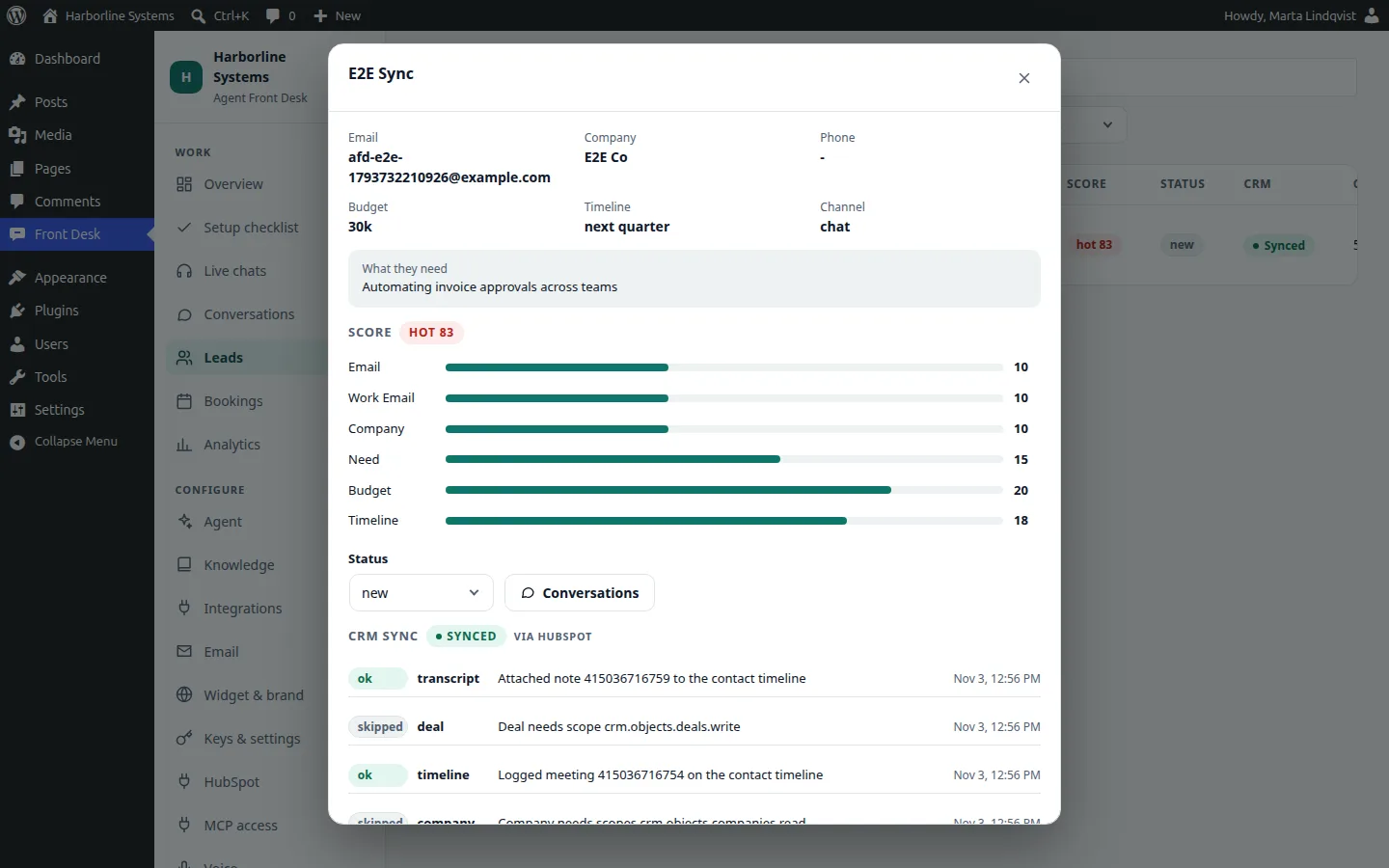
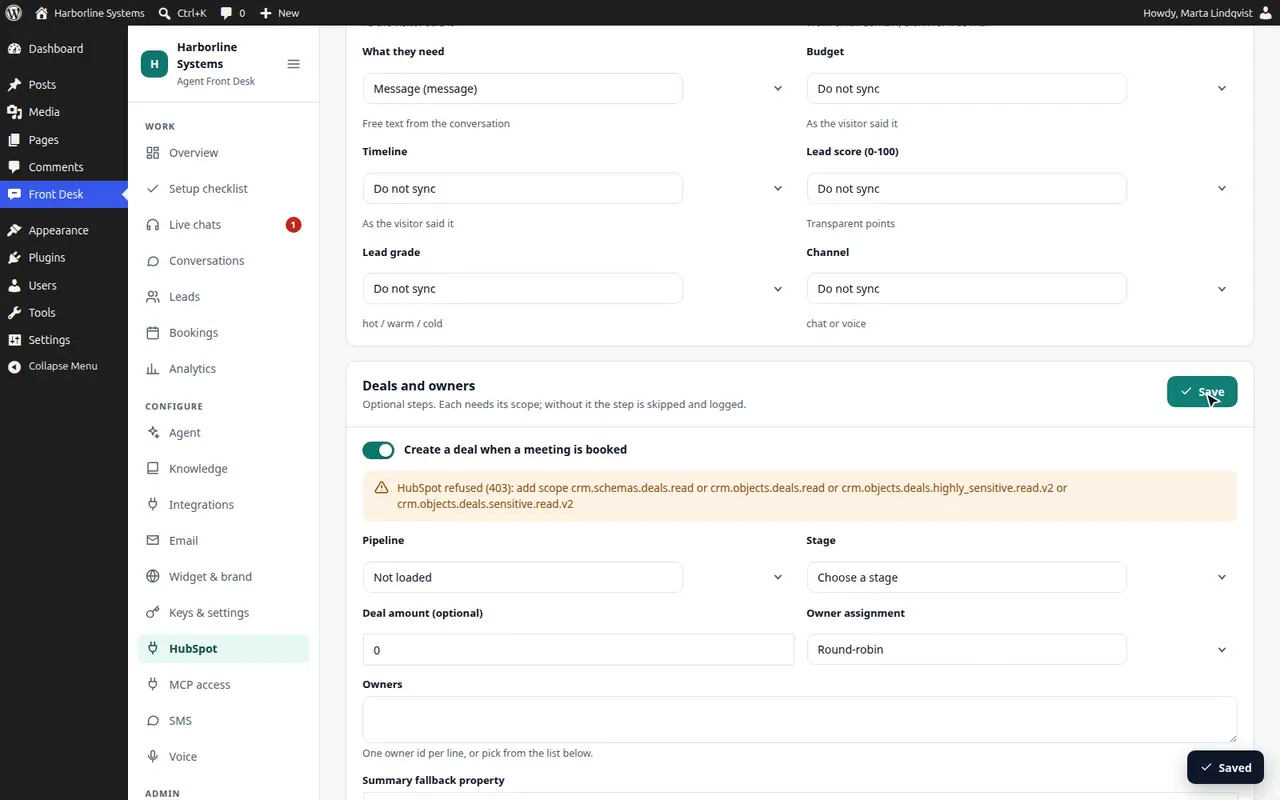
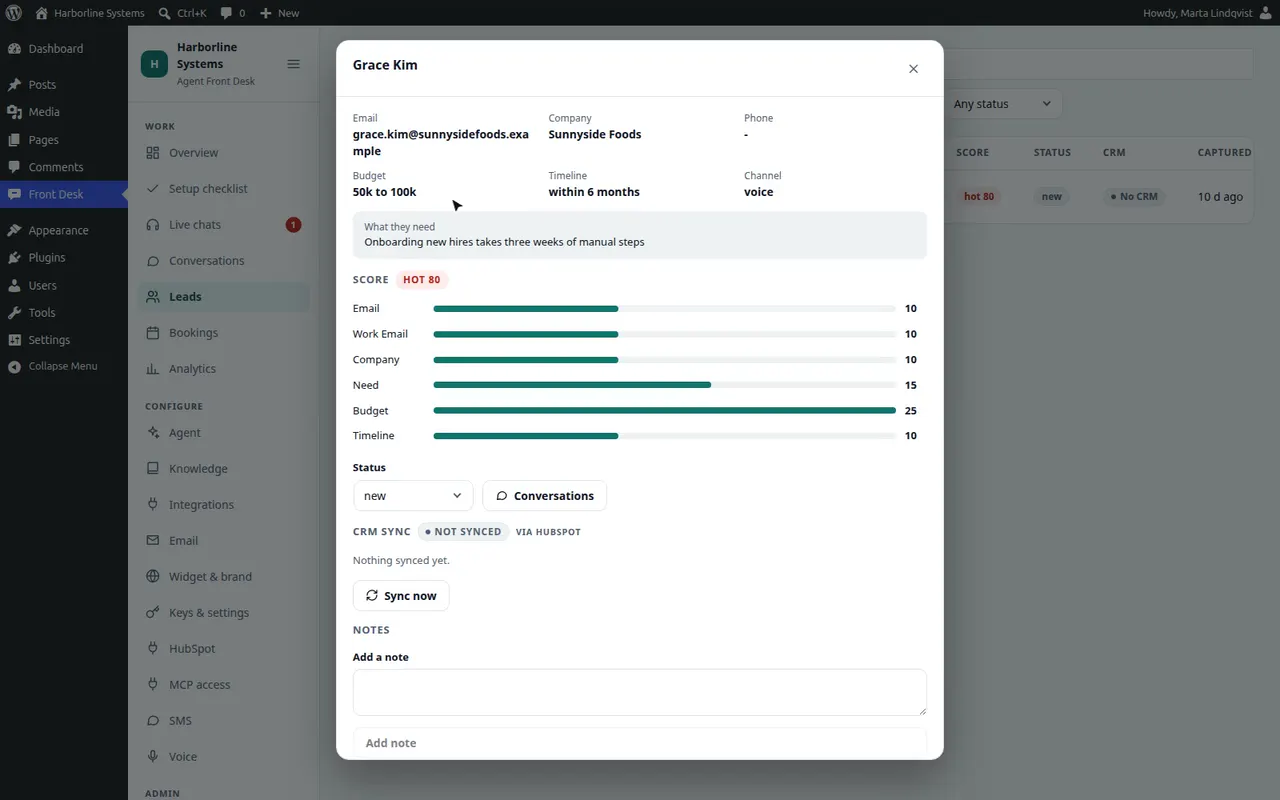
Honest note: we have tested contacts, notes and meetings live against a HubSpot demo portal. Company, deal and owner steps were checked against scopes the demo token lacked, so they showed as skipped and logged. Tickets were also run live against that portal: a ticket was filed with its contact, the transcript and follow-up notes, and the emailed-code status lookup returned the real stage label, then every test object was deleted. The company step on a ticket was not exercised, because the demo token has no company scopes. We confirm every step in your portal during setup. Disconnecting HubSpot never deletes contacts.
HubSpot questions
Does an AI receptionist integrate with HubSpot?
Yes. The HubSpot add-on creates or updates contacts by email, adds notes and meetings to the timeline, and, when the scopes allow, finds or creates the company, opens a deal in the pipeline you choose and assigns an owner. A step that lacks a scope is skipped and logged with the exact scope to add.
Can the AI receptionist open support tickets in HubSpot?
Yes. With the ticket scopes on your private app, the assistant opens a ticket in the pipeline and stage you choose when a visitor reports a problem, but only after it reads the ticket back and the visitor agrees. The ticket carries the contact, the company when known, a priority and the conversation as a note, and later messages are added to it. A visitor can ask about their ticket, but only after typing a one-time code emailed to the address on file, and then they see only their own open tickets. Without the scopes, the assistant simply offers a person.
Which CRM does it work with?
HubSpot is built in. Other CRMs are connected during the implementation, as a small plugin built on our documented connector interface. We tell you what that takes before you commit.
Will it make things up?
It is built to answer from your knowledge base and to say so when it cannot. The test playground and the gaps list show where it is weak, so you can fix content before and after launch. No AI is perfect, so review early conversations.
Want it connected to your HubSpot?
The private beta has limited spots, and each one is set up by hand. Tell us about your site and your CRM.